> ## Documentation Index
> Fetch the complete documentation index at: https://docs.oxen.ai/llms.txt
> Use this file to discover all available pages before exploring further.
# 💾 Version Control
> Oxen.ai is built on top of a blazing fast data version control system that allows you to version, branch, and share datasets, model weights, and experiments with your team.
Oxen's [open source data version control system](https://github.com/Oxen-AI/Oxen) shines at workflows and data sizes where git or git-lfs fall short. The interface is inspired by git, so that it is easy to learn for engineers, but has a few core differences. Oxen is built from the ground up to handle large datasets with many files or large csvs, parquet files, or other large binary blobs like model weights, videos or 3D assets.
The developer tools come with a [CLI](/examples/data/versioning#versioning-101), [HTTP APIs](/http-api), and [Python library](/python-api) to make it easy to integrate into your workflow.
## Versioning 101
On the surface, `oxen` looks a lot like `git`. Users can add, commit, data locally then push to a remote server. Similar to git, by default oxen will create a local copy of the data on your machine in your `.oxen` directory before pushing to the remote server.
```bash CLI theme={null}
oxen init
oxen add lotsa_data/
oxen commit -m "adding too much data for git"
# Create the remote on hub.oxen.ai (or `oxen create-remote --name /`)
# and wire it up before pushing:
oxen config --set-remote origin https://hub.oxen.ai//
oxen push origin main
```
```python Python theme={null}
from oxen import Repo
repo = Repo(".")
repo.init()
repo.add("lotsa_data/")
repo.commit("adding too much data for git")
repo.set_remote("origin", "https://hub.oxen.ai//")
repo.push()
```
The first main difference is that `oxen` comes with a remote `oxen-server` that user's can sync data to. This server also allows you to upload data directly without making local copies.
```bash CLI theme={null}
SYNC_DIR=/path/to/data oxen-server start -p 3000 -i 0.0.0.0
```
Say we had already pushed a large dataset to the remote server, and simply wanted to to add a file to a large dataset like ImageNet with [1 Million Files](/examples/data/performance). You do not want to wait to clone all the files locally just to add yours to the server.
```python Python theme={null}
from oxen import RemoteRepo
# Connect to the remote client
repo = RemoteRepo("my-username/my-repo")
# Add the images to the workspace without committing.
# Pass `dst=` so the files land under `images/` on the remote.
repo.add("images/image_1_000_001.png", dst="images/")
repo.add("images/image_1_000_002.png", dst="images/")
# Commit the remote changes
repo.commit("Adding the 1,000,001st image to the dataset")
```
```bash CLI theme={null}
# Assuming you already are in a local repository with a remote configured
# (run `oxen config --set-remote origin ` if you haven't).
oxen workspace create --name add-image --branch main
# Stage multiple files into the workspace before committing
oxen workspace add images/image_1_000_001.png --workspace-name add-image
oxen workspace add images/image_1_000_002.png --workspace-name add-image
# Commit the remote changes
oxen workspace commit \
-m "Adding the 1,000,001st image to the dataset" \
--workspace-name add-image \
--branch main
```
This is just one example of how Oxen.ai enables a more developer friendly workflow for large datasets. There are also optimizations under the hood such as parallel file transfer, scalable merkle trees, and data deduplication to make Oxen go brrr (or mooo?).
## Interfaces
The server exposes a REST API that can be used to interact with data. Oxen.ai's clients include a [command line interface](/getting-started/command-line/start_repository), as well as bindings for [Rust](https://github.com/Oxen-AI/Oxen) 🦀, [Python](/python-api) 🐍, and [HTTP interfaces](/http-api) 🌎 to make it easy to integrate into your workflow.
## Installation
Oxen makes versioning your datasets as easy as versioning your code. You can install through homebrew or pip or from our [releases page](https://github.com/Oxen-AI/Oxen/releases).
```bash CLI theme={null}
brew install oxen
```
```bash Python theme={null}
pip install oxenai
```
## Remote Workflow
Centralized version control systems like Oxen.ai allow you to have remote first workflows where you do not need to have a fully copy of the data on your local machine. Decentralized version control systems like git by default duplicate all the data to every node in your network.
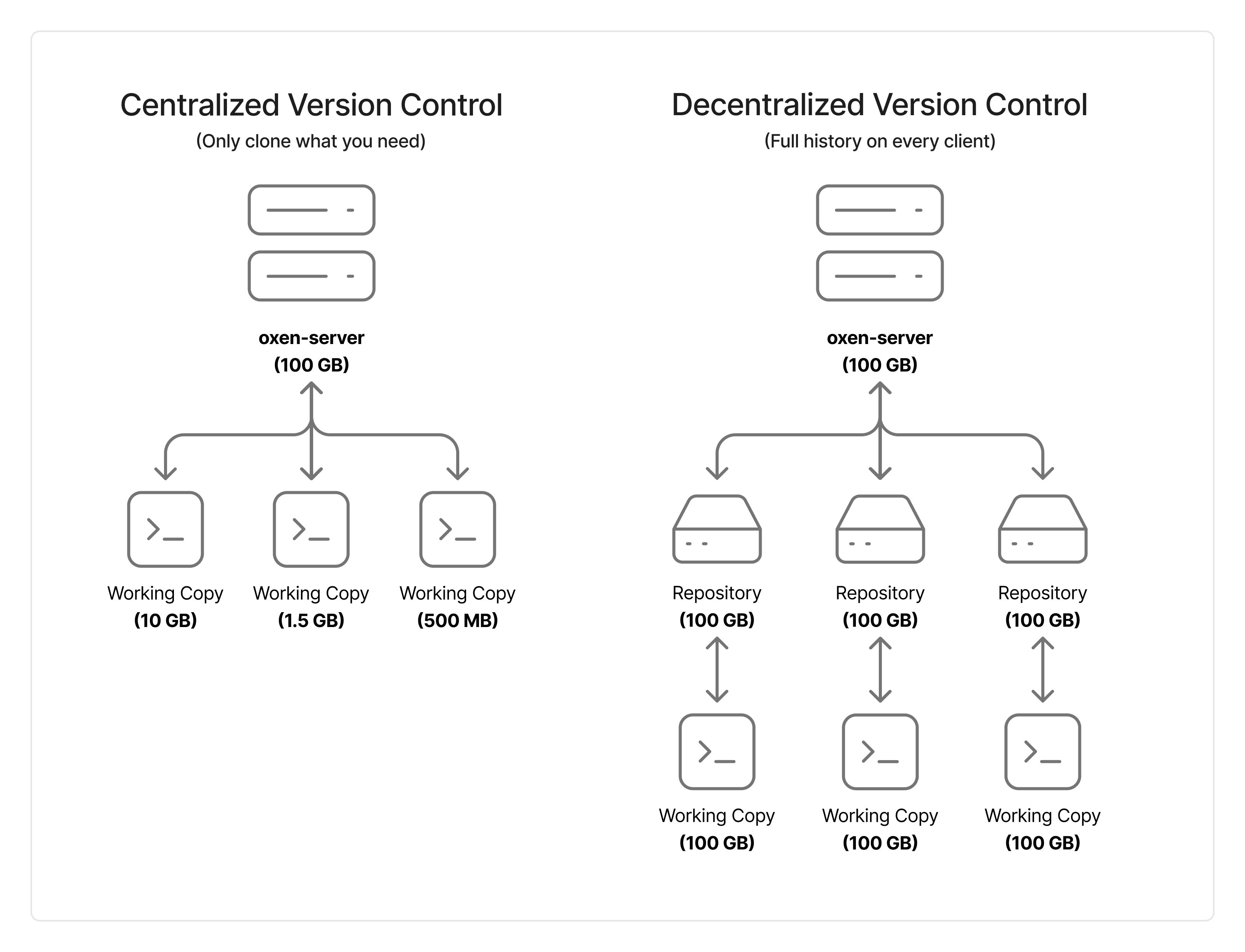 While the decentralized nature of git makes it easy to maintain full copies of the history across many machines, this is not practical for large datasets. Oxen was designed from the ground up to be able to seamlessly switch between local and remote (centralized) workflows. Only clone what you need, and contribute back to the remote repository when you are done.
### Create a Remote Repository
If you do not already have a remote repository, you can create one with a single `README.md` and initial commit so it is immediately cloneable.
```python Python theme={null}
from oxen import RemoteRepo
# RemoteRepo.create is an instance method — construct first, then call create.
# The Python client adds a README.md and initial commit by default.
repo = RemoteRepo("my-user/my-repo-name")
repo.create()
```
```bash CLI theme={null}
# The CLI defaults to an empty repo, so pass --add_readme to include a
# README.md and initial commit (the equivalent of the Python default).
oxen create-remote --name my-user/my-repo-name --add_readme
```
```bash cURL theme={null}
curl -X POST -H "Authorization: Bearer $TOKEN" \
-H "Content-Type: application/json" \
https://hub.oxen.ai/api/repos \
-d '{
"namespace": "my-user",
"name": "my-repo-name",
"description": "A repository for image classification",
"is_public": true
}'
```
If you want to create an empty repository — with no `README.md` and no initial commit — pass `empty=True` from Python, or simply omit `--add_readme` from the CLI.
```python Python theme={null}
from oxen import RemoteRepo
repo = RemoteRepo("my-user/my-repo-name")
repo.create(empty=True)
```
```bash CLI theme={null}
# The CLI default is an empty repo (no README, no commits).
oxen create-remote --name my-user/my-repo-name
```
```bash cURL theme={null}
# The HTTP API creates a bare empty repository by default — there is no
# `empty` flag because no README is ever added server-side.
curl -X POST -H "Authorization: Bearer $TOKEN" \
-H "Content-Type: application/json" \
https://hub.oxen.ai/api/repos \
-d '{
"namespace": "my-user",
"name": "my-repo-name"
}'
```
The reason you may want to start with an empty repository is if you already started a local repository and want to push it to the remote repository. This local repository already has a commit history. When pushing to a remote, commit histories must match. Hence we need to start with an empty remote repository without any commits if we want to push a local repository with a commit history.
### Add Files
You can add files to the remote repository by passing the path to the file and the destination directory. This will upload the file to the remote repository and stage it for commit.
```python Python theme={null}
from oxen import RemoteRepo
repo = RemoteRepo("ox/CatDogBBox")
repo.add("images/000000002754.jpg", dst="images/")
```
```bash CLI theme={null}
# Stage a file into a workspace before committing
oxen workspace add images/000000002754.jpg --workspace-name add-image
```
```bash cURL theme={null}
# URL Format: https://hub.oxen.ai/api/repos/:namespace/:repo_name/file/:branch/:dst_dir
# Uploads files via multipart form AND commits in one call.
curl -X PUT -H "Authorization: Bearer $TOKEN" \
-F "files[]=@images/000000002754.jpg" \
-F "name=Bessie Oxington" \
-F "email=bessie@oxen.ai" \
-F "message=Adding the 1,000,001st image to the dataset" \
https://hub.oxen.ai/api/repos/ox/CatDogBBox/file/main/images
```
### Commit Changes
You can commit changes to the remote repository by passing a message.
```python Python theme={null}
repo.commit("Adding the 1,000,001st image to the dataset")
```
```bash CLI theme={null}
oxen workspace commit \
-m "Adding the 1,000,001st image to the dataset" \
--workspace-name add-image
```
```bash cURL theme={null}
# URL Format: https://hub.oxen.ai/api/repos/:namespace/:repo_name/workspaces/:workspace_id/merge/:branch
# Commits the staged files in the workspace and merges them into the branch.
curl -X POST -H "Authorization: Bearer $TOKEN" \
-H "Content-Type: application/json" \
https://hub.oxen.ai/api/repos/ox/CatDogBBox/workspaces/$WORKSPACE_ID/merge/main \
-d '{
"author": "Bessie Oxington",
"email": "bessie@oxen.ai",
"message": "Adding the 1,000,001st image to the dataset"
}'
```
### File Exploration
To see the files in the remote repository you can use `ls`.
```python Python theme={null}
from oxen import RemoteRepo
repo = RemoteRepo("ox/CatDogBBox")
print(repo.ls())
```
```bash cURL theme={null}
# URL Format: https://hub.oxen.ai/api/repos/:namespace/:repo_name/dir/:revision/:path
# :revision can be a branch name or commit hash. Pass an empty path for the repo root.
curl -X GET -H "Authorization: Bearer $TOKEN" \
"https://hub.oxen.ai/api/repos/ox/CatDogBBox/dir/main/"
```
To view a specific directory you can pass the directory name to the `ls` method.
Note: the directories are paginated so you will need to use the `page_num` parameter to view the next page of results.
There are also `total_pages`, `page_number`, and `total_entries` attributes that give you information about the pagination.
```python Python theme={null}
from oxen import RemoteRepo
repo = RemoteRepo("ox/CatDogBBox")
images_results = repo.ls("images", page_num=1, page_size=10)
print(images_results)
print(images_results.total_pages)
print(images_results.page_number)
print(images_results.total_entries)
```
```bash cURL theme={null}
# Pass `page` and `page_size` as query params for pagination.
curl -X GET -H "Authorization: Bearer $TOKEN" \
"https://hub.oxen.ai/api/repos/ox/CatDogBBox/dir/main/images?page=1&page_size=10"
```
### Downloading Data
You can download individual files and folders if you do not need the entire data repository for your job.
```bash CLI theme={null}
oxen download ox/CatDogBBox annotations/test.csv
```
```python Python theme={null}
from oxen import RemoteRepo
repo = RemoteRepo("ox/CatDogBBox")
repo.download("annotations/test.csv")
```
```bash cURL theme={null}
# URL Format: https://hub.oxen.ai/api/repos/:namespace/:repo_name/file/:revision/:path
# :revision can be a branch name or commit hash
curl -X GET -H "Authorization: Bearer $TOKEN" \
https://hub.oxen.ai/api/repos/ox/CatDogBBox/file/main/annotations/test.csv \
-o ~/Downloads/test.csv
```
### Checkout a Branch
If you have a data on a separate branch that you want to view you can checkout a branch by passing the branch name to the `checkout` method.
```python Python theme={null}
from oxen import RemoteRepo
repo = RemoteRepo("ox/CatDogBBox")
repo.checkout("my-branch-name")
print(repo.ls())
```
```bash CLI theme={null}
oxen checkout my-branch-name
```
```bash cURL theme={null}
# There is no HTTP "checkout" — branches are referenced by name in the URL of
# subsequent API calls. To verify a branch exists and read its current commit:
# URL Format: https://hub.oxen.ai/api/repos/:namespace/:repo_name/branches/:branch_name
curl -X GET -H "Authorization: Bearer $TOKEN" \
https://hub.oxen.ai/api/repos/ox/CatDogBBox/branches/my-branch-name
```
### Create a New Branch
The `checkout` method also allows you to create a new branch if the branch does not exist.
```python Python theme={null}
from oxen import RemoteRepo
repo = RemoteRepo("ox/CatDogBBox")
repo.checkout("my-new-branch-name", create=True)
print(repo.ls())
```
```bash CLI theme={null}
oxen checkout -b my-new-branch-name
```
```bash cURL theme={null}
# URL Format: https://hub.oxen.ai/api/repos/:namespace/:repo_name/branches
curl -X POST -H "Authorization: Bearer $TOKEN" \
-H "Content-Type: application/json" \
https://hub.oxen.ai/api/repos/ox/CatDogBBox/branches \
-d '{
"from_name": "main",
"new_name": "my-new-branch-name"
}'
```
### View Branches
To see all the branches in the remote repository you can use the `branches` method.
```python Python theme={null}
from oxen import RemoteRepo
repo = RemoteRepo("ox/CatDogBBox")
print(repo.branches())
```
```bash CLI theme={null}
# List both local and remote branches from inside a local clone.
# To list only remote branches, use: `oxen branch -r origin`
oxen branch -a
```
```bash cURL theme={null}
# URL Format: https://hub.oxen.ai/api/repos/:namespace/:repo_name/branches
curl -X GET -H "Authorization: Bearer $TOKEN" \
https://hub.oxen.ai/api/repos/ox/CatDogBBox/branches
```
### Workspaces
Under the hood, the way that we enable remote collaboration is through a concept called a [workspace](/getting-started/workspaces). A workspace can be thought of as an uncommitted working directory that is stored on the server. Just like you can `add` files before committing locally, you can `add` files to a workspace on the remote server before committing. This allows you to build up a set of changes remotely before committing them in bulk.
```python Python theme={null}
from oxen import RemoteRepo
from oxen import Workspace
repo = RemoteRepo("ox/CatDogBBox")
# The second positional arg to Workspace is the BRANCH the workspace is tied
# to. The optional `workspace_name` gives the workspace a stable identifier
# so you can reattach to it later by name.
workspace = Workspace(repo, "main", workspace_name="add-images")
workspace.add("/path/to/image.png")
status = workspace.status()
print(status.added_files())
# Commits land on the workspace's branch — "main" in this example.
workspace.commit("Adding the 1,000,001st image to the dataset")
```
```bash CLI theme={null}
# Run from inside a local clone of the repo.
# Workspaces can be addressed by name (-n) or by their server-assigned id (-w).
oxen workspace create -n add-images --branch main
oxen workspace add image.png -n add-images
oxen workspace status -n add-images
oxen workspace commit -n add-images -m "Adding the 1,000,001st image to the dataset" --branch main
```
```bash cURL theme={null}
# 1. Get or create a workspace from a base branch
curl -X PUT -H "Authorization: Bearer $TOKEN" \
-H "Content-Type: application/json" \
https://hub.oxen.ai/api/repos/ox/CatDogBBox/workspaces/get_or_create \
-d '{
"branch_name": "main",
"name": "add-images"
}'
# 2. Upload and stage a file into the workspace at a destination path
# URL Format: /api/repos/:namespace/:repo_name/workspaces/:workspace_id/files/:dst_path
curl -X POST -H "Authorization: Bearer $TOKEN" \
-F "file=@/path/to/image.png" \
https://hub.oxen.ai/api/repos/ox/CatDogBBox/workspaces/$WORKSPACE_ID/files/images
# 3. Commit the workspace and merge it into the target branch
curl -X POST -H "Authorization: Bearer $TOKEN" \
-H "Content-Type: application/json" \
https://hub.oxen.ai/api/repos/ox/CatDogBBox/workspaces/$WORKSPACE_ID/merge/main \
-d '{
"author": "Bessie Oxington",
"email": "bessie@oxen.ai",
"message": "Adding the 1,000,001st image to the dataset"
}'
```
The `RemoteRepo.add` method is a shortcut for creating a workspace and adding files to it. It creates a ephemeral workspace and adds the files to it, and deletes the workspace after committing.
To learn more about workspaces, check out the [workspaces documentation](/getting-started/workspaces).
### Clone a Remote Repository
Remote repositories are identified by a remote URL. This is the URL that you can use to clone the repository.
```python Python theme={null}
from oxen import RemoteRepo
remote_repo = RemoteRepo("my-user/my-repo-name")
remote_repo.create(empty=True)
# `url` is a property, not a method — no parentheses.
print(remote_repo.url)
```
```bash CLI theme={null}
# The remote URL follows the format below. View it with:
oxen config --get-remote
```
```bash cURL theme={null}
# Verify the remote repo exists and fetch its metadata.
# URL Format: https://hub.oxen.ai/api/repos/:namespace/:repo_name
curl -X GET -H "Authorization: Bearer $TOKEN" \
https://hub.oxen.ai/api/repos/my-user/my-repo-name
```
You can use this URL to clone the repository.
```python Python theme={null}
# Local Repository
from oxen import Repo
from oxen import RemoteRepo
remote_repo = RemoteRepo("my-user/my-repo-name")
remote_repo.create(empty=True)
repo_url = remote_repo.url
local_repo = Repo("/path/to/local/repo")
local_repo.clone(repo_url)
```
Or you can set the remote of an existing local repository to point at the remote repository.
```python Python theme={null}
from oxen import Repo
from oxen import RemoteRepo
remote_repo = RemoteRepo("my-user/my-repo-name")
remote_repo.create(empty=True)
local_repo = Repo("/path/to/local/repo")
local_repo.set_remote("origin", remote_repo.url)
```
## Local Workflow
Local workflow looks a lot like git. The downside is that you have to duplicate all the data locally. The good news is that oxen is much faster than git for large files and repositories.
### Initialize User
Each change you make will be associated with a name and email. Set them before you get started so you know who changed what. The user data is saved by default in `~/.config/oxen/user_config.toml`.
```bash CLI theme={null}
oxen config --name "Bessie Oxington" --email "bessie@yourcomany.com"
```
```python Python theme={null}
from oxen.user import config_user
config_user("Bessie Oxington", "bessie@oxen.ai")
```
### Create Repository
Initialize your first Oxen repository, and commit the first version of your data.
```bash CLI theme={null}
# Initialize the repository
oxen init
# Write data to a file
printf '%s\n' 'name,age' 'bob,12' 'jane,13' > people.csv
# Stage the data for commit
oxen add people.csv
# Commit the changes with a message
oxen commit -m "Adding my data"
```
```python Python theme={null}
import os
from oxen import Repo
# Instantiate a Repo object and create the repo directory
repo = Repo("/path/to/data", mkdir=True)
# Initialize the repository
repo.init()
# Write data to a file
data_path = os.path.join(repo.path, "people.csv")
with open(data_path, "w") as f:
f.write("name,age\nbob,12\njane,13")
# Stage the data for commit
repo.add(data_path)
# Commit the changes with a message
repo.commit("Adding my data")
```
### Create Branch
It is good practice to create a new branch for changes you make to your data. This will allow you to easily compare the parallel versions of your data over time.
```bash CLI theme={null}
# Checkout a branch named `modify-data`
oxen checkout -b modify-data
# Overwrite data in existing file
printf '%s\n' 'name,age' 'bob,12' 'jane,13' 'joe,14' > people.csv
```
```python Python theme={null}
import os
from oxen import Repo
repo = Repo("/path/to/data")
# Create a new branch called `modify-data`
repo.checkout("modify-data", create=True)
# Overwrite data in existing file
data_path = os.path.join(repo.path, "people.csv")
with open(data_path, "w") as f:
f.write("name,age\nbob,12\njane,13\njoe,14")
```
### Delete Branch
Once finished with a branch, you can delete it.
```bash CLI theme={null}
# Checkout main branch locally
oxen checkout main
# Delete 'other_branch' locally
oxen branch -d new_branch # may need -D if branch is not merged into main
# Delete branch in remote repo
oxen push origin --delete new_branch
```
```python Python theme={null}
import os
from oxen import Repo
# Instantiate a Repo object
repo = Repo("/path/to/data")
# Checkout the main branch
repo.checkout("main")
# Delete new_branch. If it has commits not merged into main, oxen will
# refuse the delete — fully merge first, or use the CLI's -D for a force-delete.
repo.branch('new_branch', delete=True)
# Delete remote branch
repo.push('origin', 'new_branch', delete=True)
```
```bash cURL theme={null}
# Deletes the branch on the remote repository.
# URL Format: https://hub.oxen.ai/api/repos/:namespace/:repo_name/branches/:branch_name
curl -X DELETE -H "Authorization: Bearer $TOKEN" \
https://hub.oxen.ai/api/repos/ox/CatDogBBox/branches/new_branch
```
### Status
Check the current state of your local repository by using `oxen status`. Instead of printing out every file that was added/modified/removed (which is unsustainable for large repositories), `oxen` summarizes the changes and lets you page through them.
```bash CLI theme={null}
oxen status
```
```python Python theme={null}
from oxen import Repo
repo = Repo("/path/to/data")
print(repo.status())
```
### Restore Changes
If you are not happy with the changes you made to your data, you can restore them to the previous commit with the `oxen restore` command.
```bash CLI theme={null}
oxen restore --source people.csv
```
### Commit Changes
Once you are happy with the changes you have made to your data, you can commit them to the repository with a new message.
```bash CLI theme={null}
oxen add people.csv
oxen commit -m "Adding Joe to the dataset"
```
```python Python theme={null}
from oxen import Repo
repo = Repo("/path/to/data")
# Stage the data for commit
data_path = os.path.join(repo.path, "people.csv")
repo.add(data_path)
# Commit the changes with a message
repo.commit("Adding Joe to the dataset")
```
### View Commit History
To see the commit history of your repository, you can use the `oxen log` command.
```bash CLI theme={null}
oxen log
```
```python Python theme={null}
from oxen import Repo
# Instantiate a Repo object
repo = Repo("/path/to/data")
# Get the commit history
commits = repo.log()
```
```bash cURL theme={null}
# View the commit history of a remote repo at a given revision.
# URL Format: https://hub.oxen.ai/api/repos/:namespace/:repo_name/commits/history/:revision
curl -X GET -H "Authorization: Bearer $TOKEN" \
"https://hub.oxen.ai/api/repos/ox/CatDogBBox/commits/history/main?page=1&page_size=25"
```
### Checkout Main Branch
Once you are done making changes to your data, you can return to the main branch with the `oxen checkout` command.
Never fear, the file now has now been reverted to the inital commit again, but your changes will be saved in the branch you created.
```bash CLI theme={null}
oxen checkout main
```
```python Python theme={null}
from oxen import Repo
# Instantiate a Repo object
repo = Repo("/path/to/data")
# Checkout the main branch
repo.checkout("main")
```
### List Branches
To see the branches in your repository, you can use the `oxen branch` command.
```bash CLI theme={null}
oxen branch
```
```python Python theme={null}
from oxen import Repo
# Instantiate a Repo object
repo = Repo("/path/to/data")
# Get the branches
print(repo.branches())
```
```bash cURL theme={null}
# List branches in the remote repository.
# URL Format: https://hub.oxen.ai/api/repos/:namespace/:repo_name/branches
curl -X GET -H "Authorization: Bearer $TOKEN" \
https://hub.oxen.ai/api/repos/ox/CatDogBBox/branches
```
### Push Data
Once your data has been committed locally, you can sync it to the `oxen-server`.
Oxen.ai has a web hub that allows you to collaborate on your data in the cloud. You can create a free account at [https://oxen.ai](https://oxen.ai).
```bash CLI theme={null}
# Go create repo at https://oxen.ai
# ...
oxen config --set-remote origin https://hub.oxen.ai//
oxen config --auth hub.oxen.ai
oxen push origin main
# to push your other branch simply change the branch name from `main` to `modify-data`
```
```python Python theme={null}
# Go create repo at https://oxen.ai
# ...
# Set where to push the data to (replace and with your remote)
repo.set_remote("origin", "https://hub.oxen.ai//")
# Set your auth token (defaults to hub.oxen.ai host)
oxen.auth.config_auth("YOUR_AUTH_TOKEN")
# Push the changes to the remote
repo.push()
```
To learn more about setting up authentication and authorization, read our [security documentation here](/getting-started/auth).
### Clone Data
Clone your data faster than ever before. Oxen has been optimized to the core to make pulling large datasets as fast as possible.
```bash CLI theme={null}
oxen clone https://hub.oxen.ai/ox/CatDogBBox
```
```python Python theme={null}
from oxen import Repo
# Construct a Repo at the local destination, then clone into it.
repo = Repo("/path/to/dst")
repo.clone("https://hub.oxen.ai/ox/CatDogBBox")
```
### Pull Changes
Only pull the changes you need. Oxen will only pull the files that have changed since the last time you pulled.
```bash CLI theme={null}
oxen pull origin main
```
```python Python theme={null}
from oxen import Repo
repo = Repo("/path/to/repo")
repo.pull()
```
While the decentralized nature of git makes it easy to maintain full copies of the history across many machines, this is not practical for large datasets. Oxen was designed from the ground up to be able to seamlessly switch between local and remote (centralized) workflows. Only clone what you need, and contribute back to the remote repository when you are done.
### Create a Remote Repository
If you do not already have a remote repository, you can create one with a single `README.md` and initial commit so it is immediately cloneable.
```python Python theme={null}
from oxen import RemoteRepo
# RemoteRepo.create is an instance method — construct first, then call create.
# The Python client adds a README.md and initial commit by default.
repo = RemoteRepo("my-user/my-repo-name")
repo.create()
```
```bash CLI theme={null}
# The CLI defaults to an empty repo, so pass --add_readme to include a
# README.md and initial commit (the equivalent of the Python default).
oxen create-remote --name my-user/my-repo-name --add_readme
```
```bash cURL theme={null}
curl -X POST -H "Authorization: Bearer $TOKEN" \
-H "Content-Type: application/json" \
https://hub.oxen.ai/api/repos \
-d '{
"namespace": "my-user",
"name": "my-repo-name",
"description": "A repository for image classification",
"is_public": true
}'
```
If you want to create an empty repository — with no `README.md` and no initial commit — pass `empty=True` from Python, or simply omit `--add_readme` from the CLI.
```python Python theme={null}
from oxen import RemoteRepo
repo = RemoteRepo("my-user/my-repo-name")
repo.create(empty=True)
```
```bash CLI theme={null}
# The CLI default is an empty repo (no README, no commits).
oxen create-remote --name my-user/my-repo-name
```
```bash cURL theme={null}
# The HTTP API creates a bare empty repository by default — there is no
# `empty` flag because no README is ever added server-side.
curl -X POST -H "Authorization: Bearer $TOKEN" \
-H "Content-Type: application/json" \
https://hub.oxen.ai/api/repos \
-d '{
"namespace": "my-user",
"name": "my-repo-name"
}'
```
The reason you may want to start with an empty repository is if you already started a local repository and want to push it to the remote repository. This local repository already has a commit history. When pushing to a remote, commit histories must match. Hence we need to start with an empty remote repository without any commits if we want to push a local repository with a commit history.
### Add Files
You can add files to the remote repository by passing the path to the file and the destination directory. This will upload the file to the remote repository and stage it for commit.
```python Python theme={null}
from oxen import RemoteRepo
repo = RemoteRepo("ox/CatDogBBox")
repo.add("images/000000002754.jpg", dst="images/")
```
```bash CLI theme={null}
# Stage a file into a workspace before committing
oxen workspace add images/000000002754.jpg --workspace-name add-image
```
```bash cURL theme={null}
# URL Format: https://hub.oxen.ai/api/repos/:namespace/:repo_name/file/:branch/:dst_dir
# Uploads files via multipart form AND commits in one call.
curl -X PUT -H "Authorization: Bearer $TOKEN" \
-F "files[]=@images/000000002754.jpg" \
-F "name=Bessie Oxington" \
-F "email=bessie@oxen.ai" \
-F "message=Adding the 1,000,001st image to the dataset" \
https://hub.oxen.ai/api/repos/ox/CatDogBBox/file/main/images
```
### Commit Changes
You can commit changes to the remote repository by passing a message.
```python Python theme={null}
repo.commit("Adding the 1,000,001st image to the dataset")
```
```bash CLI theme={null}
oxen workspace commit \
-m "Adding the 1,000,001st image to the dataset" \
--workspace-name add-image
```
```bash cURL theme={null}
# URL Format: https://hub.oxen.ai/api/repos/:namespace/:repo_name/workspaces/:workspace_id/merge/:branch
# Commits the staged files in the workspace and merges them into the branch.
curl -X POST -H "Authorization: Bearer $TOKEN" \
-H "Content-Type: application/json" \
https://hub.oxen.ai/api/repos/ox/CatDogBBox/workspaces/$WORKSPACE_ID/merge/main \
-d '{
"author": "Bessie Oxington",
"email": "bessie@oxen.ai",
"message": "Adding the 1,000,001st image to the dataset"
}'
```
### File Exploration
To see the files in the remote repository you can use `ls`.
```python Python theme={null}
from oxen import RemoteRepo
repo = RemoteRepo("ox/CatDogBBox")
print(repo.ls())
```
```bash cURL theme={null}
# URL Format: https://hub.oxen.ai/api/repos/:namespace/:repo_name/dir/:revision/:path
# :revision can be a branch name or commit hash. Pass an empty path for the repo root.
curl -X GET -H "Authorization: Bearer $TOKEN" \
"https://hub.oxen.ai/api/repos/ox/CatDogBBox/dir/main/"
```
To view a specific directory you can pass the directory name to the `ls` method.
Note: the directories are paginated so you will need to use the `page_num` parameter to view the next page of results.
There are also `total_pages`, `page_number`, and `total_entries` attributes that give you information about the pagination.
```python Python theme={null}
from oxen import RemoteRepo
repo = RemoteRepo("ox/CatDogBBox")
images_results = repo.ls("images", page_num=1, page_size=10)
print(images_results)
print(images_results.total_pages)
print(images_results.page_number)
print(images_results.total_entries)
```
```bash cURL theme={null}
# Pass `page` and `page_size` as query params for pagination.
curl -X GET -H "Authorization: Bearer $TOKEN" \
"https://hub.oxen.ai/api/repos/ox/CatDogBBox/dir/main/images?page=1&page_size=10"
```
### Downloading Data
You can download individual files and folders if you do not need the entire data repository for your job.
```bash CLI theme={null}
oxen download ox/CatDogBBox annotations/test.csv
```
```python Python theme={null}
from oxen import RemoteRepo
repo = RemoteRepo("ox/CatDogBBox")
repo.download("annotations/test.csv")
```
```bash cURL theme={null}
# URL Format: https://hub.oxen.ai/api/repos/:namespace/:repo_name/file/:revision/:path
# :revision can be a branch name or commit hash
curl -X GET -H "Authorization: Bearer $TOKEN" \
https://hub.oxen.ai/api/repos/ox/CatDogBBox/file/main/annotations/test.csv \
-o ~/Downloads/test.csv
```
### Checkout a Branch
If you have a data on a separate branch that you want to view you can checkout a branch by passing the branch name to the `checkout` method.
```python Python theme={null}
from oxen import RemoteRepo
repo = RemoteRepo("ox/CatDogBBox")
repo.checkout("my-branch-name")
print(repo.ls())
```
```bash CLI theme={null}
oxen checkout my-branch-name
```
```bash cURL theme={null}
# There is no HTTP "checkout" — branches are referenced by name in the URL of
# subsequent API calls. To verify a branch exists and read its current commit:
# URL Format: https://hub.oxen.ai/api/repos/:namespace/:repo_name/branches/:branch_name
curl -X GET -H "Authorization: Bearer $TOKEN" \
https://hub.oxen.ai/api/repos/ox/CatDogBBox/branches/my-branch-name
```
### Create a New Branch
The `checkout` method also allows you to create a new branch if the branch does not exist.
```python Python theme={null}
from oxen import RemoteRepo
repo = RemoteRepo("ox/CatDogBBox")
repo.checkout("my-new-branch-name", create=True)
print(repo.ls())
```
```bash CLI theme={null}
oxen checkout -b my-new-branch-name
```
```bash cURL theme={null}
# URL Format: https://hub.oxen.ai/api/repos/:namespace/:repo_name/branches
curl -X POST -H "Authorization: Bearer $TOKEN" \
-H "Content-Type: application/json" \
https://hub.oxen.ai/api/repos/ox/CatDogBBox/branches \
-d '{
"from_name": "main",
"new_name": "my-new-branch-name"
}'
```
### View Branches
To see all the branches in the remote repository you can use the `branches` method.
```python Python theme={null}
from oxen import RemoteRepo
repo = RemoteRepo("ox/CatDogBBox")
print(repo.branches())
```
```bash CLI theme={null}
# List both local and remote branches from inside a local clone.
# To list only remote branches, use: `oxen branch -r origin`
oxen branch -a
```
```bash cURL theme={null}
# URL Format: https://hub.oxen.ai/api/repos/:namespace/:repo_name/branches
curl -X GET -H "Authorization: Bearer $TOKEN" \
https://hub.oxen.ai/api/repos/ox/CatDogBBox/branches
```
### Workspaces
Under the hood, the way that we enable remote collaboration is through a concept called a [workspace](/getting-started/workspaces). A workspace can be thought of as an uncommitted working directory that is stored on the server. Just like you can `add` files before committing locally, you can `add` files to a workspace on the remote server before committing. This allows you to build up a set of changes remotely before committing them in bulk.
```python Python theme={null}
from oxen import RemoteRepo
from oxen import Workspace
repo = RemoteRepo("ox/CatDogBBox")
# The second positional arg to Workspace is the BRANCH the workspace is tied
# to. The optional `workspace_name` gives the workspace a stable identifier
# so you can reattach to it later by name.
workspace = Workspace(repo, "main", workspace_name="add-images")
workspace.add("/path/to/image.png")
status = workspace.status()
print(status.added_files())
# Commits land on the workspace's branch — "main" in this example.
workspace.commit("Adding the 1,000,001st image to the dataset")
```
```bash CLI theme={null}
# Run from inside a local clone of the repo.
# Workspaces can be addressed by name (-n) or by their server-assigned id (-w).
oxen workspace create -n add-images --branch main
oxen workspace add image.png -n add-images
oxen workspace status -n add-images
oxen workspace commit -n add-images -m "Adding the 1,000,001st image to the dataset" --branch main
```
```bash cURL theme={null}
# 1. Get or create a workspace from a base branch
curl -X PUT -H "Authorization: Bearer $TOKEN" \
-H "Content-Type: application/json" \
https://hub.oxen.ai/api/repos/ox/CatDogBBox/workspaces/get_or_create \
-d '{
"branch_name": "main",
"name": "add-images"
}'
# 2. Upload and stage a file into the workspace at a destination path
# URL Format: /api/repos/:namespace/:repo_name/workspaces/:workspace_id/files/:dst_path
curl -X POST -H "Authorization: Bearer $TOKEN" \
-F "file=@/path/to/image.png" \
https://hub.oxen.ai/api/repos/ox/CatDogBBox/workspaces/$WORKSPACE_ID/files/images
# 3. Commit the workspace and merge it into the target branch
curl -X POST -H "Authorization: Bearer $TOKEN" \
-H "Content-Type: application/json" \
https://hub.oxen.ai/api/repos/ox/CatDogBBox/workspaces/$WORKSPACE_ID/merge/main \
-d '{
"author": "Bessie Oxington",
"email": "bessie@oxen.ai",
"message": "Adding the 1,000,001st image to the dataset"
}'
```
The `RemoteRepo.add` method is a shortcut for creating a workspace and adding files to it. It creates a ephemeral workspace and adds the files to it, and deletes the workspace after committing.
To learn more about workspaces, check out the [workspaces documentation](/getting-started/workspaces).
### Clone a Remote Repository
Remote repositories are identified by a remote URL. This is the URL that you can use to clone the repository.
```python Python theme={null}
from oxen import RemoteRepo
remote_repo = RemoteRepo("my-user/my-repo-name")
remote_repo.create(empty=True)
# `url` is a property, not a method — no parentheses.
print(remote_repo.url)
```
```bash CLI theme={null}
# The remote URL follows the format below. View it with:
oxen config --get-remote
```
```bash cURL theme={null}
# Verify the remote repo exists and fetch its metadata.
# URL Format: https://hub.oxen.ai/api/repos/:namespace/:repo_name
curl -X GET -H "Authorization: Bearer $TOKEN" \
https://hub.oxen.ai/api/repos/my-user/my-repo-name
```
You can use this URL to clone the repository.
```python Python theme={null}
# Local Repository
from oxen import Repo
from oxen import RemoteRepo
remote_repo = RemoteRepo("my-user/my-repo-name")
remote_repo.create(empty=True)
repo_url = remote_repo.url
local_repo = Repo("/path/to/local/repo")
local_repo.clone(repo_url)
```
Or you can set the remote of an existing local repository to point at the remote repository.
```python Python theme={null}
from oxen import Repo
from oxen import RemoteRepo
remote_repo = RemoteRepo("my-user/my-repo-name")
remote_repo.create(empty=True)
local_repo = Repo("/path/to/local/repo")
local_repo.set_remote("origin", remote_repo.url)
```
## Local Workflow
Local workflow looks a lot like git. The downside is that you have to duplicate all the data locally. The good news is that oxen is much faster than git for large files and repositories.
### Initialize User
Each change you make will be associated with a name and email. Set them before you get started so you know who changed what. The user data is saved by default in `~/.config/oxen/user_config.toml`.
```bash CLI theme={null}
oxen config --name "Bessie Oxington" --email "bessie@yourcomany.com"
```
```python Python theme={null}
from oxen.user import config_user
config_user("Bessie Oxington", "bessie@oxen.ai")
```
### Create Repository
Initialize your first Oxen repository, and commit the first version of your data.
```bash CLI theme={null}
# Initialize the repository
oxen init
# Write data to a file
printf '%s\n' 'name,age' 'bob,12' 'jane,13' > people.csv
# Stage the data for commit
oxen add people.csv
# Commit the changes with a message
oxen commit -m "Adding my data"
```
```python Python theme={null}
import os
from oxen import Repo
# Instantiate a Repo object and create the repo directory
repo = Repo("/path/to/data", mkdir=True)
# Initialize the repository
repo.init()
# Write data to a file
data_path = os.path.join(repo.path, "people.csv")
with open(data_path, "w") as f:
f.write("name,age\nbob,12\njane,13")
# Stage the data for commit
repo.add(data_path)
# Commit the changes with a message
repo.commit("Adding my data")
```
### Create Branch
It is good practice to create a new branch for changes you make to your data. This will allow you to easily compare the parallel versions of your data over time.
```bash CLI theme={null}
# Checkout a branch named `modify-data`
oxen checkout -b modify-data
# Overwrite data in existing file
printf '%s\n' 'name,age' 'bob,12' 'jane,13' 'joe,14' > people.csv
```
```python Python theme={null}
import os
from oxen import Repo
repo = Repo("/path/to/data")
# Create a new branch called `modify-data`
repo.checkout("modify-data", create=True)
# Overwrite data in existing file
data_path = os.path.join(repo.path, "people.csv")
with open(data_path, "w") as f:
f.write("name,age\nbob,12\njane,13\njoe,14")
```
### Delete Branch
Once finished with a branch, you can delete it.
```bash CLI theme={null}
# Checkout main branch locally
oxen checkout main
# Delete 'other_branch' locally
oxen branch -d new_branch # may need -D if branch is not merged into main
# Delete branch in remote repo
oxen push origin --delete new_branch
```
```python Python theme={null}
import os
from oxen import Repo
# Instantiate a Repo object
repo = Repo("/path/to/data")
# Checkout the main branch
repo.checkout("main")
# Delete new_branch. If it has commits not merged into main, oxen will
# refuse the delete — fully merge first, or use the CLI's -D for a force-delete.
repo.branch('new_branch', delete=True)
# Delete remote branch
repo.push('origin', 'new_branch', delete=True)
```
```bash cURL theme={null}
# Deletes the branch on the remote repository.
# URL Format: https://hub.oxen.ai/api/repos/:namespace/:repo_name/branches/:branch_name
curl -X DELETE -H "Authorization: Bearer $TOKEN" \
https://hub.oxen.ai/api/repos/ox/CatDogBBox/branches/new_branch
```
### Status
Check the current state of your local repository by using `oxen status`. Instead of printing out every file that was added/modified/removed (which is unsustainable for large repositories), `oxen` summarizes the changes and lets you page through them.
```bash CLI theme={null}
oxen status
```
```python Python theme={null}
from oxen import Repo
repo = Repo("/path/to/data")
print(repo.status())
```
### Restore Changes
If you are not happy with the changes you made to your data, you can restore them to the previous commit with the `oxen restore` command.
```bash CLI theme={null}
oxen restore --source people.csv
```
### Commit Changes
Once you are happy with the changes you have made to your data, you can commit them to the repository with a new message.
```bash CLI theme={null}
oxen add people.csv
oxen commit -m "Adding Joe to the dataset"
```
```python Python theme={null}
from oxen import Repo
repo = Repo("/path/to/data")
# Stage the data for commit
data_path = os.path.join(repo.path, "people.csv")
repo.add(data_path)
# Commit the changes with a message
repo.commit("Adding Joe to the dataset")
```
### View Commit History
To see the commit history of your repository, you can use the `oxen log` command.
```bash CLI theme={null}
oxen log
```
```python Python theme={null}
from oxen import Repo
# Instantiate a Repo object
repo = Repo("/path/to/data")
# Get the commit history
commits = repo.log()
```
```bash cURL theme={null}
# View the commit history of a remote repo at a given revision.
# URL Format: https://hub.oxen.ai/api/repos/:namespace/:repo_name/commits/history/:revision
curl -X GET -H "Authorization: Bearer $TOKEN" \
"https://hub.oxen.ai/api/repos/ox/CatDogBBox/commits/history/main?page=1&page_size=25"
```
### Checkout Main Branch
Once you are done making changes to your data, you can return to the main branch with the `oxen checkout` command.
Never fear, the file now has now been reverted to the inital commit again, but your changes will be saved in the branch you created.
```bash CLI theme={null}
oxen checkout main
```
```python Python theme={null}
from oxen import Repo
# Instantiate a Repo object
repo = Repo("/path/to/data")
# Checkout the main branch
repo.checkout("main")
```
### List Branches
To see the branches in your repository, you can use the `oxen branch` command.
```bash CLI theme={null}
oxen branch
```
```python Python theme={null}
from oxen import Repo
# Instantiate a Repo object
repo = Repo("/path/to/data")
# Get the branches
print(repo.branches())
```
```bash cURL theme={null}
# List branches in the remote repository.
# URL Format: https://hub.oxen.ai/api/repos/:namespace/:repo_name/branches
curl -X GET -H "Authorization: Bearer $TOKEN" \
https://hub.oxen.ai/api/repos/ox/CatDogBBox/branches
```
### Push Data
Once your data has been committed locally, you can sync it to the `oxen-server`.
Oxen.ai has a web hub that allows you to collaborate on your data in the cloud. You can create a free account at [https://oxen.ai](https://oxen.ai).
```bash CLI theme={null}
# Go create repo at https://oxen.ai
# ...
oxen config --set-remote origin https://hub.oxen.ai//
oxen config --auth hub.oxen.ai
oxen push origin main
# to push your other branch simply change the branch name from `main` to `modify-data`
```
```python Python theme={null}
# Go create repo at https://oxen.ai
# ...
# Set where to push the data to (replace and with your remote)
repo.set_remote("origin", "https://hub.oxen.ai//")
# Set your auth token (defaults to hub.oxen.ai host)
oxen.auth.config_auth("YOUR_AUTH_TOKEN")
# Push the changes to the remote
repo.push()
```
To learn more about setting up authentication and authorization, read our [security documentation here](/getting-started/auth).
### Clone Data
Clone your data faster than ever before. Oxen has been optimized to the core to make pulling large datasets as fast as possible.
```bash CLI theme={null}
oxen clone https://hub.oxen.ai/ox/CatDogBBox
```
```python Python theme={null}
from oxen import Repo
# Construct a Repo at the local destination, then clone into it.
repo = Repo("/path/to/dst")
repo.clone("https://hub.oxen.ai/ox/CatDogBBox")
```
### Pull Changes
Only pull the changes you need. Oxen will only pull the files that have changed since the last time you pulled.
```bash CLI theme={null}
oxen pull origin main
```
```python Python theme={null}
from oxen import Repo
repo = Repo("/path/to/repo")
repo.pull()
```