> ## Documentation Index
> Fetch the complete documentation index at: https://docs.oxen.ai/llms.txt
> Use this file to discover all available pages before exploring further.
# 🎨 Image Editing
> How to use the image editing API on Oxen.ai.
### Image Editing
The image editing endpoint allows you to edit images using AI models. Simply provide an input image URL and a prompt describing the edits you want to make. To see the list of models that support image editing, visit the [Models](https://www.oxen.ai/ai/models?modalities=image-to-image) page and filter by "Image to Image".
```bash cURL theme={null}
curl -X POST \
https://hub.oxen.ai/api/ai/images/edit \
-H "Content-Type: application/json" \
-H "Authorization: Bearer $OXEN_API_KEY" \
-d '{
"model": "Qwen/Qwen-Image-Edit",
"input_image": "https://example.com/image.png",
"prompt": "Add a funny hat to the ox",
"num_inference_steps": 28
}'
```
```python Python theme={null}
import requests
import os
response = requests.post(
"https://hub.oxen.ai/api/ai/images/edit",
headers={
"Authorization": f"Bearer {os.getenv('OXEN_API_KEY')}",
"Content-Type": "application/json"
},
json={
"model": "Qwen/Qwen-Image-Edit",
"input_image": "https://example.com/image.png",
"prompt": "Add a funny hat to the ox",
"num_inference_steps": 28
}
)
# The response contains the edited image URL
edited_image_url = response.json()["image_url"]
print(f"Edited image: {edited_image_url}")
```
For models that support multiple input images, you can pass an array of image URLs:
```bash cURL (multiple images) theme={null}
curl -X POST \
https://hub.oxen.ai/api/ai/images/edit \
-H "Content-Type: application/json" \
-H "Authorization: Bearer $OXEN_API_KEY" \
-d '{
"model": "Qwen/Qwen-Image-Edit",
"input_image": [
"https://example.com/image1.png",
"https://example.com/image2.png"
],
"prompt": "Add a funny hat to the ox",
"num_inference_steps": 28
}'
```
```python Python (multiple images) theme={null}
import requests
import os
response = requests.post(
"https://hub.oxen.ai/api/ai/images/edit",
headers={
"Authorization": f"Bearer {os.getenv('OXEN_API_KEY')}",
"Content-Type": "application/json"
},
json={
"model": "Qwen/Qwen-Image-Edit",
"input_image": [
"https://example.com/image1.png",
"https://example.com/image2.png"
],
"prompt": "Add a funny hat to the ox",
"num_inference_steps": 28
}
)
edited_image_url = response.json()["image_url"]
print(f"Edited image: {edited_image_url}")
```
## Parameters
* **model**: The model identifier to use for image editing (e.g., `Qwen/Qwen-Image-Edit`)
* **input\_image**: URL of the input image(s) you want to edit. Can be a string (single image URL) or an array of strings (multiple image URLs) for models that support multiple images as input
* **prompt**: Text description of the edits you want to make
* **num\_inference\_steps**: Number of inference steps (optional, defaults vary by model)
## Playground Interface
The model playground allows you to quickly test out the boundaries of any model in the UI. This is a great way to experiment with different prompts and see how the model performs before integrating it into your application.
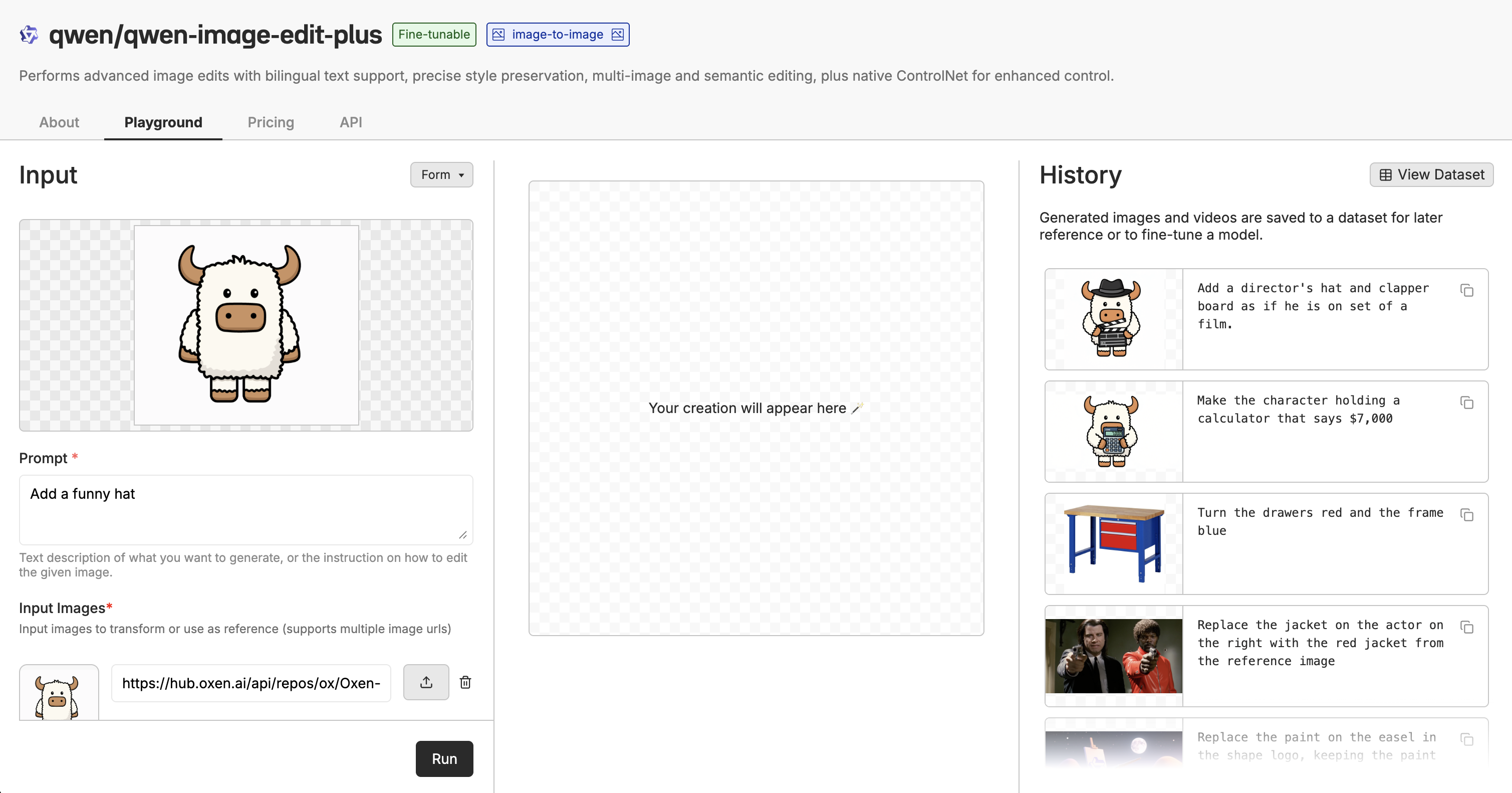 The generated images automatically get saved to a dataset that you can share with your team, download and use to train your own model, or use in your application.