> ## Documentation Index
> Fetch the complete documentation index at: https://docs.oxen.ai/llms.txt
> Use this file to discover all available pages before exploring further.
# 👁️ Vision Language Models
> Leverage image understanding with the `/ai/chat/completions` endpoint.
## What are VLMs?
Vision language models extend the ability of language models to understand image and video data. As input they can accept images and videos as well as a text prompt, and as output they can generate text.
For example, instead of training a classifier from scratch, you can pass in your list of categories and a description what to look for in the prompt, and let the VLM take care of the rest.
Here is the [list of supported models](https://www.oxen.ai/ai/models?modalities=image-to-text,video-to-text).
## Image Understanding
The `/ai/chat/completions` endpoint supports vision language models for image understanding. If you want to send an image to a model that supports vision such as Qwen3-VL, Qwen3.5, or Gemini 3 Pro/Flash, you can add a message with the `image_url` type.
### Using Image URLs
```bash cURL (image url) theme={null}
curl -X POST https://hub.oxen.ai/api/ai/chat/completions \
-H "Authorization: Bearer $OXEN_API_KEY" \
-H "Content-Type: application/json" \
-d '{
"model": "gemini-3-1-pro-preview",
"messages": [
{
"role": "user",
"content": [
{
"type": "text",
"text": "What is in this image?"
},
{
"type": "image_url",
"image_url": {
"url": "https://oxen.ai/assets/images/homepage/hero-ox.png"
}
}
]
}
]
}'
```
### Using Base64 Encoded Images
You can also directly pass in the base64 encoded image.
```bash cURL (base64 encoded image) theme={null}
curl -X POST https://hub.oxen.ai/api/ai/chat/completions \
-H "Authorization: Bearer $OXEN_API_KEY" \
-H "Content-Type: application/json" \
-d '{
"model": "claude-sonnet-4-6",
"messages": [
{
"role": "user",
"content": [
{
"type": "text",
"text": "What is in this image?"
},
{
"type": "image_url",
"image_url": {
"url": "data:image/jpeg;base64,YOUR_BASE64_ENCODED_IMAGE_HERE"
}
}
]
}
]
}'
```
### Python Example
From python this would look like:
```python Python theme={null}
import openai
import os
import base64
# Read and encode the image to base64
def encode_image(image_path):
with open(image_path, "rb") as image_file:
return base64.b64encode(image_file.read()).decode('utf-8')
# Initialize the client
client = openai.OpenAI(
api_key=os.getenv("OXEN_API_KEY"),
base_url="https://hub.oxen.ai/api/ai"
)
# Encode your image
base64_image = encode_image("path/to/your/image.jpg")
# Send the request with base64 encoded image
response = client.chat.completions.create(
model="claude-sonnet-4-6",
messages=[
{
"role": "user",
"content": [
{
"type": "text",
"text": "What is in this image?"
},
{
"type": "image_url",
"image_url": {
"url": f"data:image/jpeg;base64,{base64_image}"
}
}
]
}
]
)
print(response.choices[0].message.content)
```
## Video Understanding
The `/ai/chat/completions` endpoint also supports video understanding through vision language models. To send a video to a model that supports video understanding, you can add a message with the `video_url` type.
### Using Video URLs
```bash cURL (video url) theme={null}
curl -X POST https://hub.oxen.ai/api/ai/chat/completions \
-H "Authorization: Bearer $OXEN_API_KEY" \
-H "Content-Type: application/json" \
-d '{
"model": "gemini-3-flash-preview",
"messages": [
{
"role": "user",
"content": [
{
"type": "text",
"text": "What is happening in this video?"
},
{
"type": "video_url",
"video_url": {
"url": "https://example.com/path/to/video.mp4"
}
}
]
}
]
}'
```
### Using Base64 Encoded Videos
You can also directly pass in the base64 encoded video.
```bash cURL (base64 encoded video) theme={null}
curl -X POST https://hub.oxen.ai/api/ai/chat/completions \
-H "Authorization: Bearer $OXEN_API_KEY" \
-H "Content-Type: application/json" \
-d '{
"model": "gemini-3-flash-preview",
"messages": [
{
"role": "user",
"content": [
{
"type": "text",
"text": "Describe the main events in this video."
},
{
"type": "video_url",
"video_url": {
"url": "data:video/mp4;base64,YOUR_BASE64_ENCODED_VIDEO_HERE"
}
}
]
}
]
}'
```
### Python Example
From python this would look like:
```python Python theme={null}
import openai
import os
import base64
# Read and encode the video to base64
def encode_video(video_path):
with open(video_path, "rb") as video_file:
return base64.b64encode(video_file.read()).decode('utf-8')
# Initialize the client
client = openai.OpenAI(
api_key=os.getenv("OXEN_API_KEY"),
base_url="https://hub.oxen.ai/api/ai"
)
# Encode your video
base64_video = encode_video("path/to/your/video.mp4")
# Send the request with base64 encoded video
response = client.chat.completions.create(
model="gemini-3-flash-preview",
messages=[
{
"role": "user",
"content": [
{
"type": "text",
"text": "What is happening in this video?"
},
{
"type": "video_url",
"video_url": {
"url": f"data:video/mp4;base64,{base64_video}"
}
}
]
}
]
)
print(response.choices[0].message.content)
```
## Playground Interface
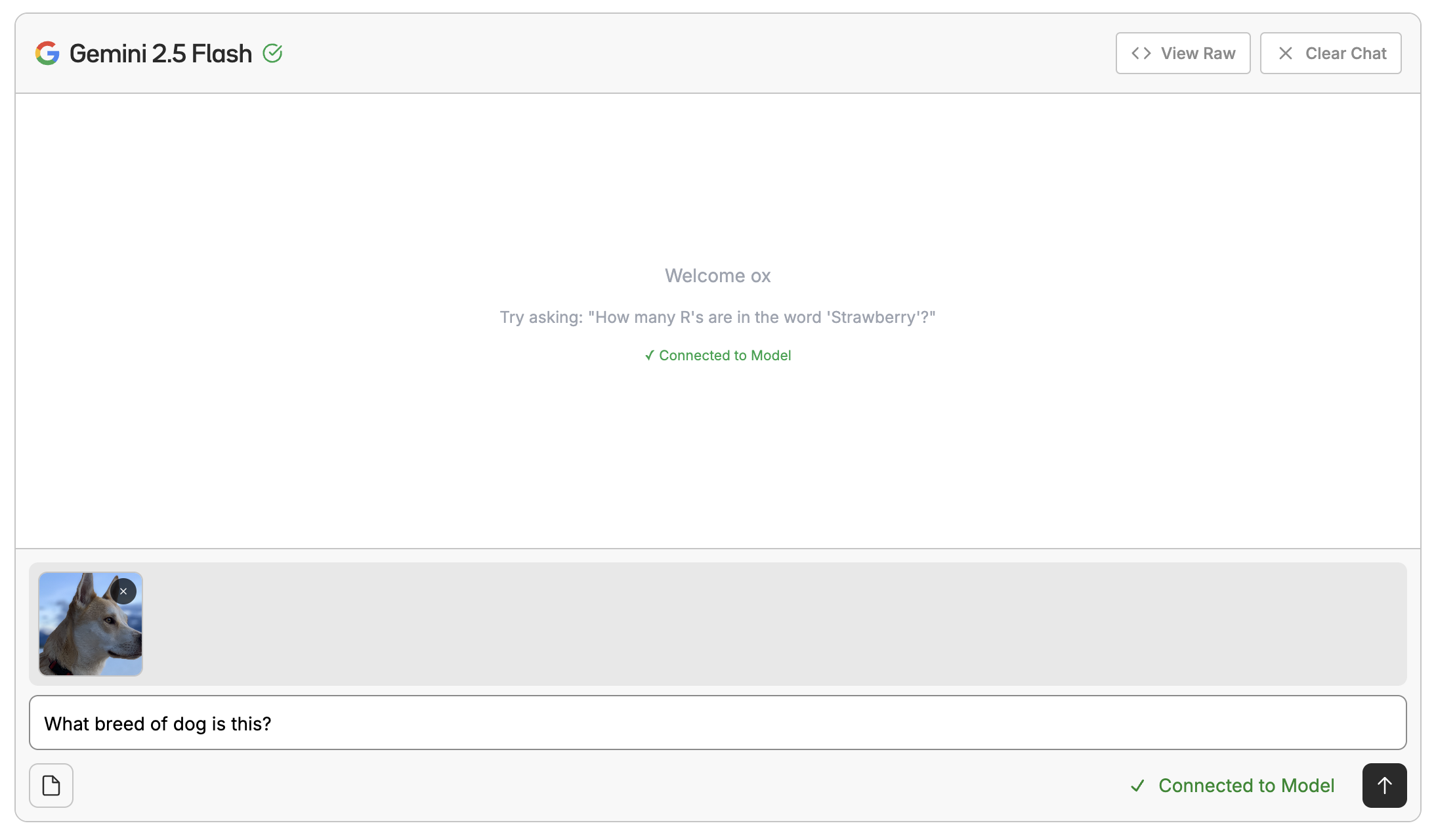
Want to test out prompts without writing any code? You can use the [playground interface](https://www.oxen.ai/ai/models/claude-sonnet-4-6) to chat with a model. This is a great way to kick the tires of a base model or a model you [fine-tuned](/getting-started/fine-tuning) after deploying it.
 ## Fine-Tuning VLMs
Oxen.ai also allows you to fine-tune vision language models on your own data. This is a great way to get a model that is tailored to your specific use case.
## Fine-Tuning VLMs
Oxen.ai also allows you to fine-tune vision language models on your own data. This is a great way to get a model that is tailored to your specific use case.
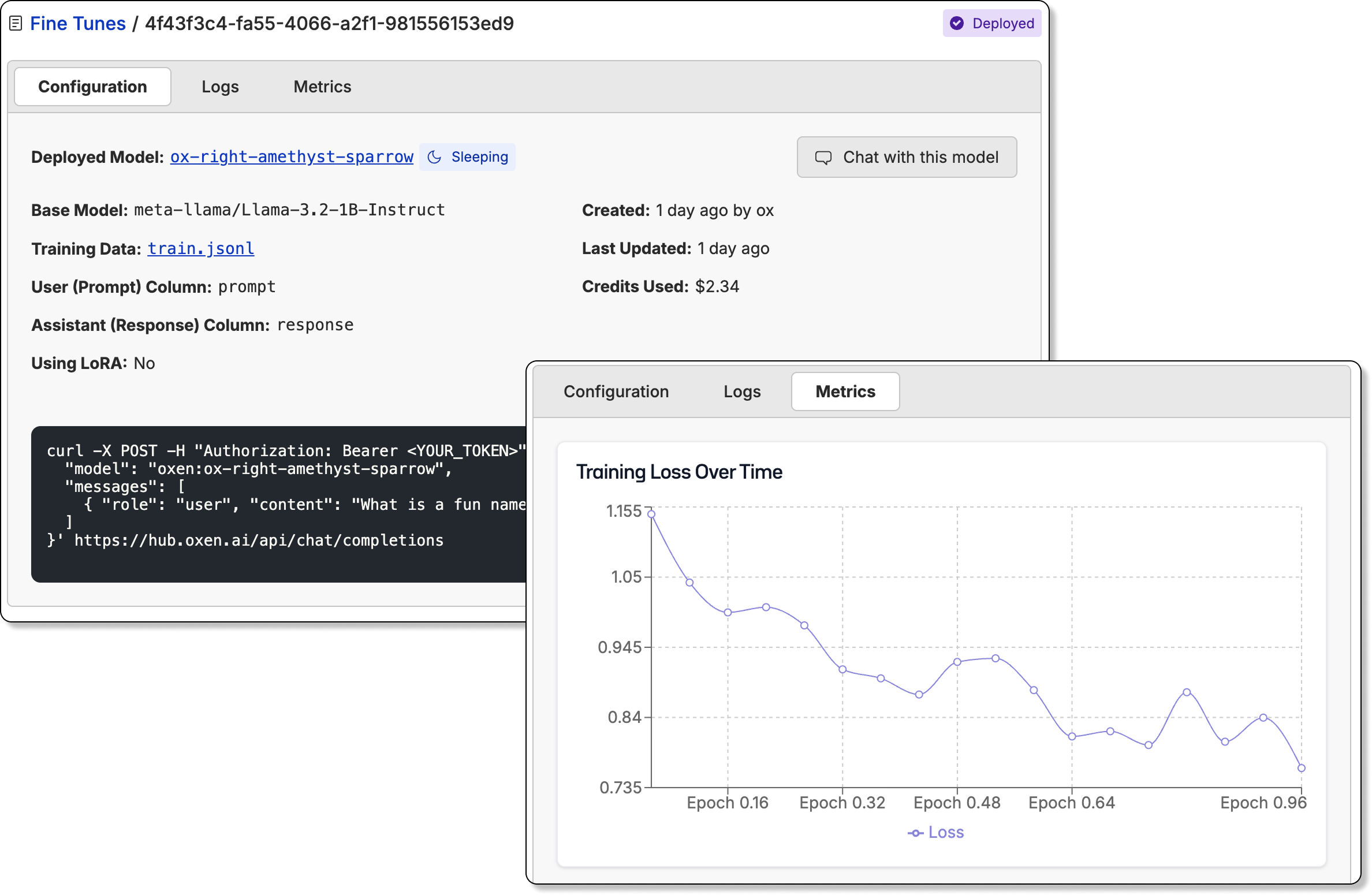 Once the model has been fine-tuned, you can easily deploy the model behind an inference endpoint and start the evaluation loop over again.
Learn more about [fine-tuning VLMs](/examples/fine-tuning/image_understanding).
Once the model has been fine-tuned, you can easily deploy the model behind an inference endpoint and start the evaluation loop over again.
Learn more about [fine-tuning VLMs](/examples/fine-tuning/image_understanding).