> ## Documentation Index
> Fetch the complete documentation index at: https://docs.oxen.ai/llms.txt
> Use this file to discover all available pages before exploring further.
# 📊 Data Frames
> Oxen makes it easy to work with tabular data as well as other data formats.
## Upload Your Data
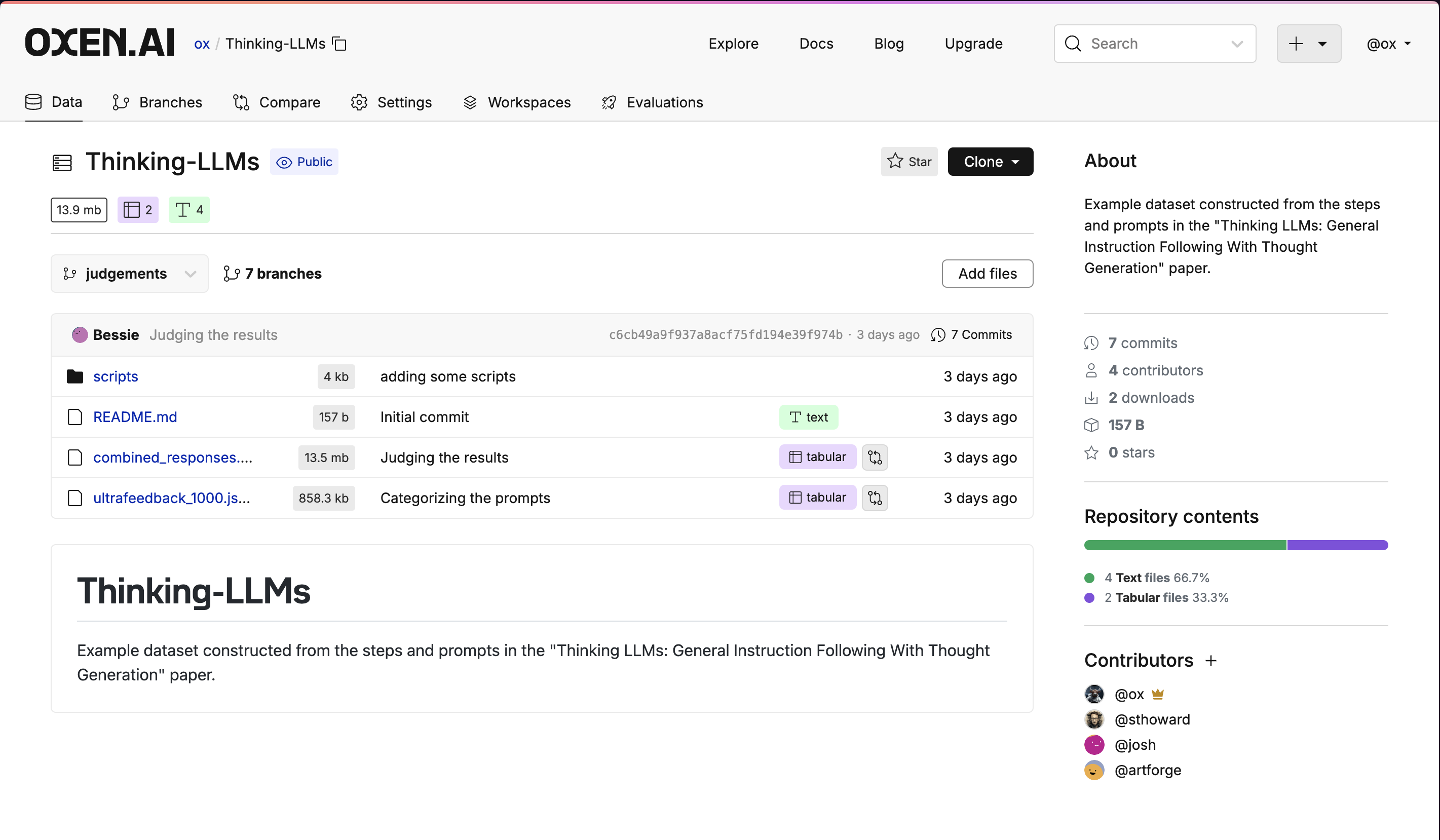
You can either upload data directly to a repository using the web interface or CLI. On the web, simply click the `Add Files` button in the repository and select your file.
 If using the command line, you can add files to a repository with the `oxen add` command.
```bash theme={null}
oxen add data.csv
oxen commit -m "Add data"
oxen push origin main
```
## Look At Your Data
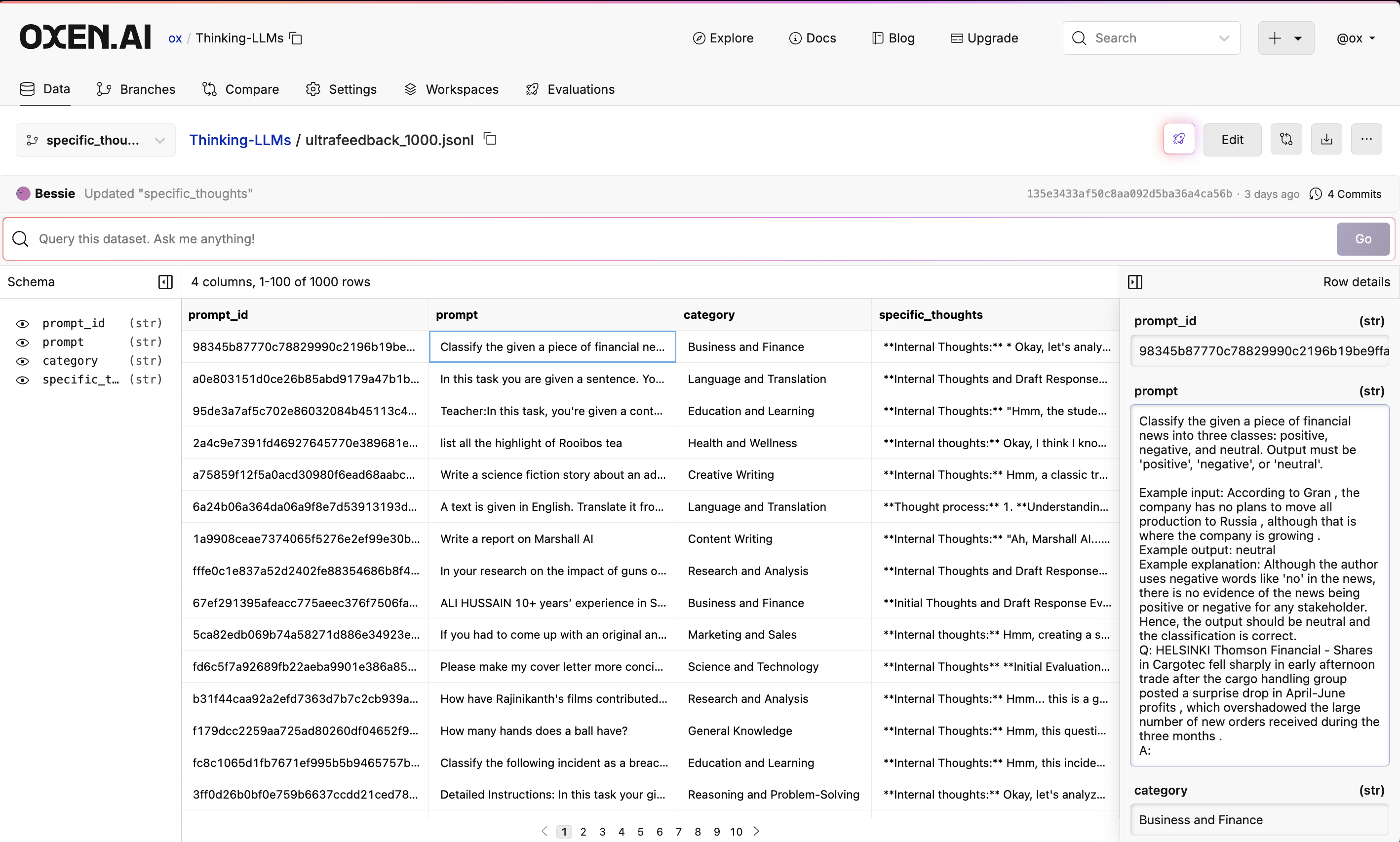
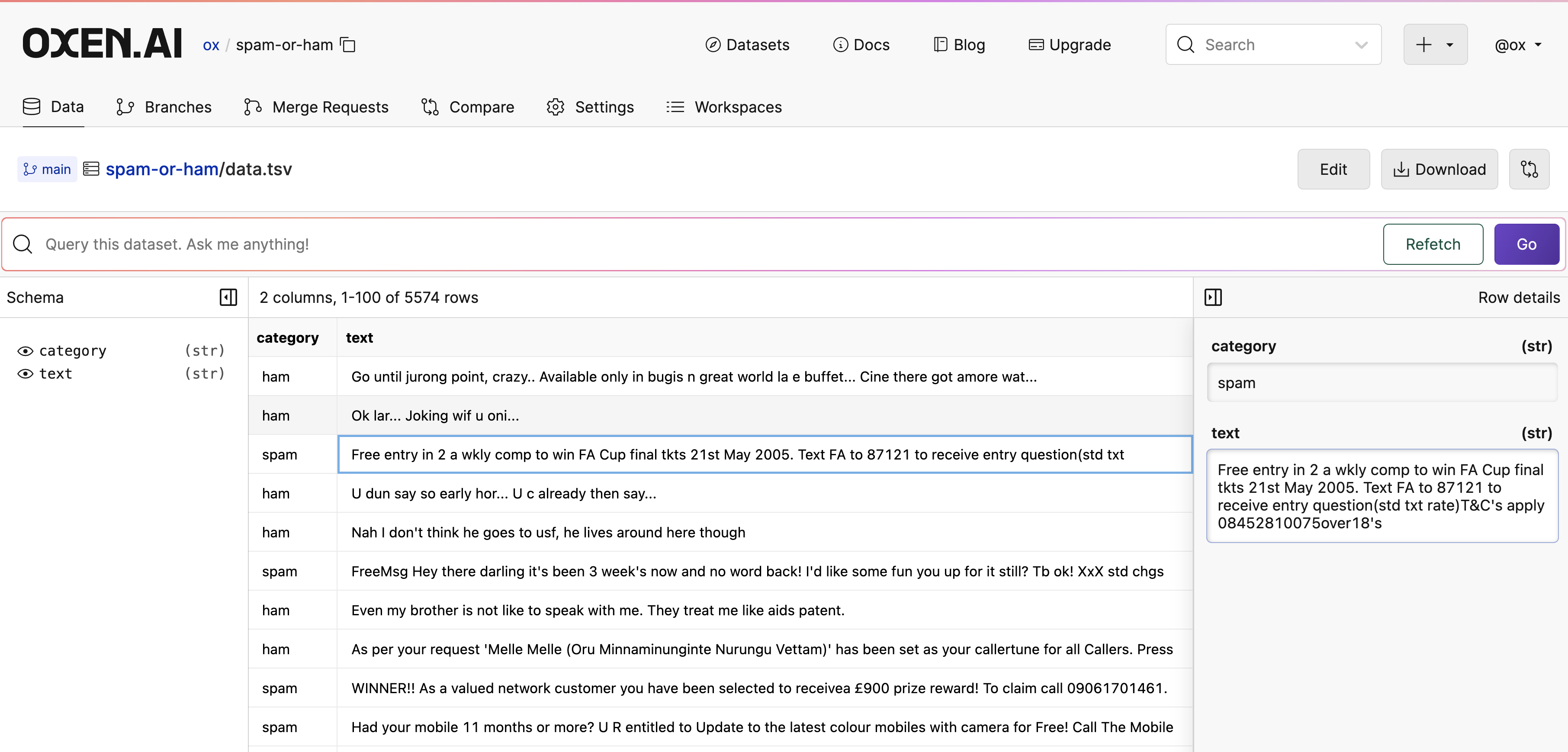
Oxen.ai makes it easy to look at your data in a tabular format.
When files are committed to a repository, Oxen automatically detects the format of your data and loads it into a DataFrame if it is a `csv`, `tsv`, `parquet`, `json`, `jsonl`, `ndjson`, or `arrow` file. Behind the scenes, Oxen uses the [Polars](https://www.pola.rs/) library to load your data in a performant and efficient manner.
If using the command line, you can add files to a repository with the `oxen add` command.
```bash theme={null}
oxen add data.csv
oxen commit -m "Add data"
oxen push origin main
```
## Look At Your Data
Oxen.ai makes it easy to look at your data in a tabular format.
When files are committed to a repository, Oxen automatically detects the format of your data and loads it into a DataFrame if it is a `csv`, `tsv`, `parquet`, `json`, `jsonl`, `ndjson`, or `arrow` file. Behind the scenes, Oxen uses the [Polars](https://www.pola.rs/) library to load your data in a performant and efficient manner.
 ## Query Your Data
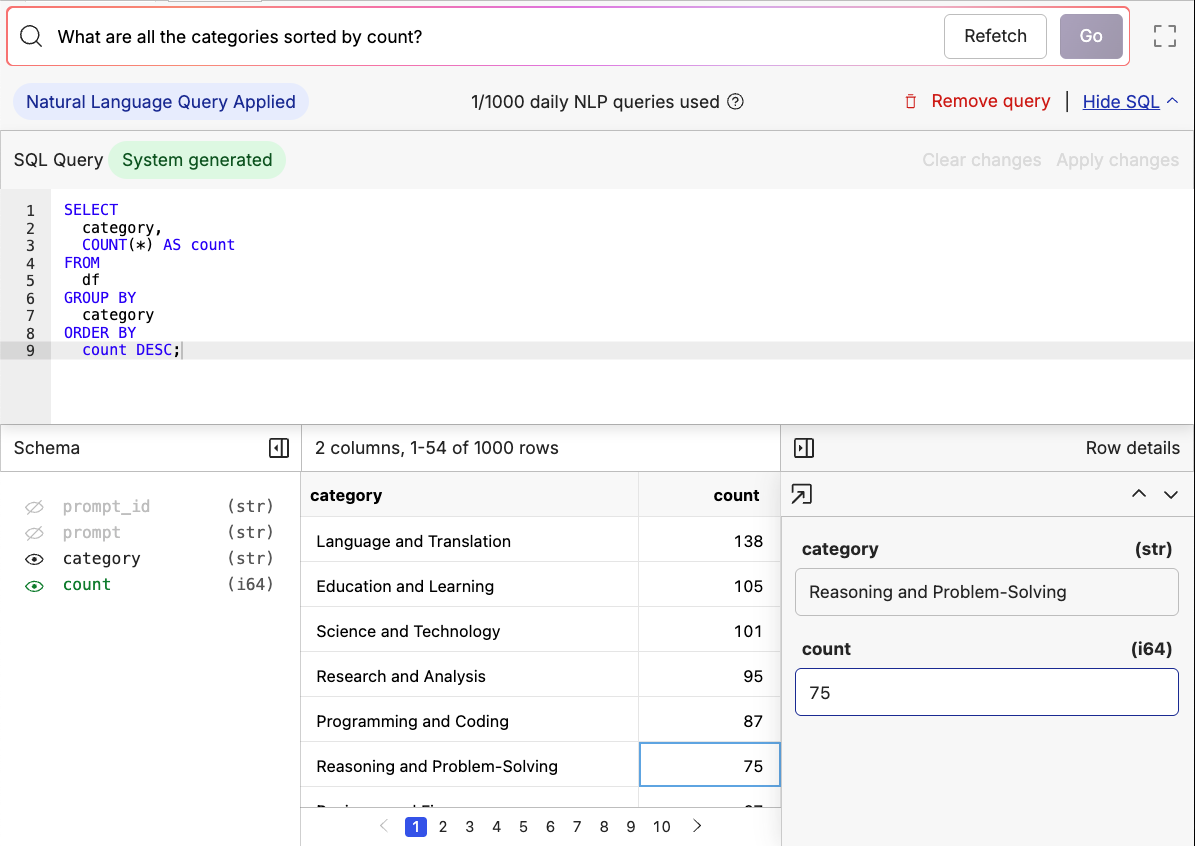
All Oxen data frames can be queried with SQL. When using the UI, we also provide a Text2SQL interface to help you get started. We automatically translate natural language questions into SQL queries and return the results in a tabular format.
## Query Your Data
All Oxen data frames can be queried with SQL. When using the UI, we also provide a Text2SQL interface to help you get started. We automatically translate natural language questions into SQL queries and return the results in a tabular format.
 ## Edit Your Data
You can also edit data frames directly in the UI. Double click on a cell to edit it, and use the buttons in the side panel to add, delete, and modify rows. You can also rename columns, add new columns, and remove columns.
## Edit Your Data
You can also edit data frames directly in the UI. Double click on a cell to edit it, and use the buttons in the side panel to add, delete, and modify rows. You can also rename columns, add new columns, and remove columns.
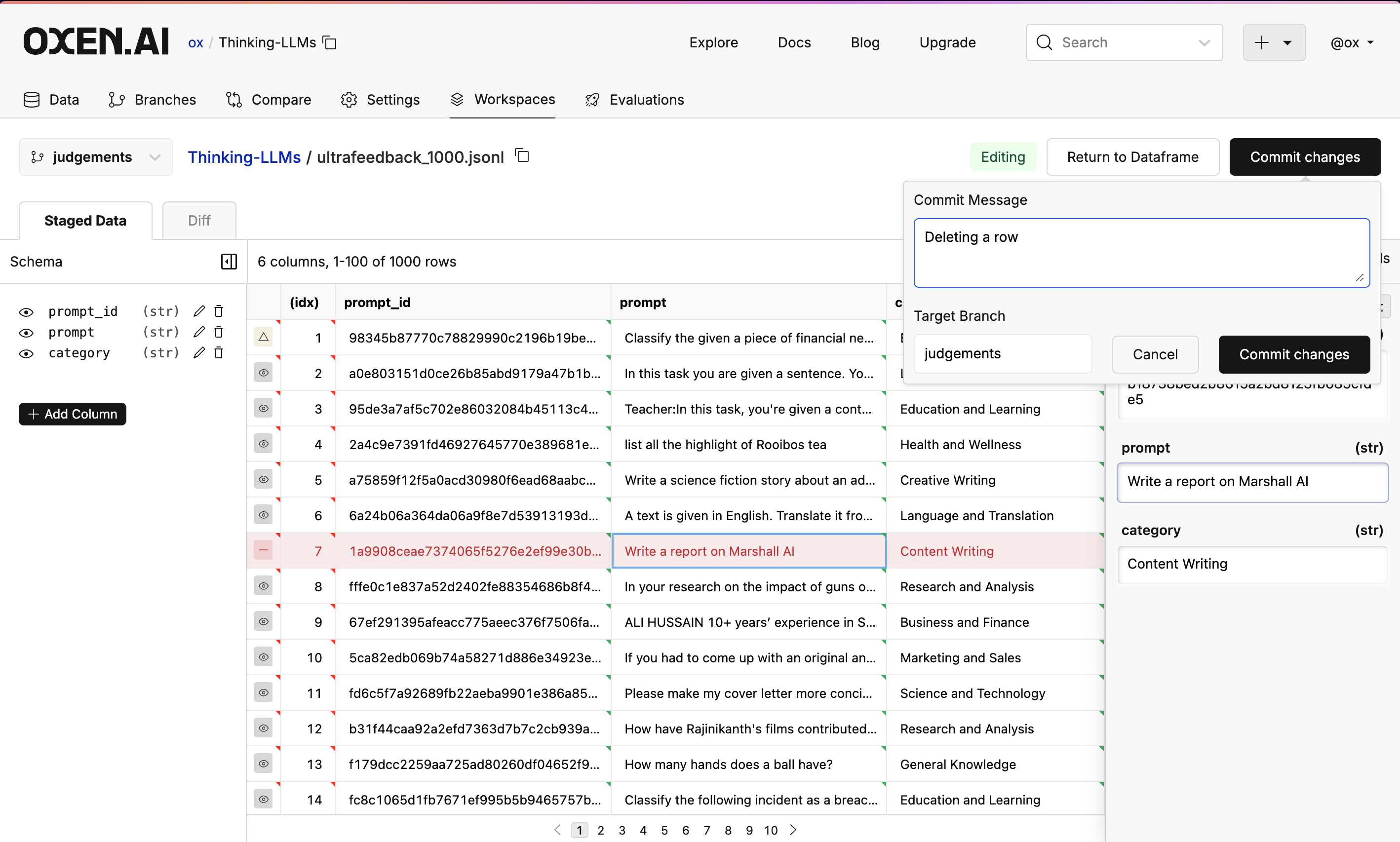 When you feel good about your changes, you can commit them to the repository with the `Commit` button in the top right.
# Oxen CLI
Oxen also provides command line tools to interact with data frames. This makes it easy to manipulate data files before committing them to the repository.
## oxen df
`oxen df` is a handy subcommand to interact with data frames locally. For example, `oxen df ` displays the contents of tabular data files.
```bash theme={null}
oxen df data.tsv
```
Output:
```
shape: (4_774, 2)
+-----------+---------------------------------+
| dcategory | text |
| --- | --- |
| str | str |
+-----------+---------------------------------+
| ham | Go until jurong point, crazy..… |
| ham | Ok lar... Joking wif u oni... |
| spam | Free entry in 2 a wkly comp to… |
| ham | U dun say so early hor... U c … |
| ham | Nah I dont think he goes to u… |
| … | … |
| ham | Well, im glad you didnt find … |
| ham | Guy, no flash me now. If you g… |
| spam | Do you want a New Nokia 3510i … |
| ham | Mark works tomorrow. He gets o… |
| ham | Keep ur problems in ur heart, … |
+-----------+---------------------------------+
```
Here, we see that [SpamOrHam](https://oxen.ai/datasets/SpamOrHam)'s dataset consists of 4,774 rows and 2 columns. The output is automatically truncated to 10 entries. To display the entire data set, you can use the `--full` flag.
You can also use `oxen df` options to view your data with modifications. These changes won't be written anywhere unless you use the `--write` or `--output` flags.
```bash theme={null}
# Add extra column
oxen df data.tsv --add-col 'language:English:str'
```
Output:
```
shape: (4_774, 3)
+----------+---------------------------------+----------+
| category | text | language |
| --- | --- | --- |
| str | str | str |
+----------+---------------------------------+----------+
| ham | Go until jurong point, crazy..… | English |
| ham | Ok lar... Joking wif u oni... | English |
| spam | Free entry in 2 a wkly comp to… | English |
| ham | U dun say so early hor... U c … | English |
| ham | Nah I don't think he goes to u… | English |
| … | … | … |
| ham | Well, i'm glad you didn't find… | English |
| ham | Guy, no flash me now. If you g… | English |
| spam | Do you want a New Nokia 3510i … | English |
| ham | Mark works tomorrow. He gets o… | English |
| ham | Keep ur problems in ur heart, … | English |
+----------+---------------------------------+----------+
```
```bash theme={null}
# Filter out spam messages, view text only
oxen df data.tsv --filter 'category == ham' --columns 'text'
```
Output:
```
shape: (4_124, 1)
+---------------------------------+
| text |
| --- |
| str |
+---------------------------------+
| Go until jurong point, crazy..… |
| Ok lar... Joking wif u oni... |
| U dun say so early hor... U c … |
| Nah I don't think he goes to u… |
| Even my brother is not like to… |
| … |
| I want to sent <#> mesa… |
| Well, i'm glad you didn't find… |
| Guy, no flash me now. If you g… |
| Mark works tomorrow. He gets o… |
| Keep ur problems in ur heart, … |
+---------------------------------+
```
```bash theme={null}
# Randomize the data, then view the first 5 entries
oxen df data.tsv --head 5 --randomize
```
Output:
```
shape: (5, 2)
+----------+---------------------------------+
| category | text |
| --- | --- |
| str | str |
+----------+---------------------------------+
| ham | He didn't see his shadow. We g… |
| ham | Thank god they are in bed! |
| ham | Where are you ? You said you w… |
| spam | XCLUSIVE@CLUBSAISAI 2MOROW 28/… |
| ham | In which place do you want da. |
+----------+---------------------------------+
```
# Uploading Data
Before modifying your data, add it to a repository to preserve its history. This can be done in the [UI](https://oxen.ai/), Python, or CLI.
```python Python theme={null}
from oxen.remote_repo import create_repo
# Create a new local repository
repo = oxen.init("spam-or-ham")
# Create a new remote repository
# NOTE: make sure to replace 'my-username' with your username
remote_repo = create_repo("my-username/spam-or-ham")
# Connect the local repository to the remote repository
repo.set_remote("origin", remote_repo.url())
# Add the data to the local repository
repo.add("data.tsv")
# Commit the changes
repo.commit("Add data")
# Push the changes to the remote repository
repo.push()
```
```bash CLI theme={null}
# Create a new local repository
oxen init
# Create a new remote repository
oxen create-remote --name my-username/spam-or-ham
# Connect the local repository to the remote repository
oxen config --set-remote origin https://hub.oxen.ai/my-username/spam-or-ham
# Add the data to the local repository
oxen add data.tsv
# Commit the changes
oxen commit -m "Add data"
# Push the changes to the remote repository
oxen push origin main
```
If you've pushed to the Oxen Hub, you can view, edit, and query your data directly using the [UI](https://oxen.ai/).
When you feel good about your changes, you can commit them to the repository with the `Commit` button in the top right.
# Oxen CLI
Oxen also provides command line tools to interact with data frames. This makes it easy to manipulate data files before committing them to the repository.
## oxen df
`oxen df` is a handy subcommand to interact with data frames locally. For example, `oxen df ` displays the contents of tabular data files.
```bash theme={null}
oxen df data.tsv
```
Output:
```
shape: (4_774, 2)
+-----------+---------------------------------+
| dcategory | text |
| --- | --- |
| str | str |
+-----------+---------------------------------+
| ham | Go until jurong point, crazy..… |
| ham | Ok lar... Joking wif u oni... |
| spam | Free entry in 2 a wkly comp to… |
| ham | U dun say so early hor... U c … |
| ham | Nah I dont think he goes to u… |
| … | … |
| ham | Well, im glad you didnt find … |
| ham | Guy, no flash me now. If you g… |
| spam | Do you want a New Nokia 3510i … |
| ham | Mark works tomorrow. He gets o… |
| ham | Keep ur problems in ur heart, … |
+-----------+---------------------------------+
```
Here, we see that [SpamOrHam](https://oxen.ai/datasets/SpamOrHam)'s dataset consists of 4,774 rows and 2 columns. The output is automatically truncated to 10 entries. To display the entire data set, you can use the `--full` flag.
You can also use `oxen df` options to view your data with modifications. These changes won't be written anywhere unless you use the `--write` or `--output` flags.
```bash theme={null}
# Add extra column
oxen df data.tsv --add-col 'language:English:str'
```
Output:
```
shape: (4_774, 3)
+----------+---------------------------------+----------+
| category | text | language |
| --- | --- | --- |
| str | str | str |
+----------+---------------------------------+----------+
| ham | Go until jurong point, crazy..… | English |
| ham | Ok lar... Joking wif u oni... | English |
| spam | Free entry in 2 a wkly comp to… | English |
| ham | U dun say so early hor... U c … | English |
| ham | Nah I don't think he goes to u… | English |
| … | … | … |
| ham | Well, i'm glad you didn't find… | English |
| ham | Guy, no flash me now. If you g… | English |
| spam | Do you want a New Nokia 3510i … | English |
| ham | Mark works tomorrow. He gets o… | English |
| ham | Keep ur problems in ur heart, … | English |
+----------+---------------------------------+----------+
```
```bash theme={null}
# Filter out spam messages, view text only
oxen df data.tsv --filter 'category == ham' --columns 'text'
```
Output:
```
shape: (4_124, 1)
+---------------------------------+
| text |
| --- |
| str |
+---------------------------------+
| Go until jurong point, crazy..… |
| Ok lar... Joking wif u oni... |
| U dun say so early hor... U c … |
| Nah I don't think he goes to u… |
| Even my brother is not like to… |
| … |
| I want to sent <#> mesa… |
| Well, i'm glad you didn't find… |
| Guy, no flash me now. If you g… |
| Mark works tomorrow. He gets o… |
| Keep ur problems in ur heart, … |
+---------------------------------+
```
```bash theme={null}
# Randomize the data, then view the first 5 entries
oxen df data.tsv --head 5 --randomize
```
Output:
```
shape: (5, 2)
+----------+---------------------------------+
| category | text |
| --- | --- |
| str | str |
+----------+---------------------------------+
| ham | He didn't see his shadow. We g… |
| ham | Thank god they are in bed! |
| ham | Where are you ? You said you w… |
| spam | XCLUSIVE@CLUBSAISAI 2MOROW 28/… |
| ham | In which place do you want da. |
+----------+---------------------------------+
```
# Uploading Data
Before modifying your data, add it to a repository to preserve its history. This can be done in the [UI](https://oxen.ai/), Python, or CLI.
```python Python theme={null}
from oxen.remote_repo import create_repo
# Create a new local repository
repo = oxen.init("spam-or-ham")
# Create a new remote repository
# NOTE: make sure to replace 'my-username' with your username
remote_repo = create_repo("my-username/spam-or-ham")
# Connect the local repository to the remote repository
repo.set_remote("origin", remote_repo.url())
# Add the data to the local repository
repo.add("data.tsv")
# Commit the changes
repo.commit("Add data")
# Push the changes to the remote repository
repo.push()
```
```bash CLI theme={null}
# Create a new local repository
oxen init
# Create a new remote repository
oxen create-remote --name my-username/spam-or-ham
# Connect the local repository to the remote repository
oxen config --set-remote origin https://hub.oxen.ai/my-username/spam-or-ham
# Add the data to the local repository
oxen add data.tsv
# Commit the changes
oxen commit -m "Add data"
# Push the changes to the remote repository
oxen push origin main
```
If you've pushed to the Oxen Hub, you can view, edit, and query your data directly using the [UI](https://oxen.ai/).
 # Editing Data Frames
Once you've added your data to an Oxen repository, you can interact with data frames even if they're not downloaded locally. Oxen exposes a CRUD interface that makes this possible.
```python theme={null}
from oxen import DataFrame
# Connect to the data frame
df = DataFrame("my-username/spam-or-ham", "data.tsv")
# Add a row
row_id = df.insert_row({"category": "spam", "message": "CLICK HERE TO WIN INSTANTLY."})
# Get a row by id
row = df.get_row_by_id(row_id)
print(row)
# Update a row
row = df.update_row(row_id, {"category": "new_category"})
print(row)
# Delete a row
df.delete_row(row_id)
# Commit the changes
df.commit("Update label")
```
All of these operations are exposed over HTTP, so you are not limited to using the Python library. Check out all our HTTP [reference docs](/http-api) to see how to interact with your data programatically.
You can also edit data files locally with `oxen df --write`. Any modifications you make with this flag set will be written back to the original file and register as 'modified' in your Oxen repository.
```bash theme={null}
oxen df data.tsv --filter 'category == spam' --write
```
Output:
```
shape: (650, 2)
+----------+---------------------------------+
| category | text |
| --- | --- |
| str | str |
+----------+---------------------------------+
| spam | Free entry in 2 a wkly comp to… |
| spam | FreeMsg Hey there darling it's… |
| spam | WINNER!! As a valued network c… |
| spam | Had your mobile 11 months or m… |
| spam | SIX chances to win CASH! From … |
| … | … |
| spam | 83039 62735=£450 UK Break Acco… |
| spam | 5p 4 alfie Moon's Children in … |
| spam | WIN a £200 Shopping spree ever… |
| spam | This is the 2nd attempt to con… |
| spam | Do you want a New Nokia 3510i … |
+----------+---------------------------------+
Writing "data.tsv"
```
```bash theme={null}
oxen df data.tsv
```
Output:
```
shape: (650, 2)
+----------+---------------------------------+
| category | text |
| --- | --- |
| str | str |
+----------+---------------------------------+
| spam | Free entry in 2 a wkly comp to… |
| spam | FreeMsg Hey there darling it's… |
| spam | WINNER!! As a valued network c… |
| spam | Had your mobile 11 months or m… |
| spam | SIX chances to win CASH! From … |
| … | … |
| spam | 83039 62735=£450 UK Break Acco… |
| spam | 5p 4 alfie Moon's Children in … |
| spam | WIN a £200 Shopping spree ever… |
| spam | This is the 2nd attempt to con… |
| spam | Do you want a New Nokia 3510i … |
+----------+---------------------------------+
```
Oxen uses a combination of polars and duckdb under the hood, and uses the Apache Arrow data format to provide powerful cross application functionality.
## Useful Commands
There are many ways you might want to view, transform, and filter your data on the command line before committing changes to the dataset. `oxen df` provides several options that can help with this.
For these examples, we'll use our [CatDogBBox](https://hub.oxen.ai/ox/CatDogBBox) repository.
## Convert Dataset Format
Oxen allows you to quickly transform data files between data formats. When you run `oxen df` with `--output`, the resulting data frame will be written to disk as a new file of the specified type.
Some formats like parquet and arrow are more efficient for different [tasks](https://towardsdatascience.com/apache-arrow-read-dataframe-with-zero-memory-69634092b1a), but are not human readable like tsv or csv. These are tradeoffs you'll have to decide on for your application. Oxen currently supports the following file extensions: `csv`, `tsv`, `parquet`, `arrow`, `json`, `jsonl`.
```bash theme={null}
oxen df train.csv -o train.parquet
```
Output:
```
shape: (9_000, 6)
+-------------------------+-------+--------+--------+--------+--------+
| file ┆ label ┆ min_x ┆ min_y ┆ width ┆ height |
| --- ┆ --- ┆ --- ┆ --- ┆ --- ┆ --- |
| str ┆ str ┆ f64 ┆ f64 ┆ f64 ┆ f64 |
|-------------------------+-------+--------+--------+--------+--------|
| images/000000128154.jpg ┆ cat ┆ 0.0 ┆ 19.27 ┆ 130.79 ┆ 129.58 |
| images/000000544590.jpg ┆ cat ┆ 9.75 ┆ 13.49 ┆ 214.25 ┆ 188.35 |
| images/000000000581.jpg ┆ dog ┆ 49.37 ┆ 67.79 ┆ 74.29 ┆ 116.08 |
| images/000000236841.jpg ┆ cat ┆ 115.21 ┆ 96.65 ┆ 93.87 ┆ 42.29 |
| … ┆ … ┆ … ┆ … ┆ … ┆ … |
| images/000000431980.jpg ┆ dog ┆ 98.3 ┆ 110.46 ┆ 42.69 ┆ 26.64 |
| images/000000071025.jpg ┆ cat ┆ 55.33 ┆ 105.45 ┆ 160.15 ┆ 73.57 |
| images/000000518015.jpg ┆ cat ┆ 43.72 ┆ 4.34 ┆ 72.98 ┆ 129.1 |
| images/000000171435.jpg ┆ dog ┆ 22.86 ┆ 100.03 ┆ 125.55 ┆ 41.61 |
+-------------------------+-------+--------+--------+--------+--------+
Writing "train.parquet"
```
## SQL Query
Oxen has a powerful SQL query engine built in to the CLI. You can run SQL queries on your data frames with the --sql flag.
```bash theme={null}
oxen df train.csv --sql 'SELECT * FROM df WHERE label = "dog"'
```
Output:
```
shape: (4_860, 6)
+-------------------------+-------+--------+--------+--------+--------+
| file ┆ label ┆ min_x ┆ min_y ┆ width ┆ height |
| --- ┆ --- ┆ --- ┆ --- ┆ --- ┆ --- |
| str ┆ str ┆ f64 ┆ f64 ┆ f64 ┆ f64 |
+-------------------------+-------+--------+--------+--------+--------+
| images/000000128154.jpg ┆ dog ┆ 0.0 ┆ 19.27 ┆ 130.79 ┆ 129.58 |
| images/000000544590.jpg ┆ dog ┆ 9.75 ┆ 13.49 ┆ 214.25 ┆ 188.35 |
| images/000000000581.jpg ┆ dog ┆ 49.37 ┆ 67.79 ┆ 74.29 ┆ 116.08 |
| images/000000236841.jpg ┆ dog ┆ 115.21 ┆ 96.65 ┆ 93.87 ┆ 42.29 |
| … ┆ … ┆ … ┆ … ┆ … ┆ … |
| images/000000055645.jpg ┆ dog ┆ 8.67 ┆ 122.36 ┆ 60.22 ┆ 99.24 |
| images/000000094271.jpg ┆ dog ┆ 47.6 ┆ 115.26 ┆ 111.57 ┆ 102.27 |
| images/000000041257.jpg ┆ dog ┆ 6.81 ┆ 117.29 ┆ 207.06 ┆ 86.08 |
| images/000000321014.jpg ┆ dog ┆ 51.86 ┆ 61.18 ┆ 166.26 ┆ 63.11 |
+-------------------------+-------+--------+--------+--------+--------+
```
## Filter
If you don't need a full sql query, Oxen also has a lightweight `--filter` option which supports `>`, `<`, and `==` operations
```bash theme={null}
oxen df train.csv --filter 'width > 100'
```
Output:
```
shape: (3_483, 6)
+-------------------------+-------+--------+--------+--------+--------+
| file | label | min_x | min_y | width | height |
| --- | --- | --- | --- | --- | --- |
| str | str | f64 | f64 | f64 | f64 |
+-------------------------+-------+--------+--------+--------+--------+
| images/000000128154.jpg | cat | 0.0 | 19.27 | 130.79 | 129.58 |
| images/000000544590.jpg | cat | 9.75 | 13.49 | 214.25 | 188.35 |
| images/000000177913.jpg | dog | 11.56 | 52.83 | 177.18 | 166.41 |
| images/000000002337.jpg | dog | 5.42 | 7.28 | 180.01 | 167.21 |
| images/000000012673.jpg | cat | 117.11 | 98.61 | 106.61 | 47.17 |
| … | … | … | … | … | … |
| images/000000399102.jpg | cat | 106.03 | 145.22 | 111.91 | 66.68 |
| images/000000155707.jpg | cat | 14.18 | 13.97 | 165.84 | 207.62 |
| images/000000150919.jpg | cat | 38.7 | 71.29 | 147.7 | 127.17 |
| images/000000071025.jpg | cat | 55.33 | 105.45 | 160.15 | 73.57 |
| images/000000171435.jpg | dog | 22.86 | 100.03 | 125.55 | 41.61 |
+-------------------------+-------+--------+--------+--------+--------+
```
## View Schema
Oxen automatically detects and versions the schema of your data frame. See the [schema docs](/concepts/file_metadata) for more information about this.
To view a data frame's schema in full, you can use the `--schema` flag.
```bash theme={null}
oxen df train.csv --schema
```
Output:
```
+--------+-------+
| column | dtype |
+----------------+
| file | str |
|--------+-------|
| label | str |
|--------+-------|
| min_x | f64 |
|--------+-------|
| min_y | f64 |
|--------+-------|
| width | f64 |
|--------+-------|
| height | f64 |
+--------+-------+
```
## View Specific Columns
If you only need a subset of your data frame's columns, you can specify them in a comma separated list with `--columns`.
```bash theme={null}
oxen df train.csv --columns 'file,label'
```
Output:
```
shape: (9_000, 2)
+-------------------------+-------+
| file ┆ label |
| --- ┆ --- |
| str ┆ str |
+-------------------------+-------+
| images/000000128154.jpg ┆ cat |
| images/000000544590.jpg ┆ cat |
| images/000000000581.jpg ┆ dog |
| images/000000236841.jpg ┆ cat |
| … ┆ … |
| images/000000431980.jpg ┆ dog |
| images/000000071025.jpg ┆ cat |
| images/000000518015.jpg ┆ cat |
| images/000000171435.jpg ┆ dog |
+-------------------------+-------+
```
## Take Indices
You can also view particular rows using `--take`
```bash theme={null}
oxen df train.csv --take '1,13,42'
```
Output:
```
shape: (3, 6)
+-------------------------+-------+-------+-------+--------+--------+
| file ┆ label ┆ min_x ┆ min_y ┆ width ┆ height |
| --- ┆ --- ┆ --- ┆ --- ┆ --- ┆ --- |
| str ┆ str ┆ f64 ┆ f64 ┆ f64 ┆ f64 |
+-------------------------+-------+-------+-------+--------+--------+
| images/000000544590.jpg ┆ cat ┆ 9.75 ┆ 13.49 ┆ 214.25 ┆ 188.35 |
| images/000000279829.jpg ┆ cat ┆ 30.01 ┆ 13.58 ┆ 82.51 ┆ 176.39 |
| images/000000209289.jpg ┆ dog ┆ 72.75 ┆ 42.06 ┆ 111.52 ┆ 153.09 |
+-------------------------+-------+-------+-------+--------+--------+
```
## Unique
Oxen can efficiently compute all the unique values of a given column or set of columns using the `--unique` option.
```bash theme={null}
oxen df train.csv --unique "file"
oxen df train.csv -u "file,label"
```
## Concatenate (vstack)
If you've filtered down your data and want to stack it back into a single frame. The `--vstack` option takes a variable length list of files you'd like to concatenate.
```bash theme={null}
oxen df train.csv --filter 'label == dog' -o /tmp/dogs.parquet
oxen df train.csv --filter 'label == cat' -o /tmp/cats.parquet
oxen df /tmp/cats.parquet --vstack /tmp/dogs.parquet -o annotations/data.parquet
```
## Add Column
Your data might not match the schema of a data frame you want to combine with, in which case you may need to add a column to match it. You can do this and project default values with `--add-col 'col:val:dtype'`
```bash theme={null}
oxen df train.csv --add-col 'is_cute:unknown:str'
```
Output:
```
shape: (9_000, 7)
+-------------------------+-------+--------+--------+--------+--------+---------+
| file ┆ label ┆ min_x ┆ min_y ┆ width ┆ height ┆ is_cute |
| --- ┆ --- ┆ --- ┆ --- ┆ --- ┆ --- ┆ --- |
| str ┆ str ┆ f64 ┆ f64 ┆ f64 ┆ f64 ┆ str |
+-------------------------+-------+--------+--------+--------+--------+---------+
| images/000000128154.jpg ┆ cat ┆ 0.0 ┆ 19.27 ┆ 130.79 ┆ 129.58 ┆ unknown |
| images/000000544590.jpg ┆ cat ┆ 9.75 ┆ 13.49 ┆ 214.25 ┆ 188.35 ┆ unknown |
| images/000000000581.jpg ┆ dog ┆ 49.37 ┆ 67.79 ┆ 74.29 ┆ 116.08 ┆ unknown |
| images/000000236841.jpg ┆ cat ┆ 115.21 ┆ 96.65 ┆ 93.87 ┆ 42.29 ┆ unknown |
| … ┆ … ┆ … ┆ … ┆ … ┆ … ┆ … |
| images/000000431980.jpg ┆ dog ┆ 98.3 ┆ 110.46 ┆ 42.69 ┆ 26.64 ┆ unknown |
| images/000000071025.jpg ┆ cat ┆ 55.33 ┆ 105.45 ┆ 160.15 ┆ 73.57 ┆ unknown |
| images/000000518015.jpg ┆ cat ┆ 43.72 ┆ 4.34 ┆ 72.98 ┆ 129.1 ┆ unknown |
| images/000000171435.jpg ┆ dog ┆ 22.86 ┆ 100.03 ┆ 125.55 ┆ 41.61 ┆ unknown |
+-------------------------+-------+--------+--------+--------+--------+---------+
```
## Add Row
You can also append new rows to the data frame. The `--add-row` option takes in a comma separated list of values and automatically parses the correct dtypes.
```bash theme={null}
oxen df train.csv --add-row 'images/my_cat.jpg,cat,0,0,0,0'
```
Output:
```
shape: (9_001, 6)
+-------------------------+-------+--------+--------+--------+--------+
| file ┆ label ┆ min_x ┆ min_y ┆ width ┆ height |
| --- ┆ --- ┆ --- ┆ --- ┆ --- ┆ --- |
| str ┆ str ┆ f64 ┆ f64 ┆ f64 ┆ f64 |
+-------------------------+-------+--------+--------+--------+--------+
| images/000000128154.jpg ┆ cat ┆ 0.0 ┆ 19.27 ┆ 130.79 ┆ 129.58 |
| images/000000544590.jpg ┆ cat ┆ 9.75 ┆ 13.49 ┆ 214.25 ┆ 188.35 |
| images/000000000581.jpg ┆ dog ┆ 49.37 ┆ 67.79 ┆ 74.29 ┆ 116.08 |
| images/000000236841.jpg ┆ cat ┆ 115.21 ┆ 96.65 ┆ 93.87 ┆ 42.29 |
| … ┆ … ┆ … ┆ … ┆ … ┆ … |
| images/000000071025.jpg ┆ cat ┆ 55.33 ┆ 105.45 ┆ 160.15 ┆ 73.57 |
| images/000000518015.jpg ┆ cat ┆ 43.72 ┆ 4.34 ┆ 72.98 ┆ 129.1 |
| images/000000171435.jpg ┆ dog ┆ 22.86 ┆ 100.03 ┆ 125.55 ┆ 41.61 |
| images/my_cat.jpg ┆ cat ┆ 0.0 ┆ 0.0 ┆ 0.0 ┆ 0.0 |
+-------------------------+-------+--------+--------+--------+--------+
```
## Randomize
Often, you'll want to randomize data before splitting into train and test sets, or just to peek at different data values. This can be done with the `--randomize` flag.
```bash theme={null}
oxen df train.csv --randomize
```
Output:
```
shape: (9_000, 6)
+-------------------------+-------+--------+--------+--------+--------+
| file ┆ label ┆ min_x ┆ min_y ┆ width ┆ height |
| --- ┆ --- ┆ --- ┆ --- ┆ --- ┆ --- |
| str ┆ str ┆ f64 ┆ f64 ┆ f64 ┆ f64 |
+-------------------------+-------+--------+--------+--------+--------+
| images/000000124002.jpg ┆ cat ┆ 82.92 ┆ 8.31 ┆ 108.31 ┆ 158.48 |
| images/000000207597.jpg ┆ dog ┆ 75.64 ┆ 3.65 ┆ 125.47 ┆ 218.19 |
| images/000000113810.jpg ┆ cat ┆ 104.34 ┆ 44.65 ┆ 119.66 ┆ 159.42 |
| images/000000340160.jpg ┆ dog ┆ 79.78 ┆ 89.31 ┆ 127.1 ┆ 103.66 |
| … ┆ … ┆ … ┆ … ┆ … ┆ … |
| images/000000310573.jpg ┆ dog ┆ 102.55 ┆ 91.48 ┆ 42.24 ┆ 52.18 |
| images/000000162801.jpg ┆ cat ┆ 112.96 ┆ 75.05 ┆ 57.38 ┆ 98.19 |
| images/000000544117.jpg ┆ dog ┆ 108.16 ┆ 124.28 ┆ 11.08 ┆ 64.58 |
| images/000000283210.jpg ┆ dog ┆ 49.37 ┆ 40.01 ┆ 174.43 ┆ 182.0 |
+-------------------------+-------+--------+--------+--------+--------+
```
## Sort
You can sort your data with the `sort` flag. You can sort the data by the values of any column in your data frame.
```bash theme={null}
oxen df train.csv --sort "height"
```
Output:
```
shape: (9_000, 6)
+-------------------------+-------+--------+--------+--------+--------+
| file ┆ label ┆ min_x ┆ min_y ┆ width ┆ height |
| --- ┆ --- ┆ --- ┆ --- ┆ --- ┆ --- |
| str ┆ str ┆ f64 ┆ f64 ┆ f64 ┆ f64 |
+-------------------------+-------+--------+--------+--------+--------+
| images/000000580919.jpg ┆ dog ┆ 61.28 ┆ 88.31 ┆ 2.71 ┆ 1.83 |
| images/000000577310.jpg ┆ dog ┆ 132.25 ┆ 193.86 ┆ 3.28 ┆ 1.95 |
| images/000000393384.jpg ┆ dog ┆ 138.85 ┆ 89.89 ┆ 1.25 ┆ 2.11 |
| images/000000477398.jpg ┆ dog ┆ 185.11 ┆ 195.93 ┆ 2.51 ┆ 2.6 |
| … ┆ … ┆ … ┆ … ┆ … ┆ … |
| images/000000069205.jpg ┆ dog ┆ 0.0 ┆ 0.0 ┆ 224.0 ┆ 224.0 |
| images/000000554737.jpg ┆ cat ┆ 0.0 ┆ 0.0 ┆ 224.0 ┆ 224.0 |
| images/000000213819.jpg ┆ cat ┆ 8.32 ┆ 0.0 ┆ 207.77 ┆ 224.0 |
| images/000000397212.jpg ┆ cat ┆ 0.36 ┆ 0.0 ┆ 115.5 ┆ 224.0 |
+-------------------------+-------+--------+--------+--------+--------+
```
## Reverse
You can also reverse the order of a data table. By default `--sort` sorts in ascending order, but this can be switched with the `--reverse` flag.
```bash theme={null}
oxen df train.csv --reverse
```
Output:
```
shape: (9_000, 6)
+-------------------------+-------+--------+--------+--------+--------+
| file | label | min_x | min_y | width | height |
| --- | --- | --- | --- | --- | --- |
| str | str | f64 | f64 | f64 | f64 |
+-------------------------+-------+--------+--------+--------+--------+
| images/000000397212.jpg | cat | 0.36 | 0.0 | 115.5 | 224.0 |
| images/000000213819.jpg | cat | 8.32 | 0.0 | 207.77 | 224.0 |
| images/000000554737.jpg | cat | 0.0 | 0.0 | 224.0 | 224.0 |
| images/000000069205.jpg | dog | 0.0 | 0.0 | 224.0 | 224.0 |
| images/000000242607.jpg | dog | 0.6 | 0.0 | 185.31 | 224.0 |
| … | … | … | … | … | … |
| images/000000371532.jpg | dog | 34.43 | 100.07 | 6.47 | 2.71 |
| images/000000477398.jpg | dog | 185.11 | 195.93 | 2.51 | 2.6 |
| images/000000393384.jpg | dog | 138.85 | 89.89 | 1.25 | 2.11 |
| images/000000577310.jpg | dog | 132.25 | 193.86 | 3.28 | 1.95 |
| images/000000580919.jpg | dog | 61.28 | 88.31 | 2.71 | 1.83 |
+-------------------------+-------+--------+--------+--------+--------+
```
# Editing Data Frames
Once you've added your data to an Oxen repository, you can interact with data frames even if they're not downloaded locally. Oxen exposes a CRUD interface that makes this possible.
```python theme={null}
from oxen import DataFrame
# Connect to the data frame
df = DataFrame("my-username/spam-or-ham", "data.tsv")
# Add a row
row_id = df.insert_row({"category": "spam", "message": "CLICK HERE TO WIN INSTANTLY."})
# Get a row by id
row = df.get_row_by_id(row_id)
print(row)
# Update a row
row = df.update_row(row_id, {"category": "new_category"})
print(row)
# Delete a row
df.delete_row(row_id)
# Commit the changes
df.commit("Update label")
```
All of these operations are exposed over HTTP, so you are not limited to using the Python library. Check out all our HTTP [reference docs](/http-api) to see how to interact with your data programatically.
You can also edit data files locally with `oxen df --write`. Any modifications you make with this flag set will be written back to the original file and register as 'modified' in your Oxen repository.
```bash theme={null}
oxen df data.tsv --filter 'category == spam' --write
```
Output:
```
shape: (650, 2)
+----------+---------------------------------+
| category | text |
| --- | --- |
| str | str |
+----------+---------------------------------+
| spam | Free entry in 2 a wkly comp to… |
| spam | FreeMsg Hey there darling it's… |
| spam | WINNER!! As a valued network c… |
| spam | Had your mobile 11 months or m… |
| spam | SIX chances to win CASH! From … |
| … | … |
| spam | 83039 62735=£450 UK Break Acco… |
| spam | 5p 4 alfie Moon's Children in … |
| spam | WIN a £200 Shopping spree ever… |
| spam | This is the 2nd attempt to con… |
| spam | Do you want a New Nokia 3510i … |
+----------+---------------------------------+
Writing "data.tsv"
```
```bash theme={null}
oxen df data.tsv
```
Output:
```
shape: (650, 2)
+----------+---------------------------------+
| category | text |
| --- | --- |
| str | str |
+----------+---------------------------------+
| spam | Free entry in 2 a wkly comp to… |
| spam | FreeMsg Hey there darling it's… |
| spam | WINNER!! As a valued network c… |
| spam | Had your mobile 11 months or m… |
| spam | SIX chances to win CASH! From … |
| … | … |
| spam | 83039 62735=£450 UK Break Acco… |
| spam | 5p 4 alfie Moon's Children in … |
| spam | WIN a £200 Shopping spree ever… |
| spam | This is the 2nd attempt to con… |
| spam | Do you want a New Nokia 3510i … |
+----------+---------------------------------+
```
Oxen uses a combination of polars and duckdb under the hood, and uses the Apache Arrow data format to provide powerful cross application functionality.
## Useful Commands
There are many ways you might want to view, transform, and filter your data on the command line before committing changes to the dataset. `oxen df` provides several options that can help with this.
For these examples, we'll use our [CatDogBBox](https://hub.oxen.ai/ox/CatDogBBox) repository.
## Convert Dataset Format
Oxen allows you to quickly transform data files between data formats. When you run `oxen df` with `--output`, the resulting data frame will be written to disk as a new file of the specified type.
Some formats like parquet and arrow are more efficient for different [tasks](https://towardsdatascience.com/apache-arrow-read-dataframe-with-zero-memory-69634092b1a), but are not human readable like tsv or csv. These are tradeoffs you'll have to decide on for your application. Oxen currently supports the following file extensions: `csv`, `tsv`, `parquet`, `arrow`, `json`, `jsonl`.
```bash theme={null}
oxen df train.csv -o train.parquet
```
Output:
```
shape: (9_000, 6)
+-------------------------+-------+--------+--------+--------+--------+
| file ┆ label ┆ min_x ┆ min_y ┆ width ┆ height |
| --- ┆ --- ┆ --- ┆ --- ┆ --- ┆ --- |
| str ┆ str ┆ f64 ┆ f64 ┆ f64 ┆ f64 |
|-------------------------+-------+--------+--------+--------+--------|
| images/000000128154.jpg ┆ cat ┆ 0.0 ┆ 19.27 ┆ 130.79 ┆ 129.58 |
| images/000000544590.jpg ┆ cat ┆ 9.75 ┆ 13.49 ┆ 214.25 ┆ 188.35 |
| images/000000000581.jpg ┆ dog ┆ 49.37 ┆ 67.79 ┆ 74.29 ┆ 116.08 |
| images/000000236841.jpg ┆ cat ┆ 115.21 ┆ 96.65 ┆ 93.87 ┆ 42.29 |
| … ┆ … ┆ … ┆ … ┆ … ┆ … |
| images/000000431980.jpg ┆ dog ┆ 98.3 ┆ 110.46 ┆ 42.69 ┆ 26.64 |
| images/000000071025.jpg ┆ cat ┆ 55.33 ┆ 105.45 ┆ 160.15 ┆ 73.57 |
| images/000000518015.jpg ┆ cat ┆ 43.72 ┆ 4.34 ┆ 72.98 ┆ 129.1 |
| images/000000171435.jpg ┆ dog ┆ 22.86 ┆ 100.03 ┆ 125.55 ┆ 41.61 |
+-------------------------+-------+--------+--------+--------+--------+
Writing "train.parquet"
```
## SQL Query
Oxen has a powerful SQL query engine built in to the CLI. You can run SQL queries on your data frames with the --sql flag.
```bash theme={null}
oxen df train.csv --sql 'SELECT * FROM df WHERE label = "dog"'
```
Output:
```
shape: (4_860, 6)
+-------------------------+-------+--------+--------+--------+--------+
| file ┆ label ┆ min_x ┆ min_y ┆ width ┆ height |
| --- ┆ --- ┆ --- ┆ --- ┆ --- ┆ --- |
| str ┆ str ┆ f64 ┆ f64 ┆ f64 ┆ f64 |
+-------------------------+-------+--------+--------+--------+--------+
| images/000000128154.jpg ┆ dog ┆ 0.0 ┆ 19.27 ┆ 130.79 ┆ 129.58 |
| images/000000544590.jpg ┆ dog ┆ 9.75 ┆ 13.49 ┆ 214.25 ┆ 188.35 |
| images/000000000581.jpg ┆ dog ┆ 49.37 ┆ 67.79 ┆ 74.29 ┆ 116.08 |
| images/000000236841.jpg ┆ dog ┆ 115.21 ┆ 96.65 ┆ 93.87 ┆ 42.29 |
| … ┆ … ┆ … ┆ … ┆ … ┆ … |
| images/000000055645.jpg ┆ dog ┆ 8.67 ┆ 122.36 ┆ 60.22 ┆ 99.24 |
| images/000000094271.jpg ┆ dog ┆ 47.6 ┆ 115.26 ┆ 111.57 ┆ 102.27 |
| images/000000041257.jpg ┆ dog ┆ 6.81 ┆ 117.29 ┆ 207.06 ┆ 86.08 |
| images/000000321014.jpg ┆ dog ┆ 51.86 ┆ 61.18 ┆ 166.26 ┆ 63.11 |
+-------------------------+-------+--------+--------+--------+--------+
```
## Filter
If you don't need a full sql query, Oxen also has a lightweight `--filter` option which supports `>`, `<`, and `==` operations
```bash theme={null}
oxen df train.csv --filter 'width > 100'
```
Output:
```
shape: (3_483, 6)
+-------------------------+-------+--------+--------+--------+--------+
| file | label | min_x | min_y | width | height |
| --- | --- | --- | --- | --- | --- |
| str | str | f64 | f64 | f64 | f64 |
+-------------------------+-------+--------+--------+--------+--------+
| images/000000128154.jpg | cat | 0.0 | 19.27 | 130.79 | 129.58 |
| images/000000544590.jpg | cat | 9.75 | 13.49 | 214.25 | 188.35 |
| images/000000177913.jpg | dog | 11.56 | 52.83 | 177.18 | 166.41 |
| images/000000002337.jpg | dog | 5.42 | 7.28 | 180.01 | 167.21 |
| images/000000012673.jpg | cat | 117.11 | 98.61 | 106.61 | 47.17 |
| … | … | … | … | … | … |
| images/000000399102.jpg | cat | 106.03 | 145.22 | 111.91 | 66.68 |
| images/000000155707.jpg | cat | 14.18 | 13.97 | 165.84 | 207.62 |
| images/000000150919.jpg | cat | 38.7 | 71.29 | 147.7 | 127.17 |
| images/000000071025.jpg | cat | 55.33 | 105.45 | 160.15 | 73.57 |
| images/000000171435.jpg | dog | 22.86 | 100.03 | 125.55 | 41.61 |
+-------------------------+-------+--------+--------+--------+--------+
```
## View Schema
Oxen automatically detects and versions the schema of your data frame. See the [schema docs](/concepts/file_metadata) for more information about this.
To view a data frame's schema in full, you can use the `--schema` flag.
```bash theme={null}
oxen df train.csv --schema
```
Output:
```
+--------+-------+
| column | dtype |
+----------------+
| file | str |
|--------+-------|
| label | str |
|--------+-------|
| min_x | f64 |
|--------+-------|
| min_y | f64 |
|--------+-------|
| width | f64 |
|--------+-------|
| height | f64 |
+--------+-------+
```
## View Specific Columns
If you only need a subset of your data frame's columns, you can specify them in a comma separated list with `--columns`.
```bash theme={null}
oxen df train.csv --columns 'file,label'
```
Output:
```
shape: (9_000, 2)
+-------------------------+-------+
| file ┆ label |
| --- ┆ --- |
| str ┆ str |
+-------------------------+-------+
| images/000000128154.jpg ┆ cat |
| images/000000544590.jpg ┆ cat |
| images/000000000581.jpg ┆ dog |
| images/000000236841.jpg ┆ cat |
| … ┆ … |
| images/000000431980.jpg ┆ dog |
| images/000000071025.jpg ┆ cat |
| images/000000518015.jpg ┆ cat |
| images/000000171435.jpg ┆ dog |
+-------------------------+-------+
```
## Take Indices
You can also view particular rows using `--take`
```bash theme={null}
oxen df train.csv --take '1,13,42'
```
Output:
```
shape: (3, 6)
+-------------------------+-------+-------+-------+--------+--------+
| file ┆ label ┆ min_x ┆ min_y ┆ width ┆ height |
| --- ┆ --- ┆ --- ┆ --- ┆ --- ┆ --- |
| str ┆ str ┆ f64 ┆ f64 ┆ f64 ┆ f64 |
+-------------------------+-------+-------+-------+--------+--------+
| images/000000544590.jpg ┆ cat ┆ 9.75 ┆ 13.49 ┆ 214.25 ┆ 188.35 |
| images/000000279829.jpg ┆ cat ┆ 30.01 ┆ 13.58 ┆ 82.51 ┆ 176.39 |
| images/000000209289.jpg ┆ dog ┆ 72.75 ┆ 42.06 ┆ 111.52 ┆ 153.09 |
+-------------------------+-------+-------+-------+--------+--------+
```
## Unique
Oxen can efficiently compute all the unique values of a given column or set of columns using the `--unique` option.
```bash theme={null}
oxen df train.csv --unique "file"
oxen df train.csv -u "file,label"
```
## Concatenate (vstack)
If you've filtered down your data and want to stack it back into a single frame. The `--vstack` option takes a variable length list of files you'd like to concatenate.
```bash theme={null}
oxen df train.csv --filter 'label == dog' -o /tmp/dogs.parquet
oxen df train.csv --filter 'label == cat' -o /tmp/cats.parquet
oxen df /tmp/cats.parquet --vstack /tmp/dogs.parquet -o annotations/data.parquet
```
## Add Column
Your data might not match the schema of a data frame you want to combine with, in which case you may need to add a column to match it. You can do this and project default values with `--add-col 'col:val:dtype'`
```bash theme={null}
oxen df train.csv --add-col 'is_cute:unknown:str'
```
Output:
```
shape: (9_000, 7)
+-------------------------+-------+--------+--------+--------+--------+---------+
| file ┆ label ┆ min_x ┆ min_y ┆ width ┆ height ┆ is_cute |
| --- ┆ --- ┆ --- ┆ --- ┆ --- ┆ --- ┆ --- |
| str ┆ str ┆ f64 ┆ f64 ┆ f64 ┆ f64 ┆ str |
+-------------------------+-------+--------+--------+--------+--------+---------+
| images/000000128154.jpg ┆ cat ┆ 0.0 ┆ 19.27 ┆ 130.79 ┆ 129.58 ┆ unknown |
| images/000000544590.jpg ┆ cat ┆ 9.75 ┆ 13.49 ┆ 214.25 ┆ 188.35 ┆ unknown |
| images/000000000581.jpg ┆ dog ┆ 49.37 ┆ 67.79 ┆ 74.29 ┆ 116.08 ┆ unknown |
| images/000000236841.jpg ┆ cat ┆ 115.21 ┆ 96.65 ┆ 93.87 ┆ 42.29 ┆ unknown |
| … ┆ … ┆ … ┆ … ┆ … ┆ … ┆ … |
| images/000000431980.jpg ┆ dog ┆ 98.3 ┆ 110.46 ┆ 42.69 ┆ 26.64 ┆ unknown |
| images/000000071025.jpg ┆ cat ┆ 55.33 ┆ 105.45 ┆ 160.15 ┆ 73.57 ┆ unknown |
| images/000000518015.jpg ┆ cat ┆ 43.72 ┆ 4.34 ┆ 72.98 ┆ 129.1 ┆ unknown |
| images/000000171435.jpg ┆ dog ┆ 22.86 ┆ 100.03 ┆ 125.55 ┆ 41.61 ┆ unknown |
+-------------------------+-------+--------+--------+--------+--------+---------+
```
## Add Row
You can also append new rows to the data frame. The `--add-row` option takes in a comma separated list of values and automatically parses the correct dtypes.
```bash theme={null}
oxen df train.csv --add-row 'images/my_cat.jpg,cat,0,0,0,0'
```
Output:
```
shape: (9_001, 6)
+-------------------------+-------+--------+--------+--------+--------+
| file ┆ label ┆ min_x ┆ min_y ┆ width ┆ height |
| --- ┆ --- ┆ --- ┆ --- ┆ --- ┆ --- |
| str ┆ str ┆ f64 ┆ f64 ┆ f64 ┆ f64 |
+-------------------------+-------+--------+--------+--------+--------+
| images/000000128154.jpg ┆ cat ┆ 0.0 ┆ 19.27 ┆ 130.79 ┆ 129.58 |
| images/000000544590.jpg ┆ cat ┆ 9.75 ┆ 13.49 ┆ 214.25 ┆ 188.35 |
| images/000000000581.jpg ┆ dog ┆ 49.37 ┆ 67.79 ┆ 74.29 ┆ 116.08 |
| images/000000236841.jpg ┆ cat ┆ 115.21 ┆ 96.65 ┆ 93.87 ┆ 42.29 |
| … ┆ … ┆ … ┆ … ┆ … ┆ … |
| images/000000071025.jpg ┆ cat ┆ 55.33 ┆ 105.45 ┆ 160.15 ┆ 73.57 |
| images/000000518015.jpg ┆ cat ┆ 43.72 ┆ 4.34 ┆ 72.98 ┆ 129.1 |
| images/000000171435.jpg ┆ dog ┆ 22.86 ┆ 100.03 ┆ 125.55 ┆ 41.61 |
| images/my_cat.jpg ┆ cat ┆ 0.0 ┆ 0.0 ┆ 0.0 ┆ 0.0 |
+-------------------------+-------+--------+--------+--------+--------+
```
## Randomize
Often, you'll want to randomize data before splitting into train and test sets, or just to peek at different data values. This can be done with the `--randomize` flag.
```bash theme={null}
oxen df train.csv --randomize
```
Output:
```
shape: (9_000, 6)
+-------------------------+-------+--------+--------+--------+--------+
| file ┆ label ┆ min_x ┆ min_y ┆ width ┆ height |
| --- ┆ --- ┆ --- ┆ --- ┆ --- ┆ --- |
| str ┆ str ┆ f64 ┆ f64 ┆ f64 ┆ f64 |
+-------------------------+-------+--------+--------+--------+--------+
| images/000000124002.jpg ┆ cat ┆ 82.92 ┆ 8.31 ┆ 108.31 ┆ 158.48 |
| images/000000207597.jpg ┆ dog ┆ 75.64 ┆ 3.65 ┆ 125.47 ┆ 218.19 |
| images/000000113810.jpg ┆ cat ┆ 104.34 ┆ 44.65 ┆ 119.66 ┆ 159.42 |
| images/000000340160.jpg ┆ dog ┆ 79.78 ┆ 89.31 ┆ 127.1 ┆ 103.66 |
| … ┆ … ┆ … ┆ … ┆ … ┆ … |
| images/000000310573.jpg ┆ dog ┆ 102.55 ┆ 91.48 ┆ 42.24 ┆ 52.18 |
| images/000000162801.jpg ┆ cat ┆ 112.96 ┆ 75.05 ┆ 57.38 ┆ 98.19 |
| images/000000544117.jpg ┆ dog ┆ 108.16 ┆ 124.28 ┆ 11.08 ┆ 64.58 |
| images/000000283210.jpg ┆ dog ┆ 49.37 ┆ 40.01 ┆ 174.43 ┆ 182.0 |
+-------------------------+-------+--------+--------+--------+--------+
```
## Sort
You can sort your data with the `sort` flag. You can sort the data by the values of any column in your data frame.
```bash theme={null}
oxen df train.csv --sort "height"
```
Output:
```
shape: (9_000, 6)
+-------------------------+-------+--------+--------+--------+--------+
| file ┆ label ┆ min_x ┆ min_y ┆ width ┆ height |
| --- ┆ --- ┆ --- ┆ --- ┆ --- ┆ --- |
| str ┆ str ┆ f64 ┆ f64 ┆ f64 ┆ f64 |
+-------------------------+-------+--------+--------+--------+--------+
| images/000000580919.jpg ┆ dog ┆ 61.28 ┆ 88.31 ┆ 2.71 ┆ 1.83 |
| images/000000577310.jpg ┆ dog ┆ 132.25 ┆ 193.86 ┆ 3.28 ┆ 1.95 |
| images/000000393384.jpg ┆ dog ┆ 138.85 ┆ 89.89 ┆ 1.25 ┆ 2.11 |
| images/000000477398.jpg ┆ dog ┆ 185.11 ┆ 195.93 ┆ 2.51 ┆ 2.6 |
| … ┆ … ┆ … ┆ … ┆ … ┆ … |
| images/000000069205.jpg ┆ dog ┆ 0.0 ┆ 0.0 ┆ 224.0 ┆ 224.0 |
| images/000000554737.jpg ┆ cat ┆ 0.0 ┆ 0.0 ┆ 224.0 ┆ 224.0 |
| images/000000213819.jpg ┆ cat ┆ 8.32 ┆ 0.0 ┆ 207.77 ┆ 224.0 |
| images/000000397212.jpg ┆ cat ┆ 0.36 ┆ 0.0 ┆ 115.5 ┆ 224.0 |
+-------------------------+-------+--------+--------+--------+--------+
```
## Reverse
You can also reverse the order of a data table. By default `--sort` sorts in ascending order, but this can be switched with the `--reverse` flag.
```bash theme={null}
oxen df train.csv --reverse
```
Output:
```
shape: (9_000, 6)
+-------------------------+-------+--------+--------+--------+--------+
| file | label | min_x | min_y | width | height |
| --- | --- | --- | --- | --- | --- |
| str | str | f64 | f64 | f64 | f64 |
+-------------------------+-------+--------+--------+--------+--------+
| images/000000397212.jpg | cat | 0.36 | 0.0 | 115.5 | 224.0 |
| images/000000213819.jpg | cat | 8.32 | 0.0 | 207.77 | 224.0 |
| images/000000554737.jpg | cat | 0.0 | 0.0 | 224.0 | 224.0 |
| images/000000069205.jpg | dog | 0.0 | 0.0 | 224.0 | 224.0 |
| images/000000242607.jpg | dog | 0.6 | 0.0 | 185.31 | 224.0 |
| … | … | … | … | … | … |
| images/000000371532.jpg | dog | 34.43 | 100.07 | 6.47 | 2.71 |
| images/000000477398.jpg | dog | 185.11 | 195.93 | 2.51 | 2.6 |
| images/000000393384.jpg | dog | 138.85 | 89.89 | 1.25 | 2.11 |
| images/000000577310.jpg | dog | 132.25 | 193.86 | 3.28 | 1.95 |
| images/000000580919.jpg | dog | 61.28 | 88.31 | 2.71 | 1.83 |
+-------------------------+-------+--------+--------+--------+--------+
```