> ## Documentation Index
> Fetch the complete documentation index at: https://docs.oxen.ai/llms.txt
> Use this file to discover all available pages before exploring further.
# 🚀 Batch Inference
> Oxen.ai allows you to find the best model and prompt for your use case.
## What is an Batch Inference?
In Oxen.ai, a batch inference lets you test a model on a dataset row by row to see how well it performs. You provide a prompt, choose a model, and run the inference on any dataset file in your repository. The system uses column values and inserts them into variables marked with `{variable_name}` to give the model context.
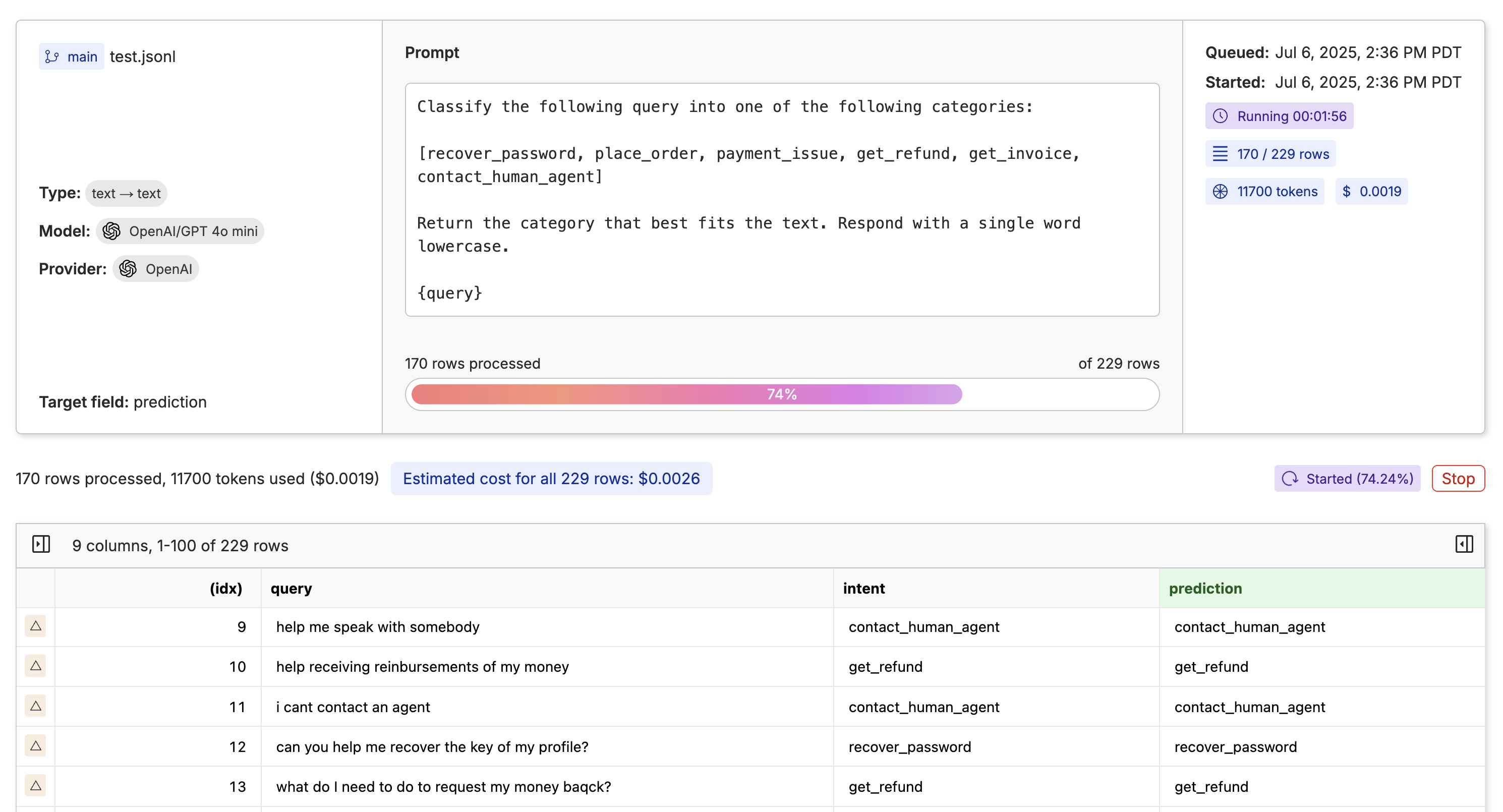 Once the model has run, you can use the [dataset viewer](/examples/data/datasets) to query the results and get a sense of how well your model performs given your data.
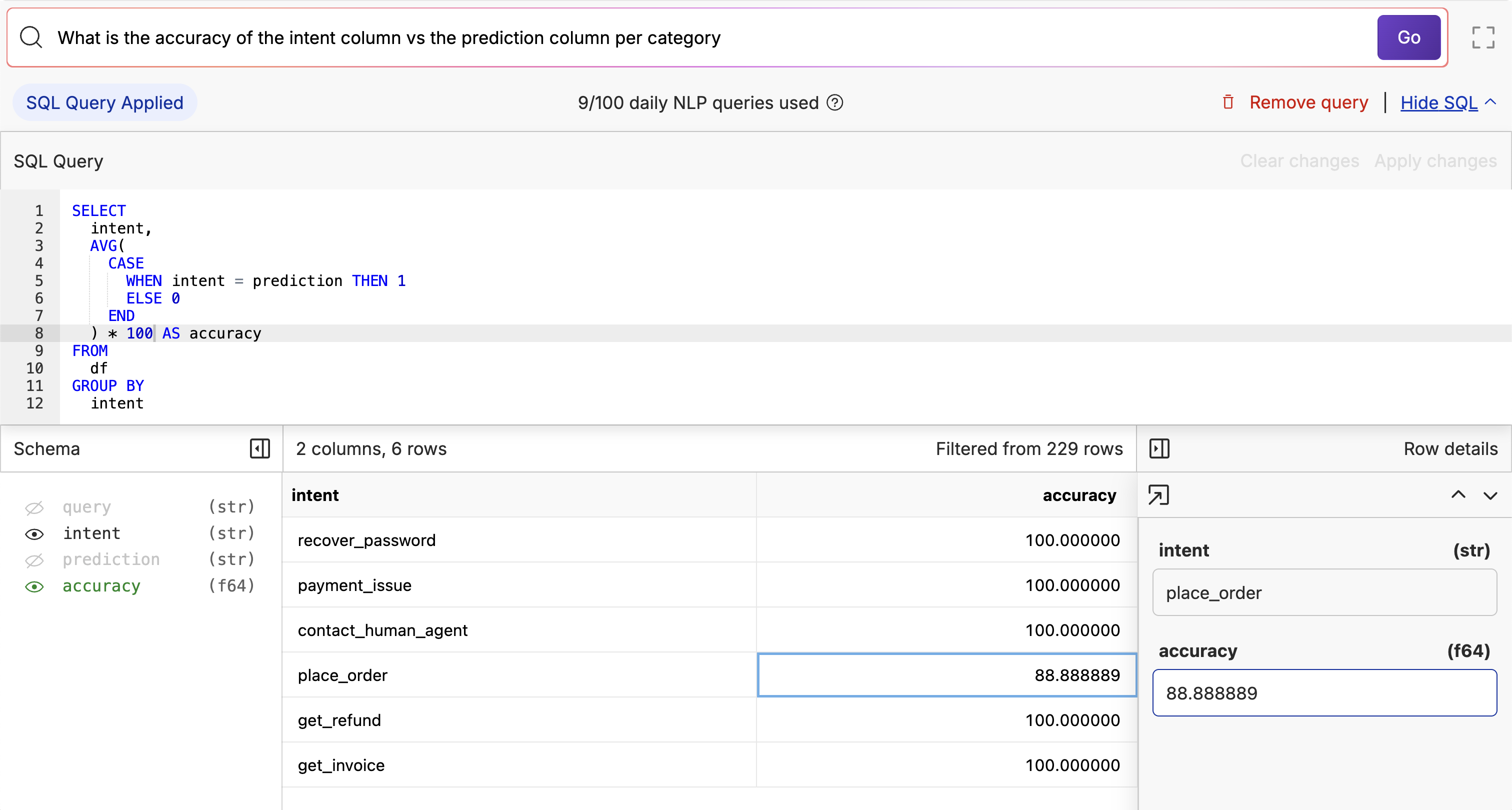 If you want to follow along with this example, feel free to grab some example [customer support data](https://www.oxen.ai/datasets/Bitext-Customer-Support-Intent/file/main/test.jsonl). We will use the following prompt to classify user requests by which department (or downstream model) should answer the question.
```
Classify the following query into one of the following categories:
[recover_password, place_order, payment_issue, get_refund, get_invoice, contact_human_agent]
Return the category that best fits the text. Respond with a single word lowercase.
{query}
```
## How to Run an Batch Inference
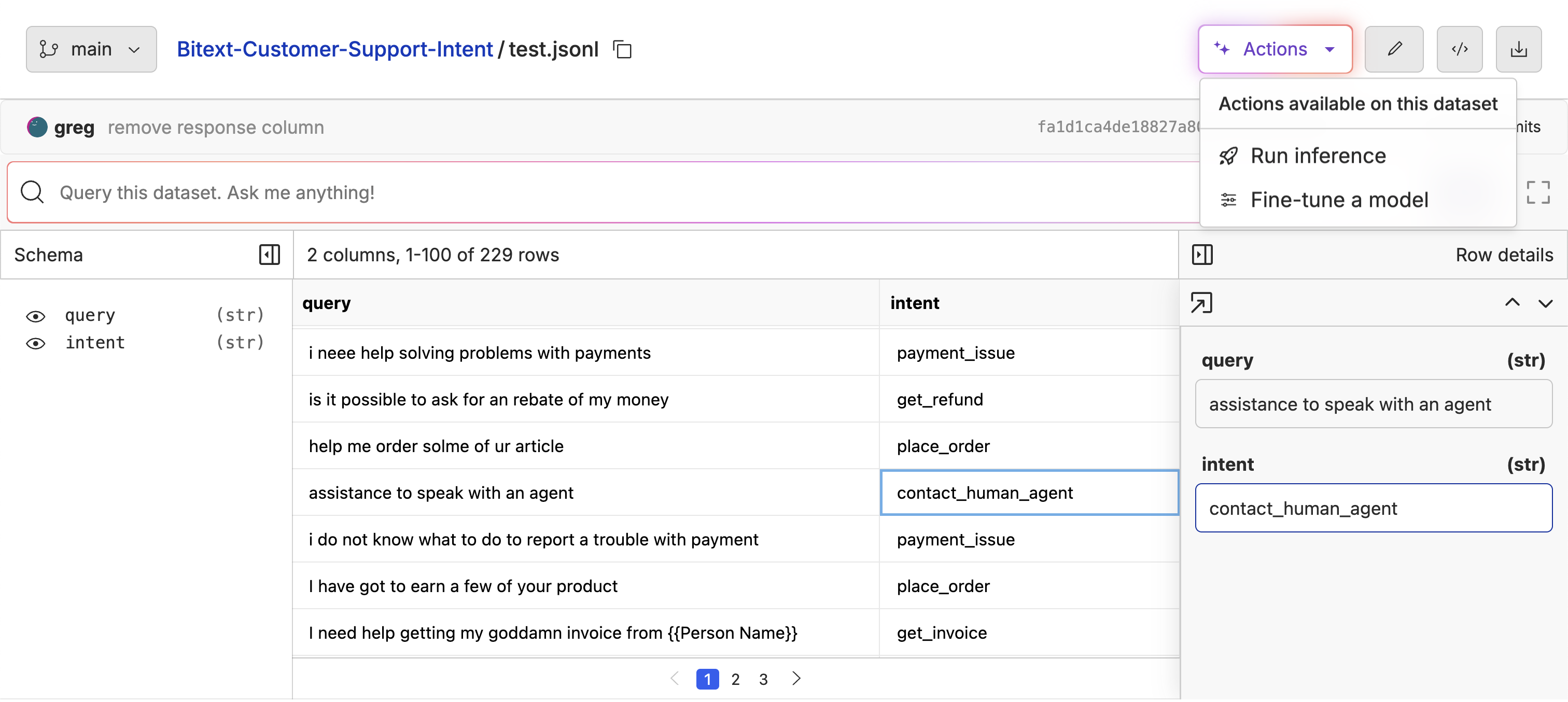
Navigate to the dataset file you want to evaluate the model on. Click the "Actions" button and select "Run Inference".
If you want to follow along with this example, feel free to grab some example [customer support data](https://www.oxen.ai/datasets/Bitext-Customer-Support-Intent/file/main/test.jsonl). We will use the following prompt to classify user requests by which department (or downstream model) should answer the question.
```
Classify the following query into one of the following categories:
[recover_password, place_order, payment_issue, get_refund, get_invoice, contact_human_agent]
Return the category that best fits the text. Respond with a single word lowercase.
{query}
```
## How to Run an Batch Inference
Navigate to the dataset file you want to evaluate the model on. Click the "Actions" button and select "Run Inference".
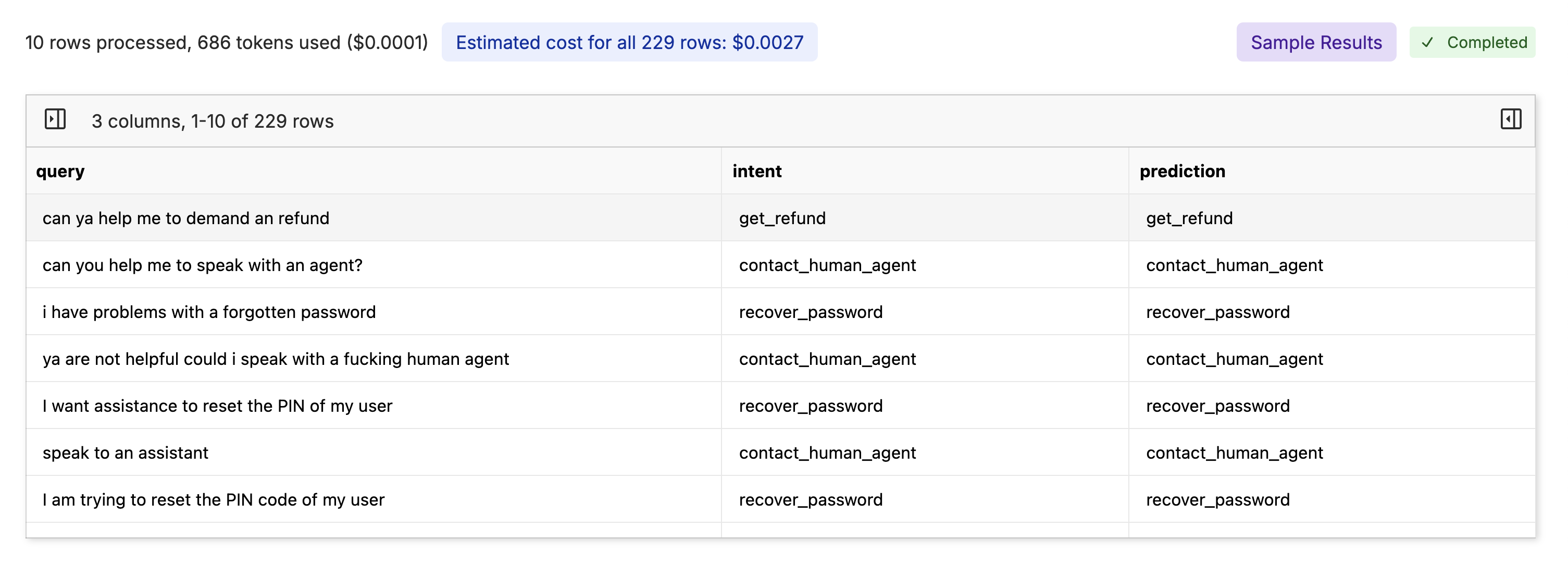
 In the prompt editor you can [explore models](https://www.oxen.ai/ai/models) from a variety of developers. Setup your prompt and decide how many rows to run the model on. Click the `Run Sample` button.
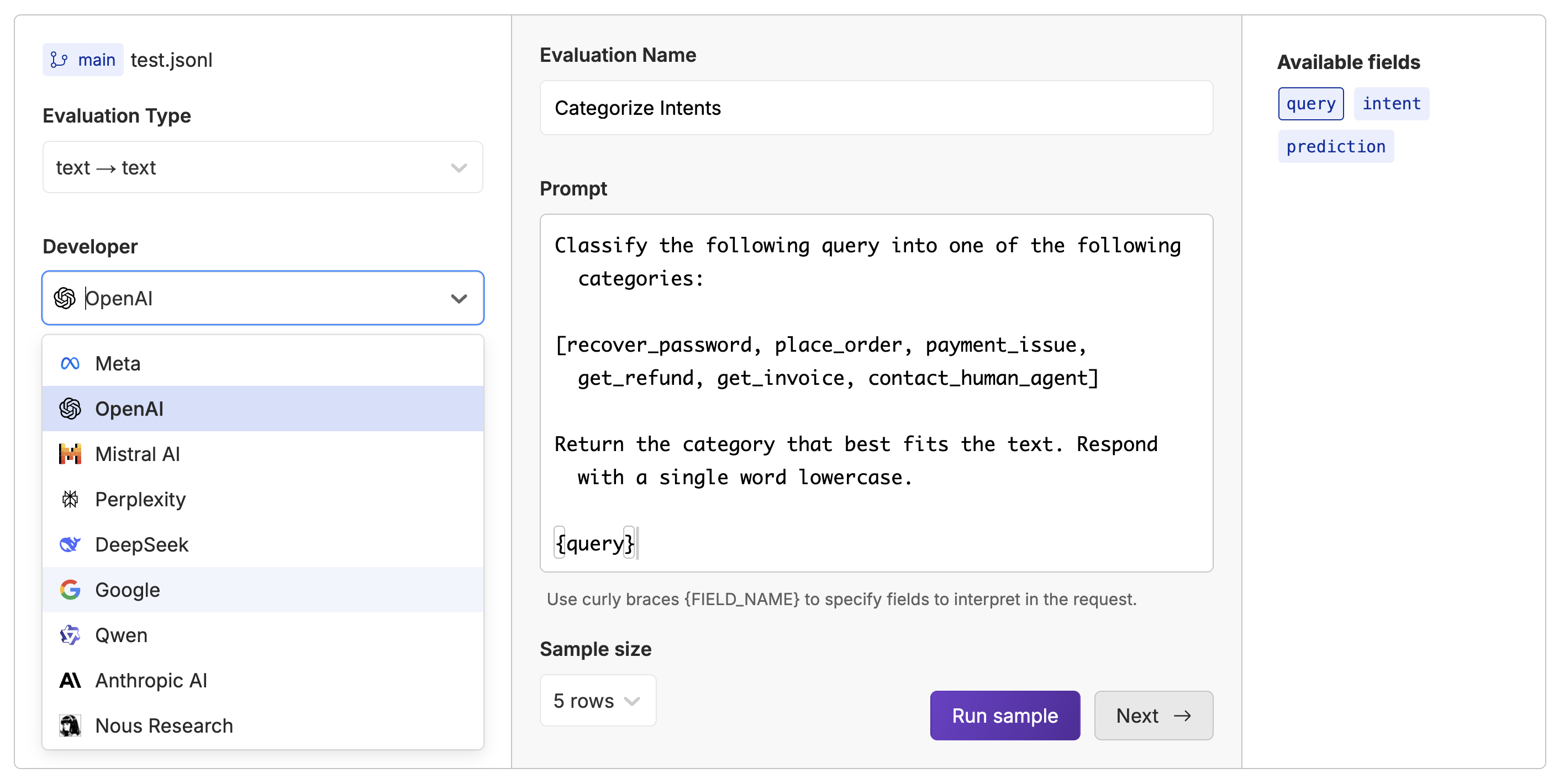 This will run the model on the first N rows of data and show you the results as well as an estimated price. Make sure the output looks like what you expect. If not, you can edit the prompt and run again.
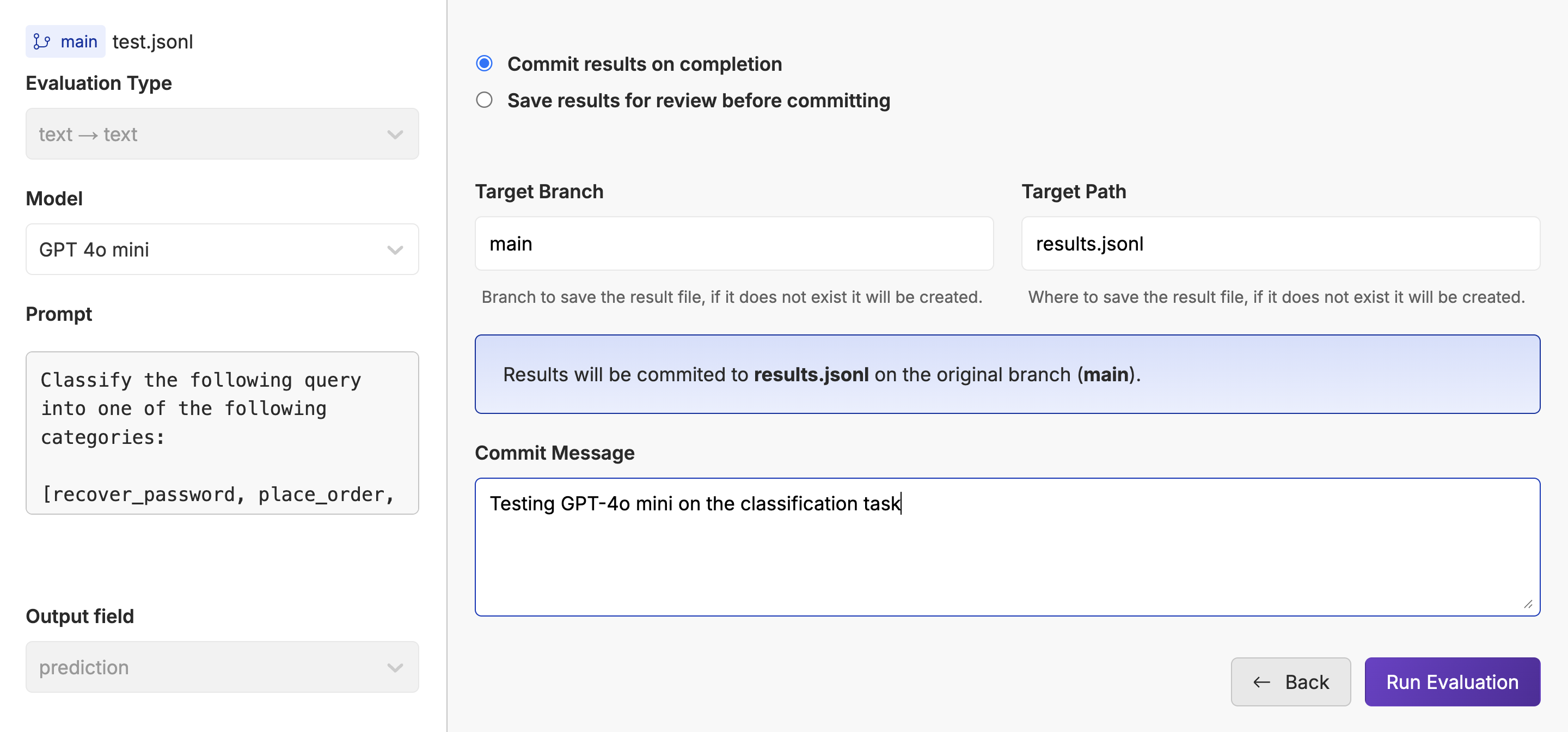
 Once you are satisfied with your prompt, you can pick a destination branch and write a commit message for once the job is finished.
 Now you can grab some coffee, sit back, and watch the model run. Feel free to close the tab, the job will be running in the background and committed to specified file and branch.
## Programmatically Run an Batch Inference
If you need to run a model as part of a larger workflow, you can use the [Oxen.ai API](/http-api) to programmatically run a model on a dataset.
Currently the API is only exposed over HTTP requests and requires a valid [api key](/python-api#obtain-auth-token) in the header. To kick off a model inference job, you can send a POST request to the `/api/repos/:namespace/:repo_name/evaluations/:resource` endpoint.
For example if the file you want to process is at:
`https://oxen.ai/ox/customer-intents/main/data.parquet`
The parameters should be:
* `:namespace` -> `ox`
* `:repo_name` -> `customer-intents`
* `:resource` -> `main/data.parquet` (combination of branch name and `file_name`)
```bash theme={null}
curl -X POST -H "Authorization: Bearer $TOKEN" -H "Content-Type: application/json" \
https://hub.oxen.ai/api/repos/:namespace/:repo_name/evaluations/:resource \
--data '{
"name": "My Awesome Evaluation",
"prompt": "Classify the following text into one of the following categories: [intent_1, intent_2, intent_3]\n{my_text_column_name}",
"type": "text",
"model": "gemini-3-1-flash-lite-preview",
"is_sample": false,
"target_column": "prediction",
"target_branch": "api-results-branch",
"auto_commit": true,
"commit_message": "test commit message"
}
'
```
Make sure to grab the `evaluation.id` from the response as you will need it to check the status of the job or retrieve the results later.
To check the status of the job, you can send a GET request to the `/api/repos/:namespace/:repo_name/evaluations/:evaluation_id` endpoint.
```bash theme={null}
curl -X GET -H "Content-Type: application/json" \
https://hub.oxen.ai/api/repos/:namespace/:repo_name/evaluations/:evaluation_id
```
You will be able to poll this response to see the progress of your job, or check it out in the Oxen.ai UI under the "Evaluations" tab.
We will be adding Python SDK support for this in the near future.
## Supported Models
Oxen.ai supports foundation models from Anthropic, Google, Meta, and OpenAI or the ability to evaluate your own [fine-tuned models](/getting-started/fine-tuning). The models may have multi-modal inputs and outputs such as text, images or embeddings.
To see which model would best suit your task, visit our [models page](https://www.oxen.ai/explore/models).
Now you can grab some coffee, sit back, and watch the model run. Feel free to close the tab, the job will be running in the background and committed to specified file and branch.
## Programmatically Run an Batch Inference
If you need to run a model as part of a larger workflow, you can use the [Oxen.ai API](/http-api) to programmatically run a model on a dataset.
Currently the API is only exposed over HTTP requests and requires a valid [api key](/python-api#obtain-auth-token) in the header. To kick off a model inference job, you can send a POST request to the `/api/repos/:namespace/:repo_name/evaluations/:resource` endpoint.
For example if the file you want to process is at:
`https://oxen.ai/ox/customer-intents/main/data.parquet`
The parameters should be:
* `:namespace` -> `ox`
* `:repo_name` -> `customer-intents`
* `:resource` -> `main/data.parquet` (combination of branch name and `file_name`)
```bash theme={null}
curl -X POST -H "Authorization: Bearer $TOKEN" -H "Content-Type: application/json" \
https://hub.oxen.ai/api/repos/:namespace/:repo_name/evaluations/:resource \
--data '{
"name": "My Awesome Evaluation",
"prompt": "Classify the following text into one of the following categories: [intent_1, intent_2, intent_3]\n{my_text_column_name}",
"type": "text",
"model": "gemini-3-1-flash-lite-preview",
"is_sample": false,
"target_column": "prediction",
"target_branch": "api-results-branch",
"auto_commit": true,
"commit_message": "test commit message"
}
'
```
Make sure to grab the `evaluation.id` from the response as you will need it to check the status of the job or retrieve the results later.
To check the status of the job, you can send a GET request to the `/api/repos/:namespace/:repo_name/evaluations/:evaluation_id` endpoint.
```bash theme={null}
curl -X GET -H "Content-Type: application/json" \
https://hub.oxen.ai/api/repos/:namespace/:repo_name/evaluations/:evaluation_id
```
You will be able to poll this response to see the progress of your job, or check it out in the Oxen.ai UI under the "Evaluations" tab.
We will be adding Python SDK support for this in the near future.
## Supported Models
Oxen.ai supports foundation models from Anthropic, Google, Meta, and OpenAI or the ability to evaluate your own [fine-tuned models](/getting-started/fine-tuning). The models may have multi-modal inputs and outputs such as text, images or embeddings.
To see which model would best suit your task, visit our [models page](https://www.oxen.ai/explore/models).
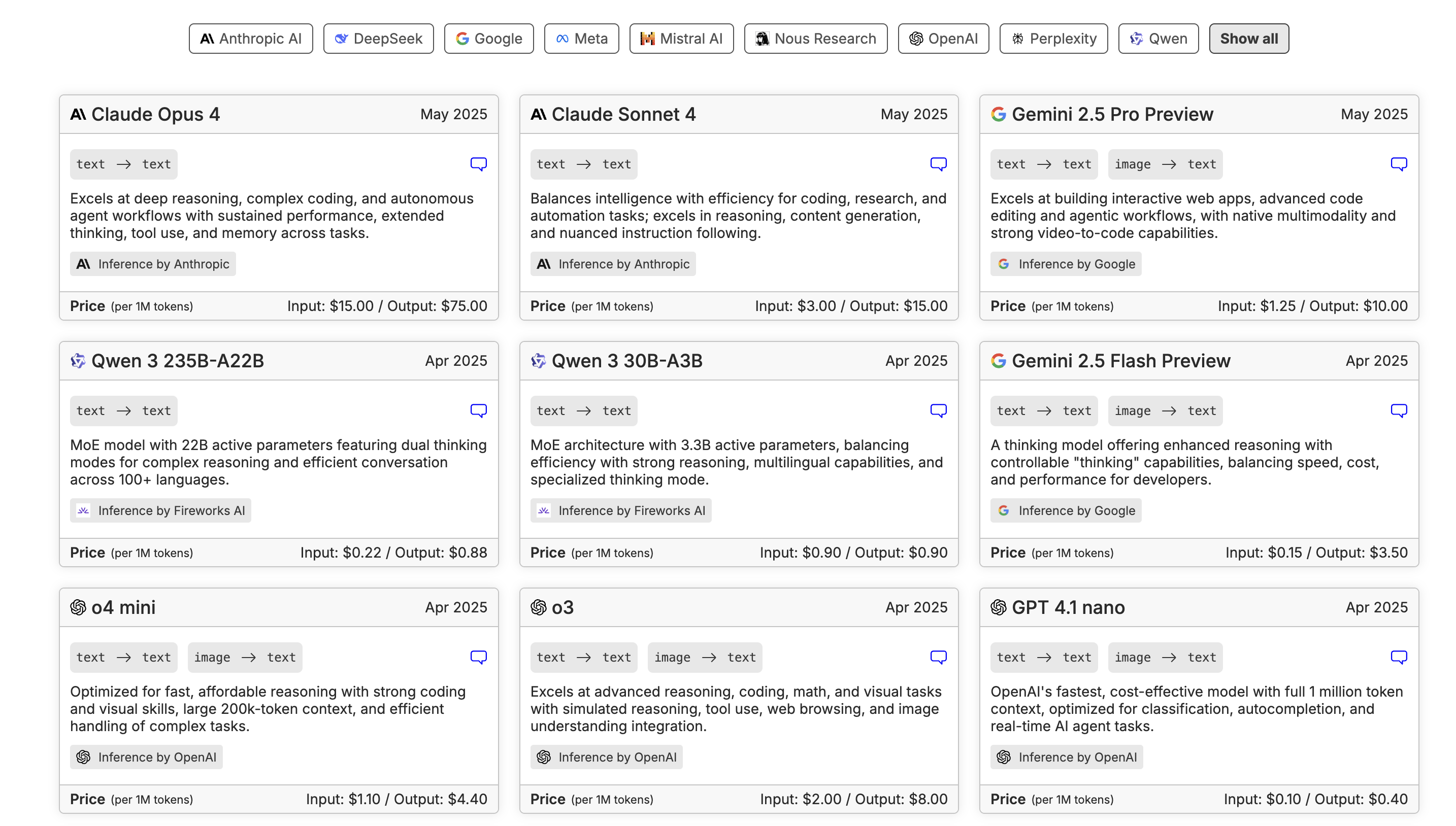 If you don't see the model you need, please [let us know](https://discord.gg/s3tBEn7Ptg) and we'll add it.