> ## Documentation Index
> Fetch the complete documentation index at: https://docs.oxen.ai/llms.txt
> Use this file to discover all available pages before exploring further.
# Fine-Tuning Models on Oxen.ai
> Oxen.ai allows you to fine-tune text, image, and video models with a few clicks.
Simply [upload your data](/examples/data/datasets), and we will provision GPU infrastructure and run the fine-tune. When it's done, Oxen.ai will save the fine-tuned model weights directly to your repository, and we spin down the GPU for you. No worrying about run away costs or having to manage your own infrastructure.
Once the fine-tuning process is complete, you can deploy your model to a dedicated endpoint and use the [inference endpoints](/getting-started/inference) to integrate it into your application.
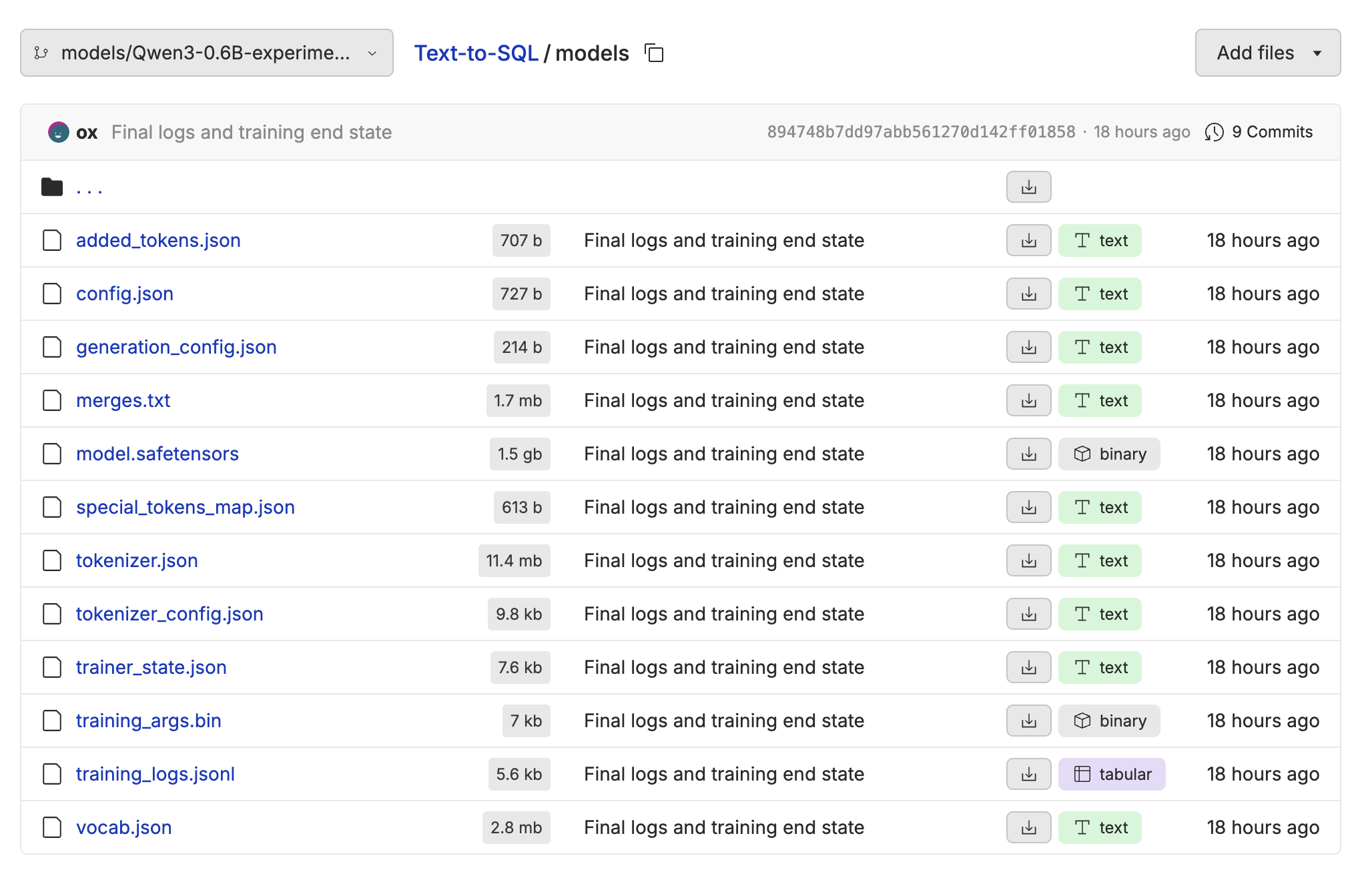
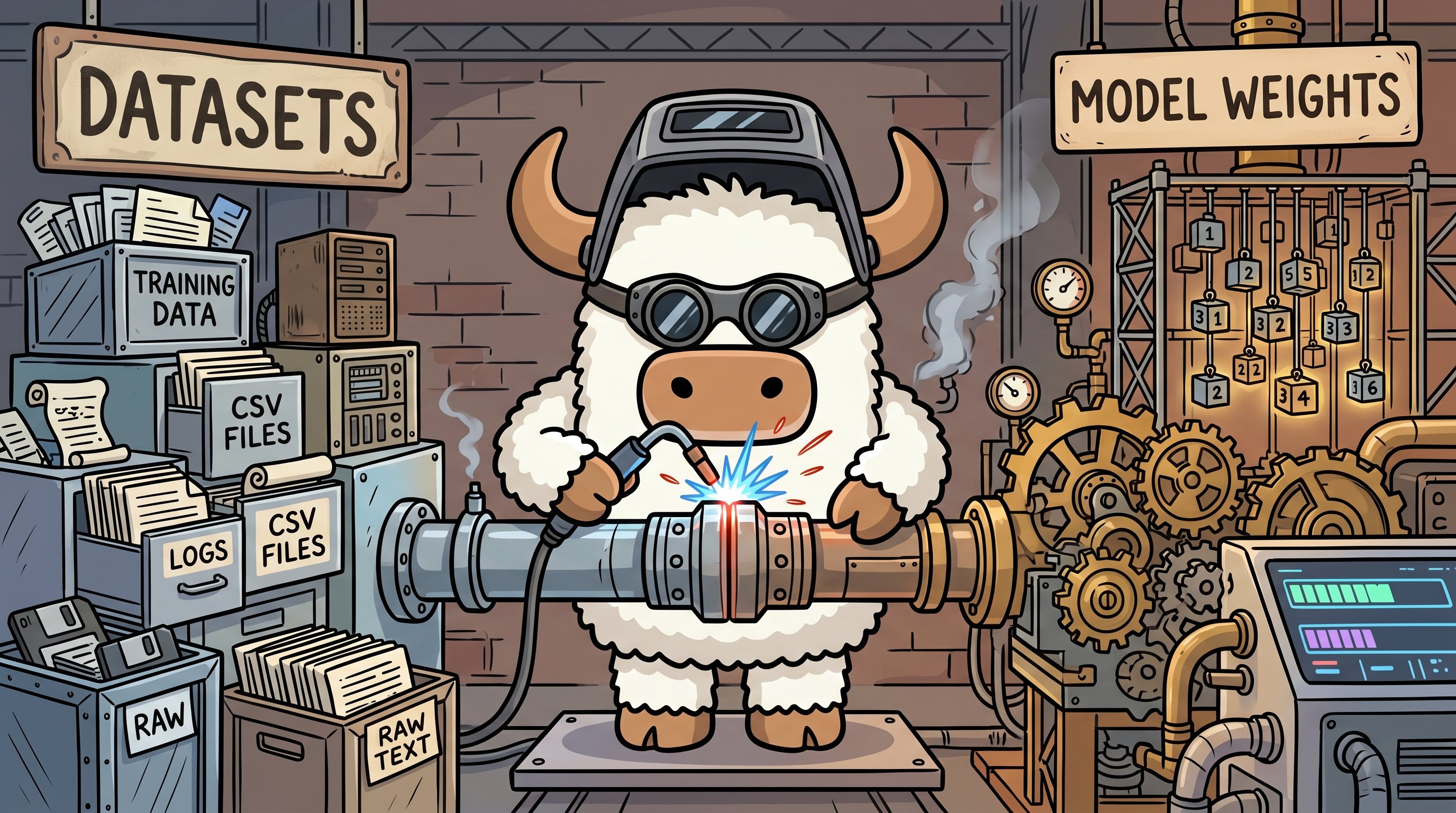 Oxen.ai automatically [versions](/examples/data/versioning) and manages the raw model weights and datasets, so that you can always track the data that was used to train the model, or download the model to run locally.
## Why Fine-Tune?
Fine-tuning is a great tool to reach for when basic prompting and context engineering fall short. You may need to fine-tune when:
* **Quality** is critical and the model isn't consistently producing correct outputs.
* **Proprietary Data** gives you a unique advantage that generic models can't capture.
* **Latency** is a deal breaker and you need real-time responses.
* **Throughput** limitations are bottlenecking your application's scalability.
* **Ownership** of the model is important and you want to control your own destiny.
* **Cost** if a foundation model is too expensive for your use case or you want to deploy a smaller model to the edge.
With Oxen.ai, we make it easy to automate the fine-tuning process of LLMs on your own data.
## Modalities
Oxen.ai supports many data types and tasks for fine-tuning.
Fine-tune a model to take a user input as text and generate a single response as text.
Fine-tune a model on chat messages to have a conversation with a user.
Fine-tune a model to go from text descriptions to images.
Fine-tune a model to take a prompt and a reference image and generate a new image.
Fine-tune a model to take in a prompt and generate a video.
## Start by Uploading a Dataset
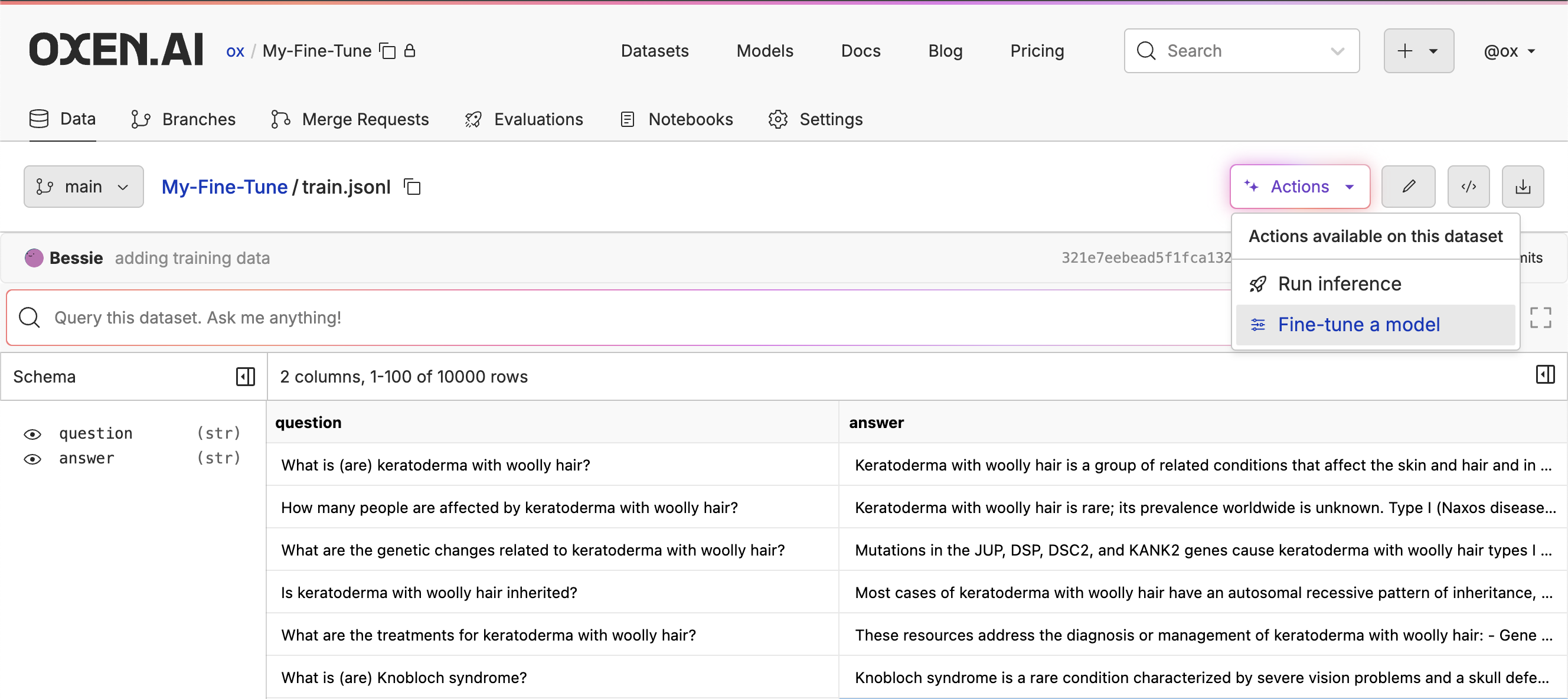
To get started, you'll need to create a new repository on Oxen.ai. Once you've created a repository, you can upload your data. The dataset can be in any tabular format including `csv`, `jsonl`, or `parquet`.
Oxen.ai automatically [versions](/examples/data/versioning) and manages the raw model weights and datasets, so that you can always track the data that was used to train the model, or download the model to run locally.
## Why Fine-Tune?
Fine-tuning is a great tool to reach for when basic prompting and context engineering fall short. You may need to fine-tune when:
* **Quality** is critical and the model isn't consistently producing correct outputs.
* **Proprietary Data** gives you a unique advantage that generic models can't capture.
* **Latency** is a deal breaker and you need real-time responses.
* **Throughput** limitations are bottlenecking your application's scalability.
* **Ownership** of the model is important and you want to control your own destiny.
* **Cost** if a foundation model is too expensive for your use case or you want to deploy a smaller model to the edge.
With Oxen.ai, we make it easy to automate the fine-tuning process of LLMs on your own data.
## Modalities
Oxen.ai supports many data types and tasks for fine-tuning.
Fine-tune a model to take a user input as text and generate a single response as text.
Fine-tune a model on chat messages to have a conversation with a user.
Fine-tune a model to go from text descriptions to images.
Fine-tune a model to take a prompt and a reference image and generate a new image.
Fine-tune a model to take in a prompt and generate a video.
## Start by Uploading a Dataset
To get started, you'll need to create a new repository on Oxen.ai. Once you've created a repository, you can upload your data. The dataset can be in any tabular format including `csv`, `jsonl`, or `parquet`.
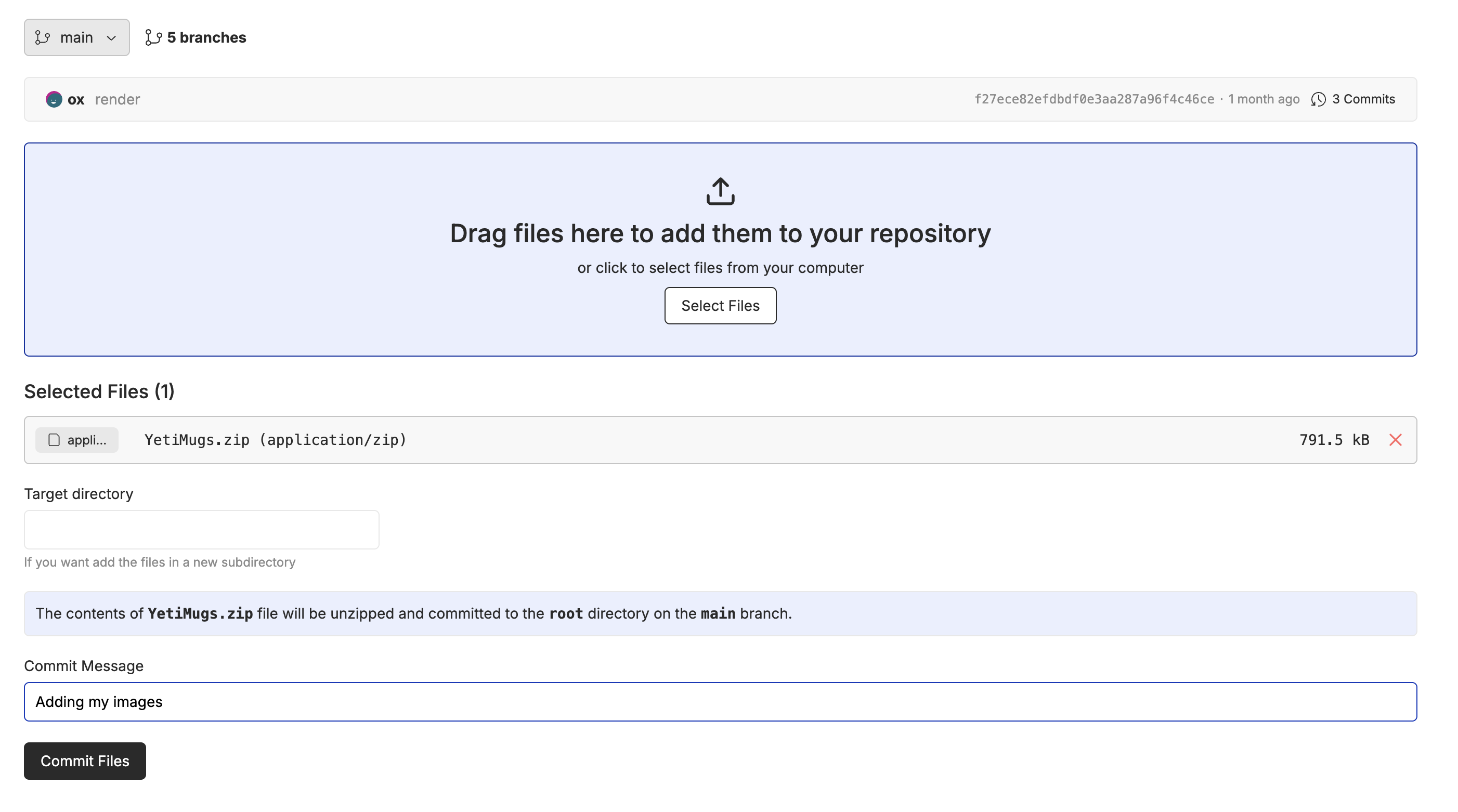 Once you have your dataset uploaded, you can query, explore, and make sure that the data is high quality before kicking off the fine-tuning process. Your model will only be as good as the data you train it on.
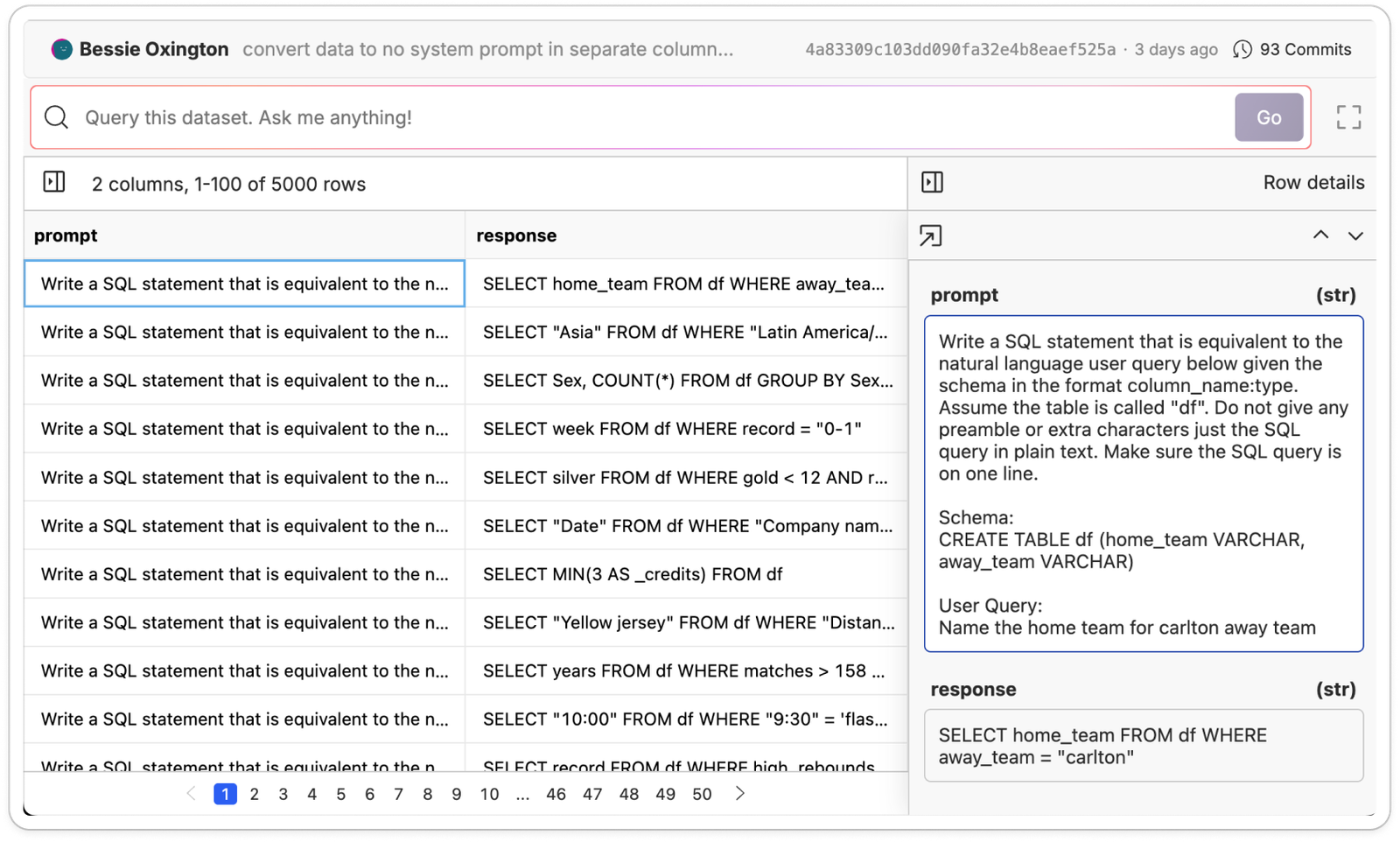 When you feel confident that your dataset is ready, use the "Actions" button to select the model you want to fine-tune.
 ## Selecting a Model
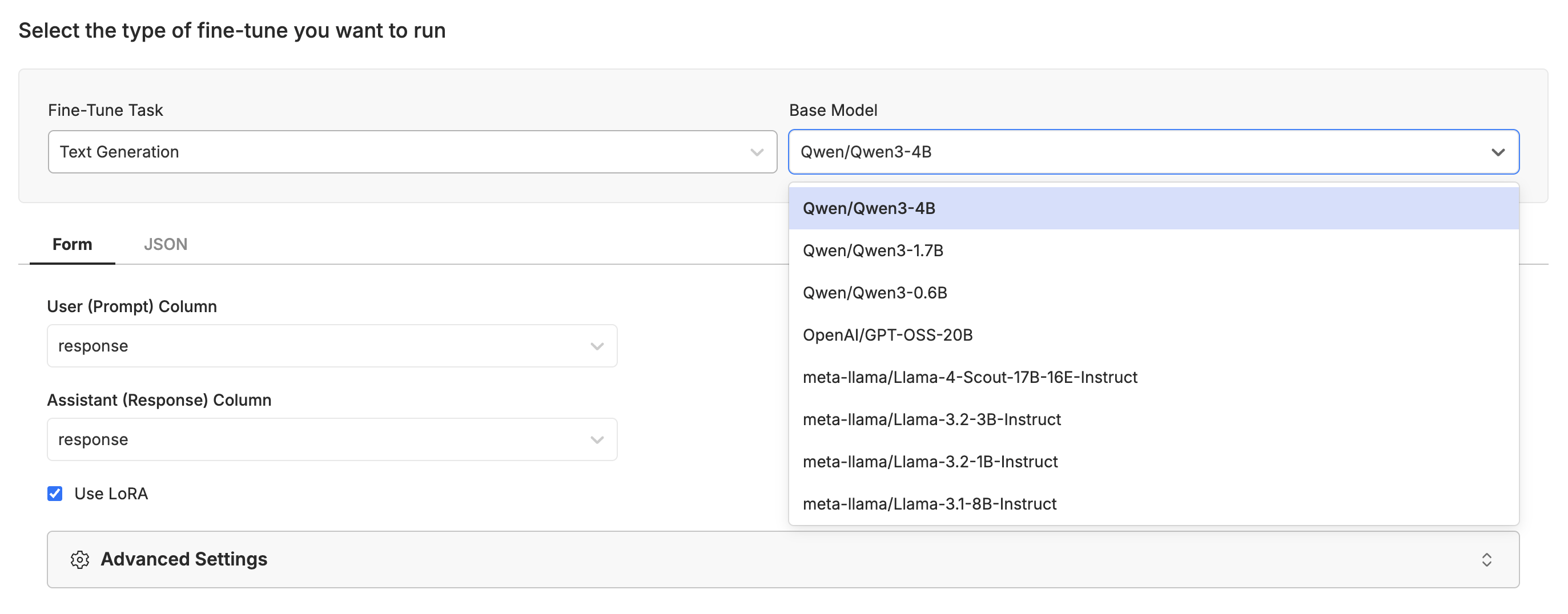
This will take you to a form where you can select the model you want to fine-tune and the columns you want to use for the fine-tuning process. We support fine-tuning for [text generation](/examples/fine-tuning/text_generation), [image generation](/examples/fine-tuning/image_generation), [image editing](/examples/fine-tuning/image_editing), and [video generation](/examples/fine-tuning/video_generation) with a variety of models.
## Selecting a Model
This will take you to a form where you can select the model you want to fine-tune and the columns you want to use for the fine-tuning process. We support fine-tuning for [text generation](/examples/fine-tuning/text_generation), [image generation](/examples/fine-tuning/image_generation), [image editing](/examples/fine-tuning/image_editing), and [video generation](/examples/fine-tuning/video_generation) with a variety of models.
 If you want support for any specific models, data formats, training methods contact us at [hello@oxen.ai](mailto:hello@oxen.ai) and we are happy to help you get started. We are actively working on support for new models and distributed training.
## Monitoring the Fine-Tune
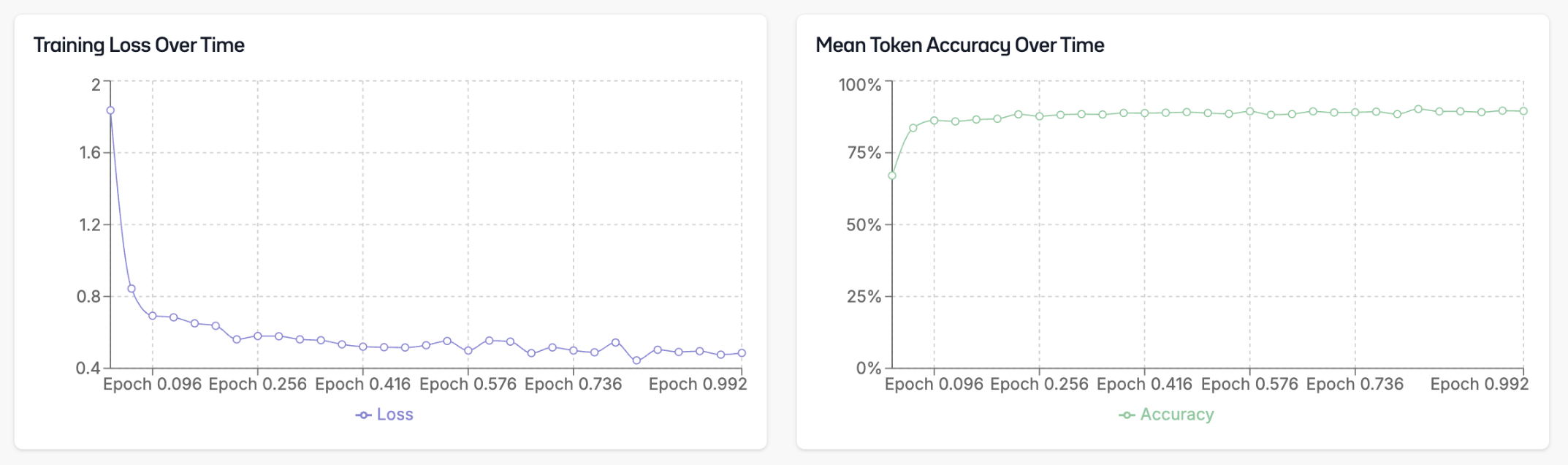
Once you have started the fine-tuning process, you can monitor its progress. The dashboard will show you loss over time and token accuracy processed.
If you want support for any specific models, data formats, training methods contact us at [hello@oxen.ai](mailto:hello@oxen.ai) and we are happy to help you get started. We are actively working on support for new models and distributed training.
## Monitoring the Fine-Tune
Once you have started the fine-tuning process, you can monitor its progress. The dashboard will show you loss over time and token accuracy processed.
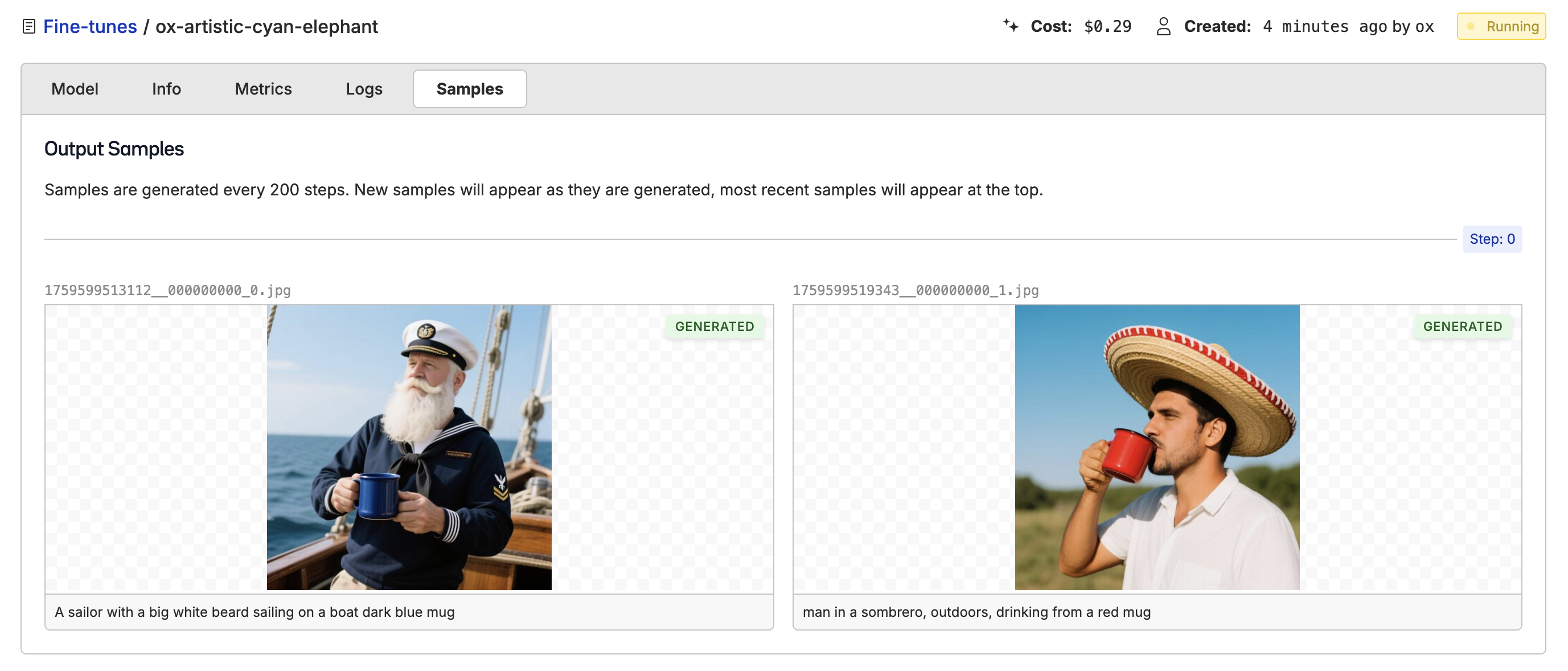
 If you are fine-tuning an [image](/examples/fine-tuning/image_generation) or [video](/examples/fine-tuning/video_generation) generation model, you can view the generated images or videos in the "Samples" tab to get a feel for the model's performance.
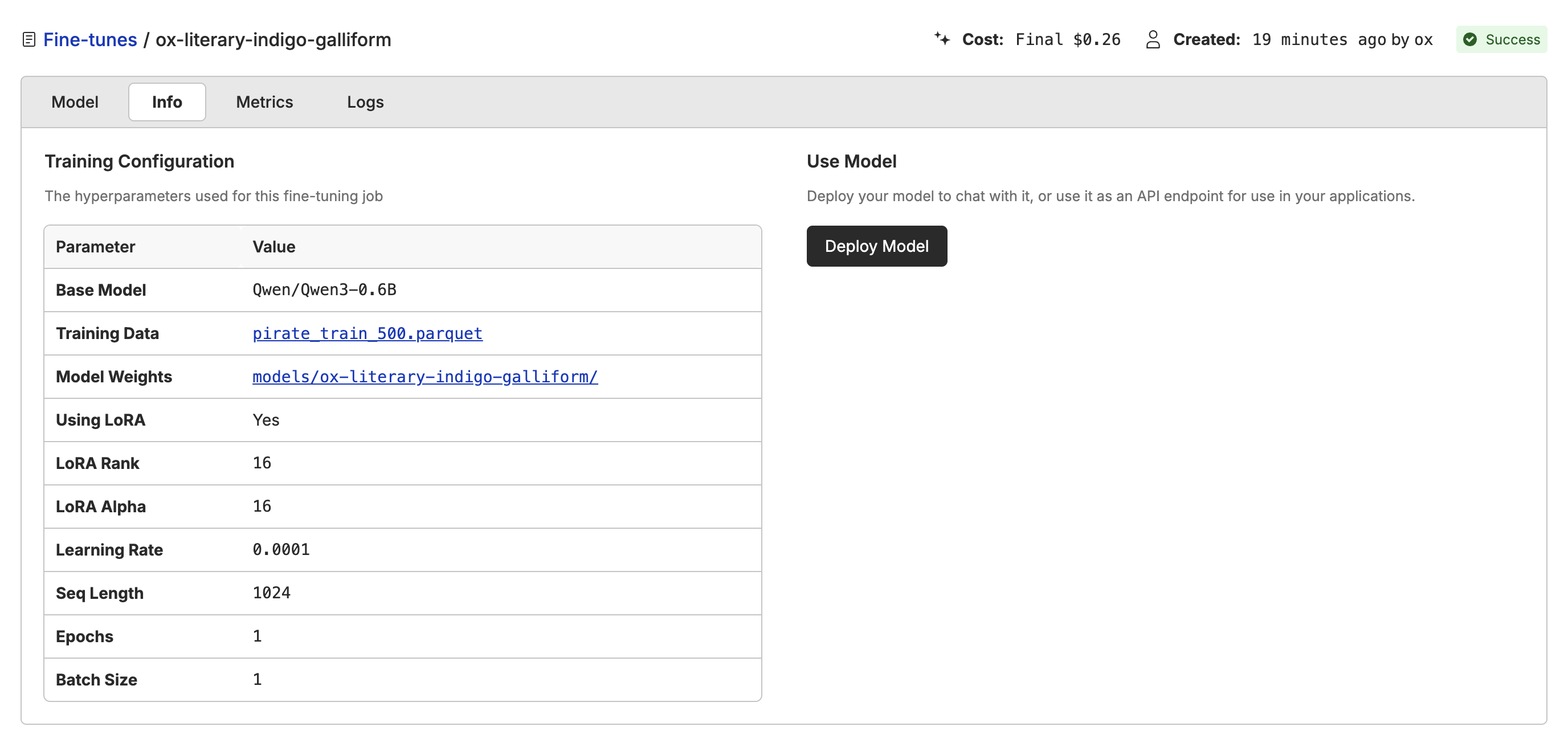
 Click on the "Info" tab to see the fine-tuning configuration and all the hyper-parameters used. This will include a link to the [dataset version](/examples/data/versioning) you used and the raw model weights for downloading and running locally.
 ## Deploying the Model
Once the model is fine-tuned, you can deploy it to a dedicated endpoint or in the playground.
This will give you a `/ai/chat/completions` api and a playground that you can use to test out the model.
Start by using the "playgroud" button.
## Deploying the Model
Once the model is fine-tuned, you can deploy it to a dedicated endpoint or in the playground.
This will give you a `/ai/chat/completions` api and a playground that you can use to test out the model.
Start by using the "playgroud" button.
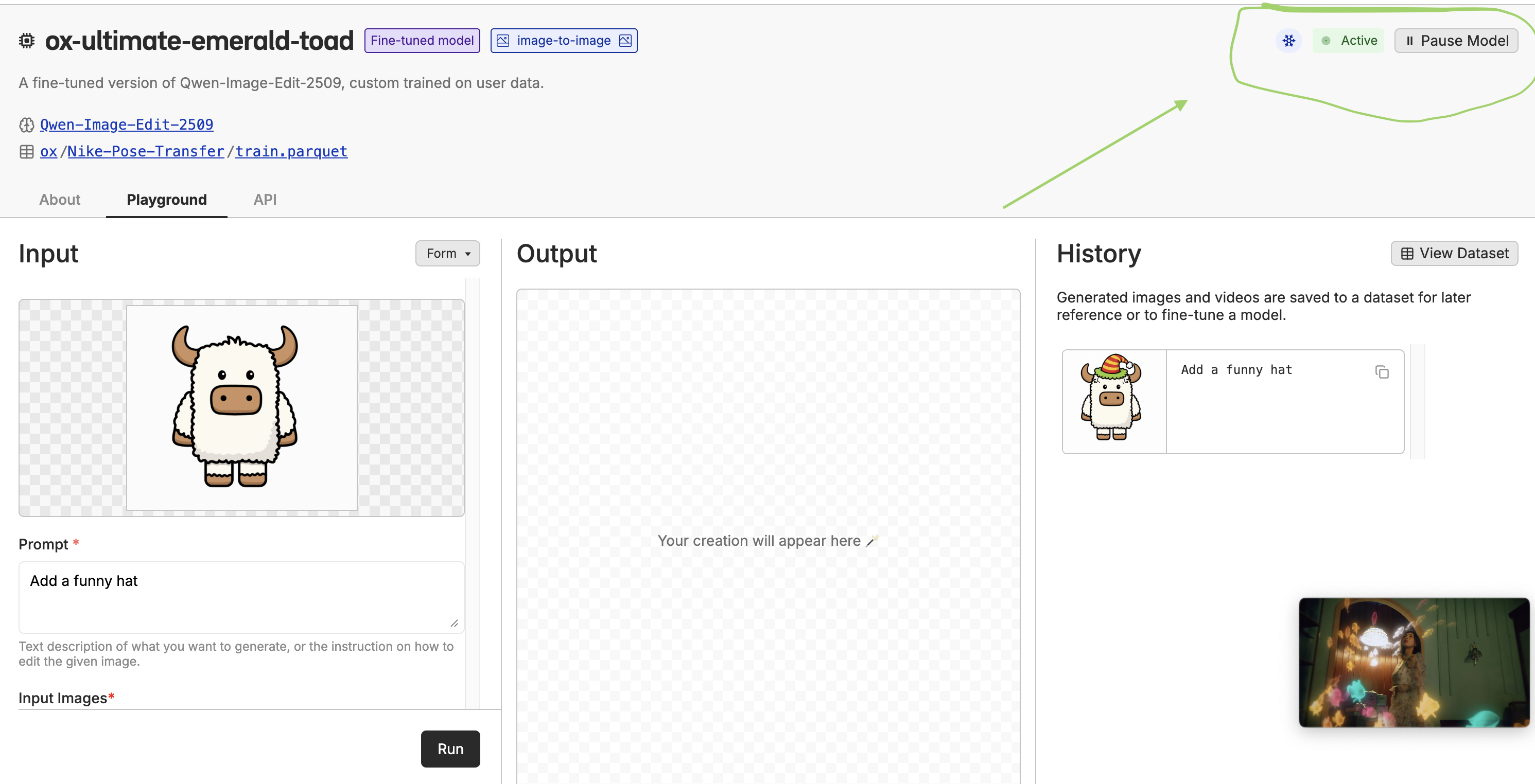
 if the model is not loaded you'll see an "inactive" button on the top right of the playgroud.
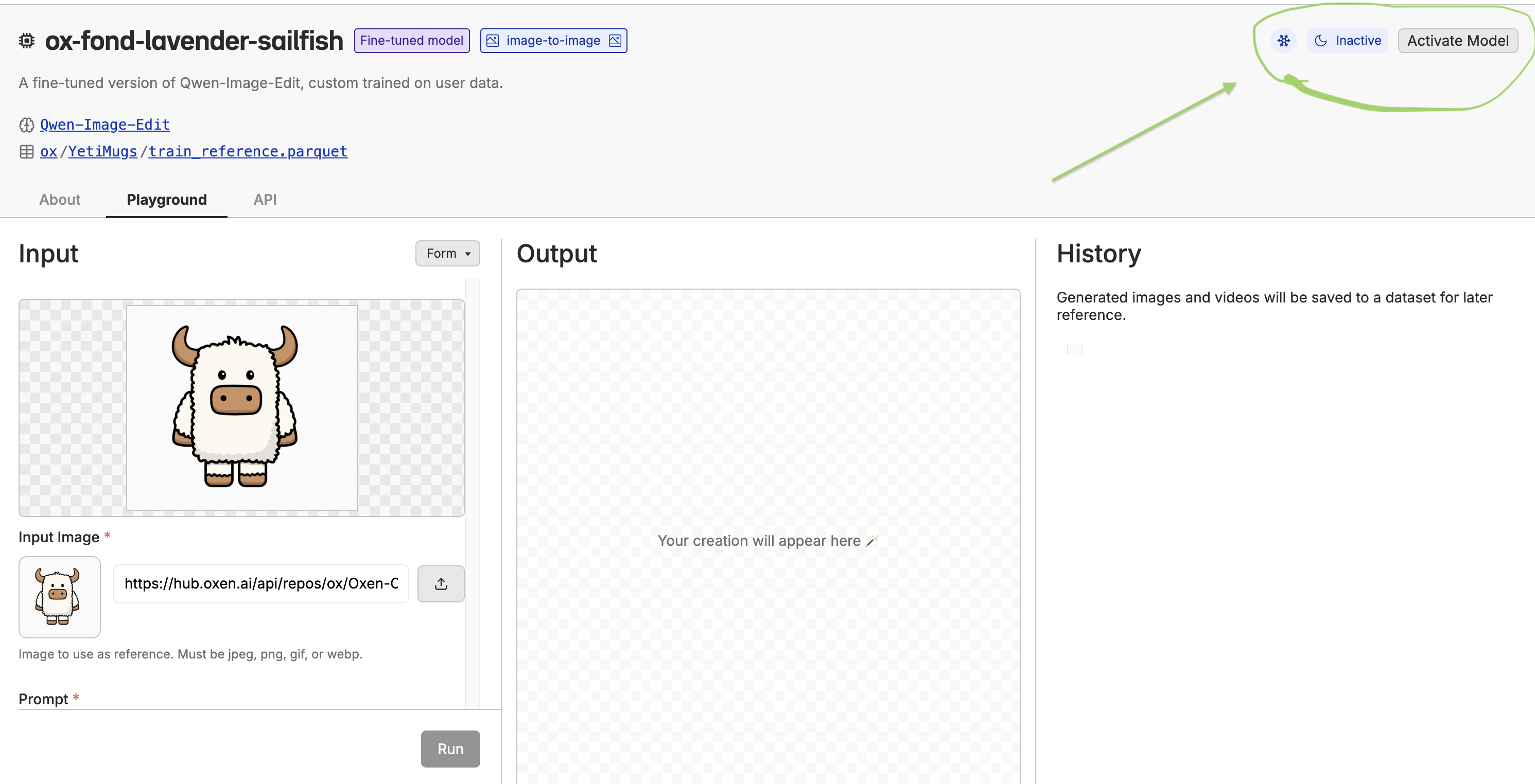 use the activate button to load the model.
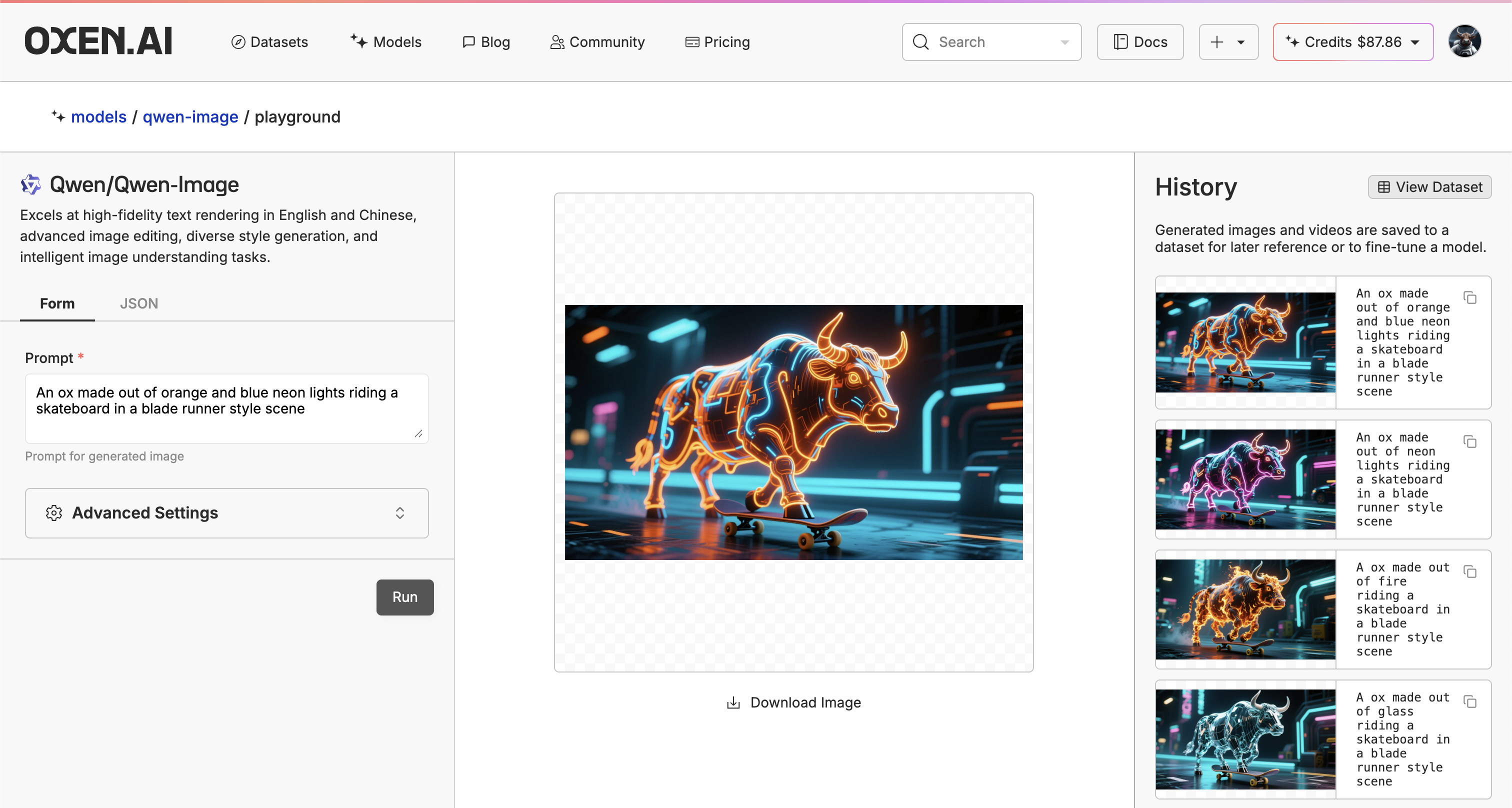
 To use the API Swap out the model name with the name of the model you want to use.
```bash theme={null}
curl https://hub.oxen.ai/api/ai/chat/completions -H "Content-Type: application/json" -d '{
"model":"oxen:my-model-name",
"messages": [{"role": "user", "content": "What is the best name for a friendly ox?"}],
}'
```
## Using the Model
Once the model is deployed, you can also chat with it using the Oxen.ai chat interface at the playgroud. Learn more about the [chat interface here](/getting-started/inference).
To use the API Swap out the model name with the name of the model you want to use.
```bash theme={null}
curl https://hub.oxen.ai/api/ai/chat/completions -H "Content-Type: application/json" -d '{
"model":"oxen:my-model-name",
"messages": [{"role": "user", "content": "What is the best name for a friendly ox?"}],
}'
```
## Using the Model
Once the model is deployed, you can also chat with it using the Oxen.ai chat interface at the playgroud. Learn more about the [chat interface here](/getting-started/inference).
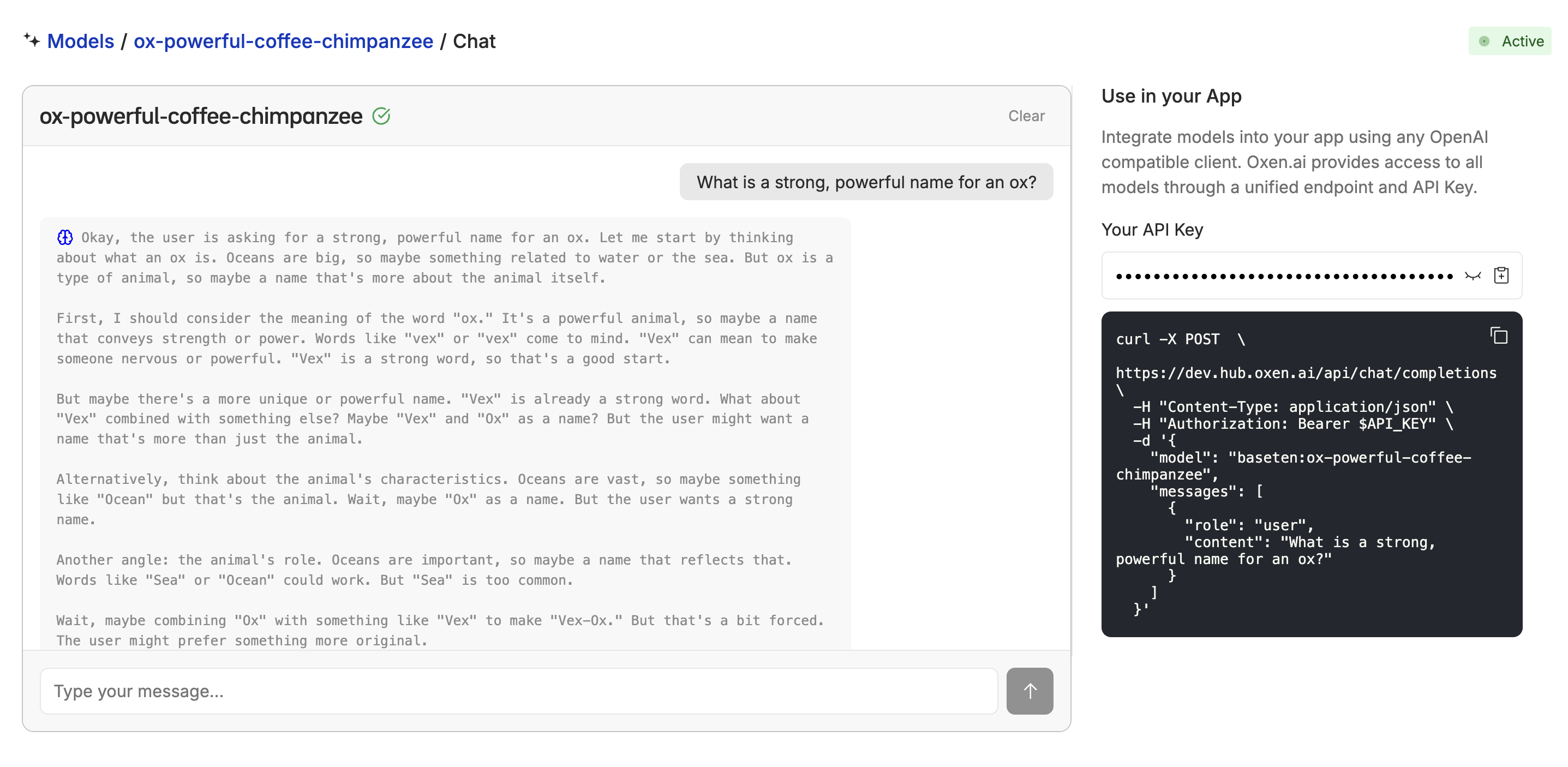 For image and video generation, you can use the [playground](https://oxen.ai/ai/models) to generate images and videos.
 ## Downloading the Model
If you want access to the raw model weights, you can download them from the repository using the Oxen.ai [Python Library](/python-api) or the [CLI](/getting-started/command-line/start_repository).
Follow the instructions for [installing oxen](/getting-started/install) if you haven't already.
```bash CLI theme={null}
oxen download my-username/my-repo models/ox-artistic-cyan-elephant/model.safetensors --revision models/ox-artistic-cyan-elephant
```
```python Python theme={null}
from oxen import RemoteRepo
repo = RemoteRepo("my-username/my-repo")
repo.download("models/ox-artistic-cyan-elephant/model.safetensors", revision="models/ox-artistic-cyan-elephant")
```
## Downloading the Model
If you want access to the raw model weights, you can download them from the repository using the Oxen.ai [Python Library](/python-api) or the [CLI](/getting-started/command-line/start_repository).
Follow the instructions for [installing oxen](/getting-started/install) if you haven't already.
```bash CLI theme={null}
oxen download my-username/my-repo models/ox-artistic-cyan-elephant/model.safetensors --revision models/ox-artistic-cyan-elephant
```
```python Python theme={null}
from oxen import RemoteRepo
repo = RemoteRepo("my-username/my-repo")
repo.download("models/ox-artistic-cyan-elephant/model.safetensors", revision="models/ox-artistic-cyan-elephant")
```
 ## Need Custom Infrastructure?
If you need custom or private deployments in your own VPC or want to train a larger model on distributed infrastructure, contact us at [hello@oxen.ai](mailto:hello@oxen.ai) and we can give you a custom deployment.
## Need Custom Infrastructure?
If you need custom or private deployments in your own VPC or want to train a larger model on distributed infrastructure, contact us at [hello@oxen.ai](mailto:hello@oxen.ai) and we can give you a custom deployment.