> ## Documentation Index
> Fetch the complete documentation index at: https://docs.oxen.ai/llms.txt
> Use this file to discover all available pages before exploring further.
# 🔢 RAG: Generating Embeddings
> **Retrieval-Augmented Generation (RAG)** is the process of retrieving information that the AI does not have in its original training data to answer a question. To set up RAG, the first step is to embed the data you would like to retrieve. Basically, convert the text, image, or other data to a number the AI knows how to find and retrieve when asked a question which relates to the text, image, etc.
This is part 1 of a 2 step tutorial. Here you'll learn how to create embeddings for RAG using the [Simple Wikipedia Dataset](https://www.oxen.ai/ox/Simple-Wikipedia-50k), for the second step, check out [🧠 RAG Extracting Answers](/use-cases/rag-extracting-answers).
A couple of examples would be:
> If you're a student and want to reference a textbook for any questions you have to your AI, you would use RAG to ensure it answers based on the textbook.
>
> If a business wants to know "What was the total amount of the invoice?" the LLM would access the invoice, comb through it to get the total amount, and answer with the correct number.
Choosing the right embedding model is a vital part of building a robust pipeline. Check out the [Models Page](https://www.oxen.ai/explore/models) to evaluate different models and continuously add new, clean data to your dataset to improve the quality of your results.
## Upload Your Dataset
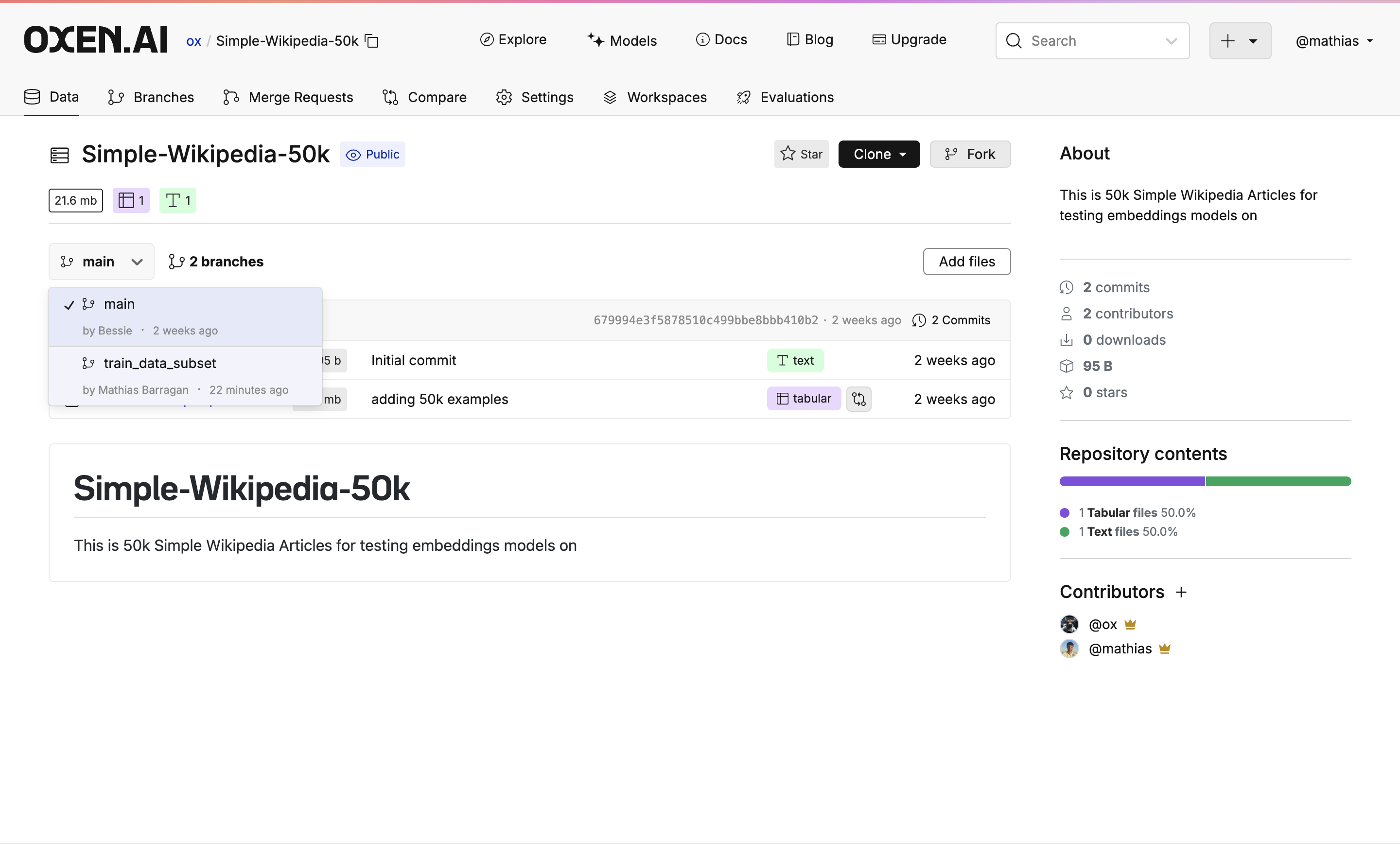
Open the dataset you want to work with. You can find a dataset on our [explore page](https://www.oxen.ai/explore) or you can clone the [Simple Wikipedia Dataset](https://www.oxen.ai/ox/Simple-Wikipedia-50k) we are using. Since running a 50k row dataset would take forever, we created a subset of the first 1k rows which you can find in the `train_data_subset` branch.
```bash theme={null}
oxen clone https://hub.oxen.ai/ox/Simple-Wikipedia-50k --all
export OXEN_USERNAME="your-username" # NOTE: Replace with your username
oxen create-remote --name "$OXEN_USERNAME/Simple-Wikipedia-50k"
oxen config --set-remote origin "$OXEN_USERNAME/Simple-Wikipedia-50k"
oxen push origin main
```
 ## Create a Model Evaluation
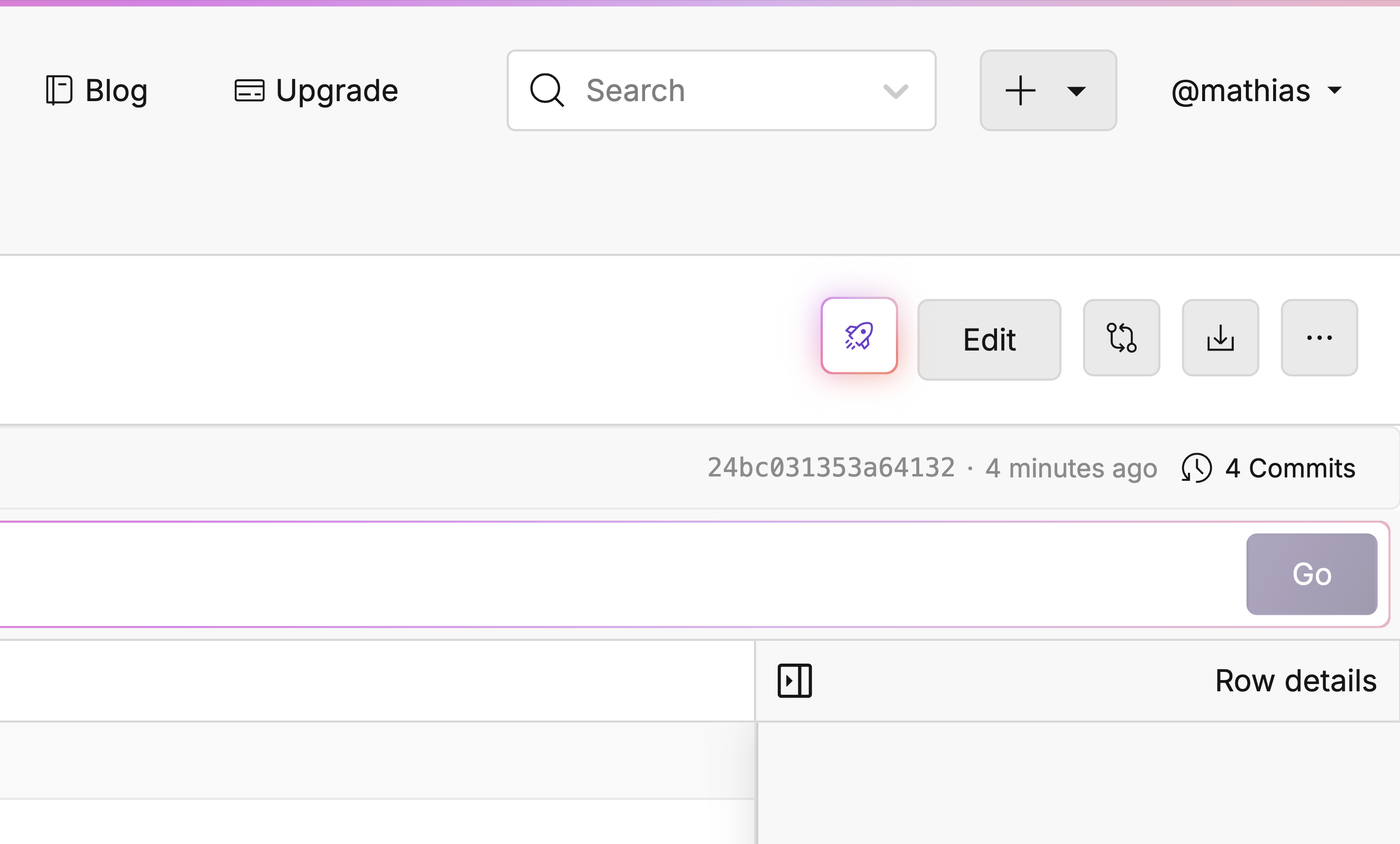
Open the file you want to embed and press the glowing button with the rocket 🚀 on it at the top right of the screen.
## Create a Model Evaluation
Open the file you want to embed and press the glowing button with the rocket 🚀 on it at the top right of the screen.
 ## Setting Up The Evaluation
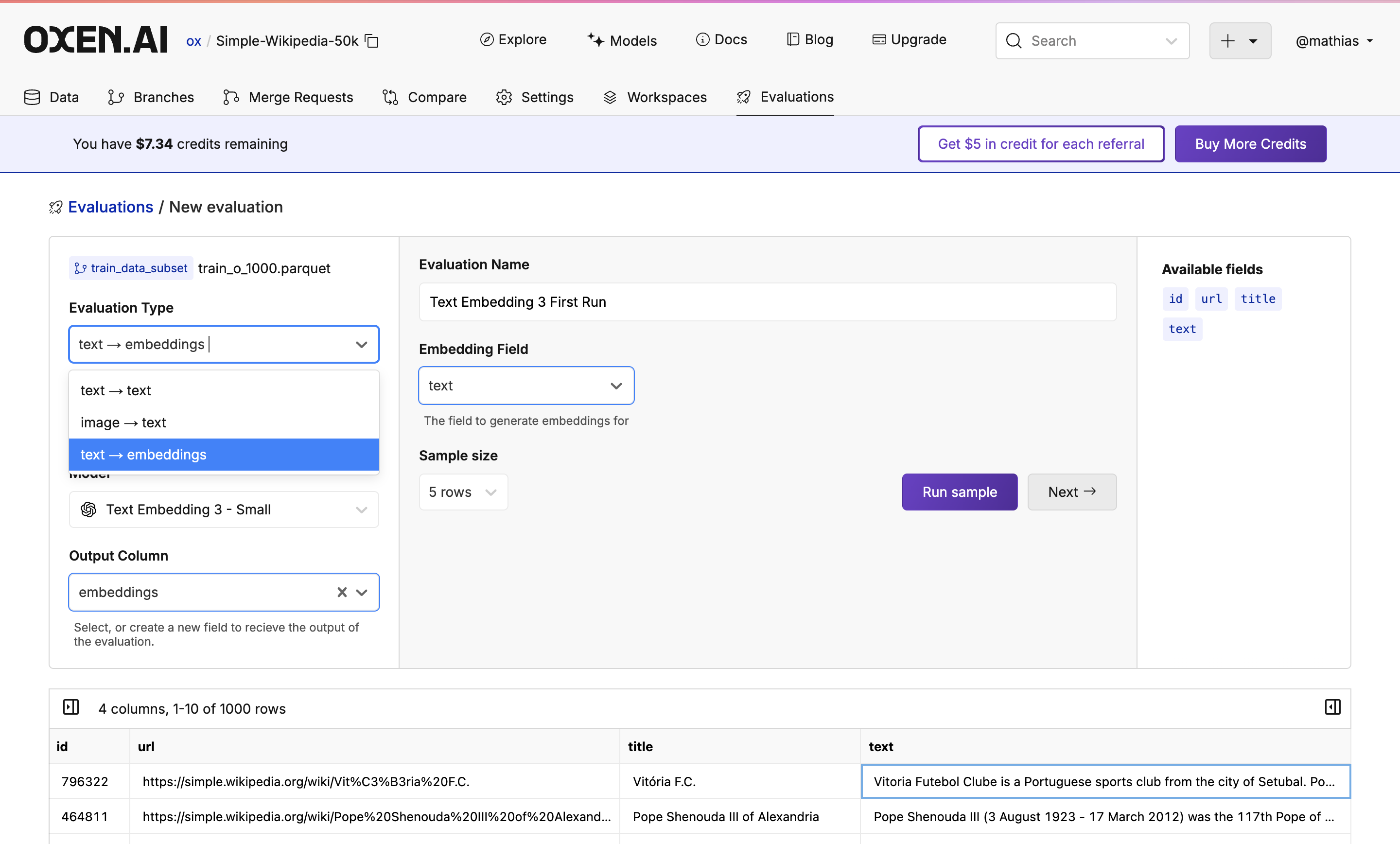
You will now find Oxen's model evaluation feature. This is where you can choose the evaluation type, a model, and name the output column.
In this case, we are using OpenAI's [Text Embedding 3 - Small](https://www.oxen.ai/explore/models#openai) and passing in the Text column we want to embed.
## Setting Up The Evaluation
You will now find Oxen's model evaluation feature. This is where you can choose the evaluation type, a model, and name the output column.
In this case, we are using OpenAI's [Text Embedding 3 - Small](https://www.oxen.ai/explore/models#openai) and passing in the Text column we want to embed.
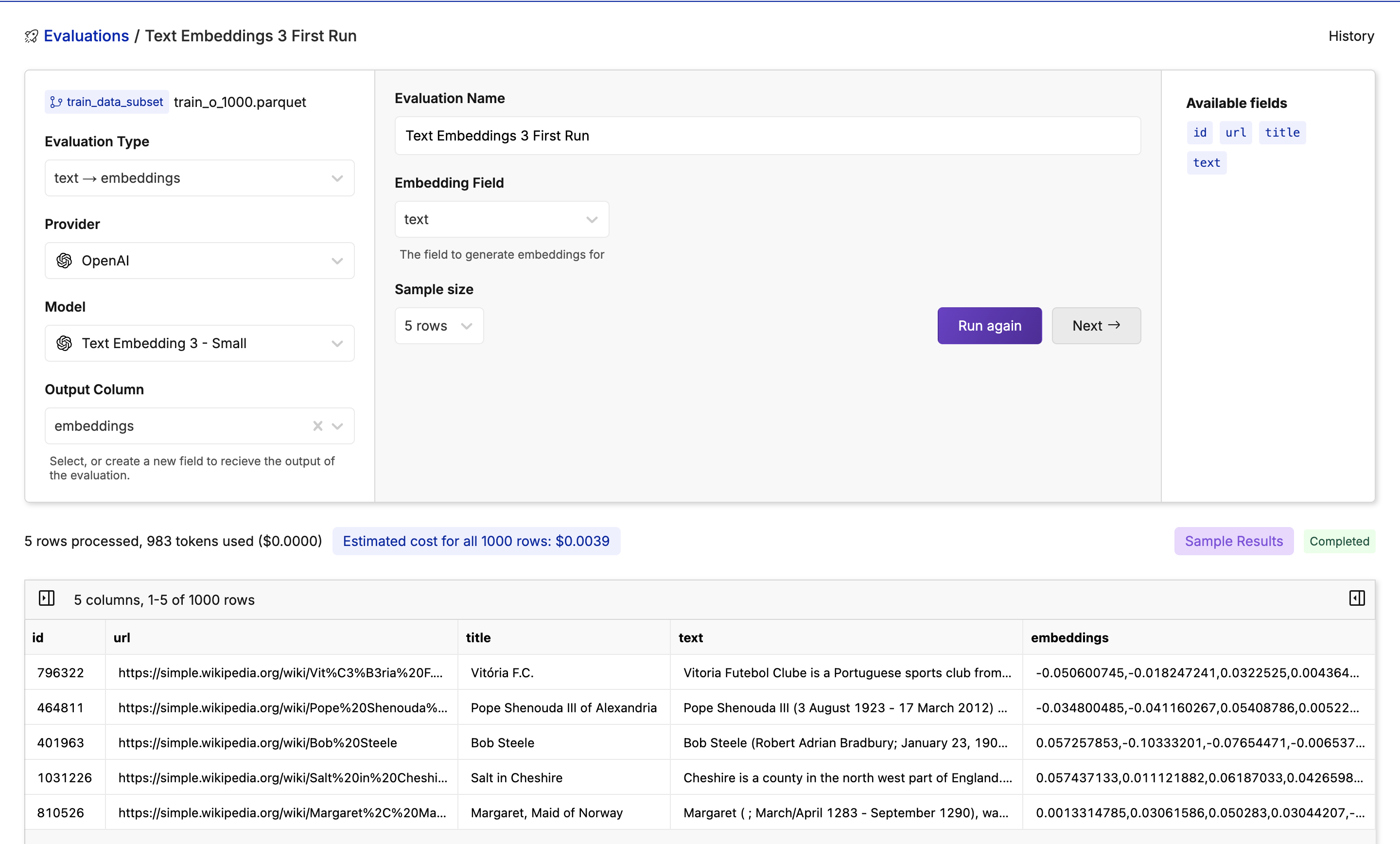
 After selecting your model, give your evaluation a name and decide if you want to run a quick sample on a few rows or click "Next" to finalize the embedding preparations.
Here's an example of a finished sample with the new column:
After selecting your model, give your evaluation a name and decide if you want to run a quick sample on a few rows or click "Next" to finalize the embedding preparations.
Here's an example of a finished sample with the new column:
 ## Select Your Destination
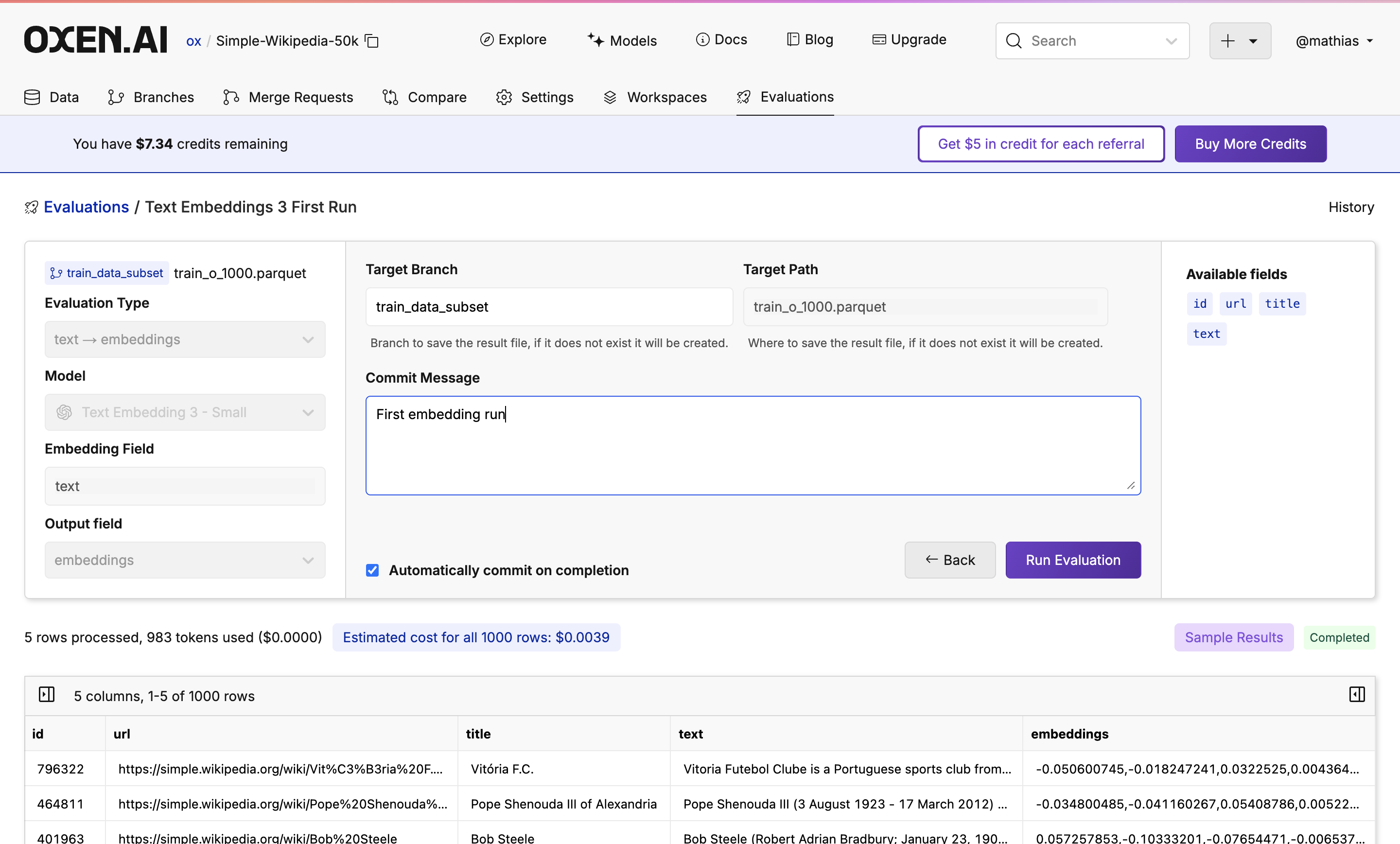
After clicking "Next" once your sample has been completed, you will see a commiting page. Here you will decide the target branch, target path, and if you would like to commit instantly or after reviewing the embeddings. Once you've decided, click "Run Evaluation".
## Select Your Destination
After clicking "Next" once your sample has been completed, you will see a commiting page. Here you will decide the target branch, target path, and if you would like to commit instantly or after reviewing the embeddings. Once you've decided, click "Run Evaluation".
 ## Monitor Your Evaluation
Feel free to grab a coffee, close the tab, or do something else while the evaluation is running. Your trusty Oxen Herd will be running in the background.
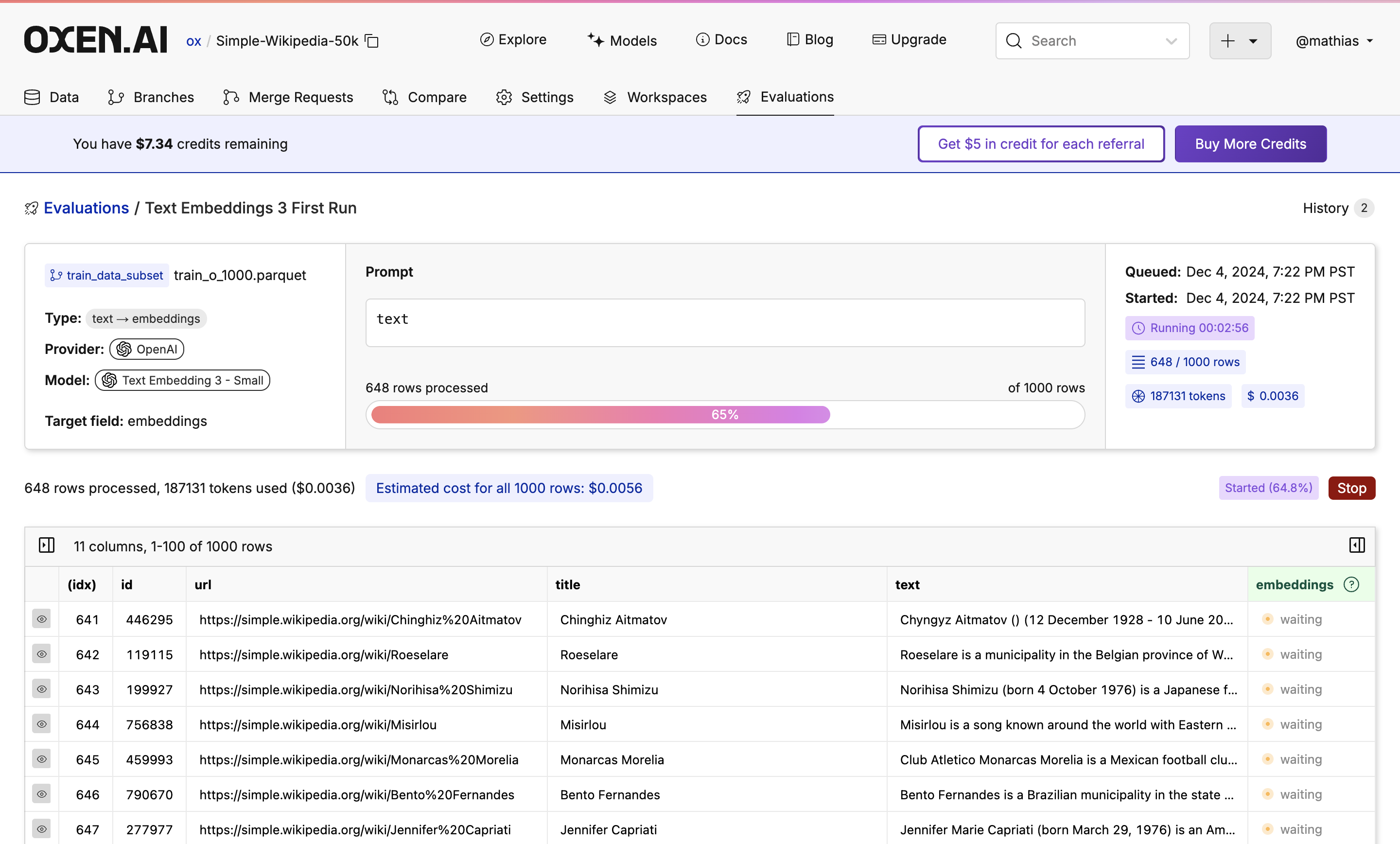
While the evaluation is running you will see a progress bar showing how many rows have been completed, an update of how many tokens are being used, and how expensive the run is so far.
## Monitor Your Evaluation
Feel free to grab a coffee, close the tab, or do something else while the evaluation is running. Your trusty Oxen Herd will be running in the background.
While the evaluation is running you will see a progress bar showing how many rows have been completed, an update of how many tokens are being used, and how expensive the run is so far.
 ## Next Steps
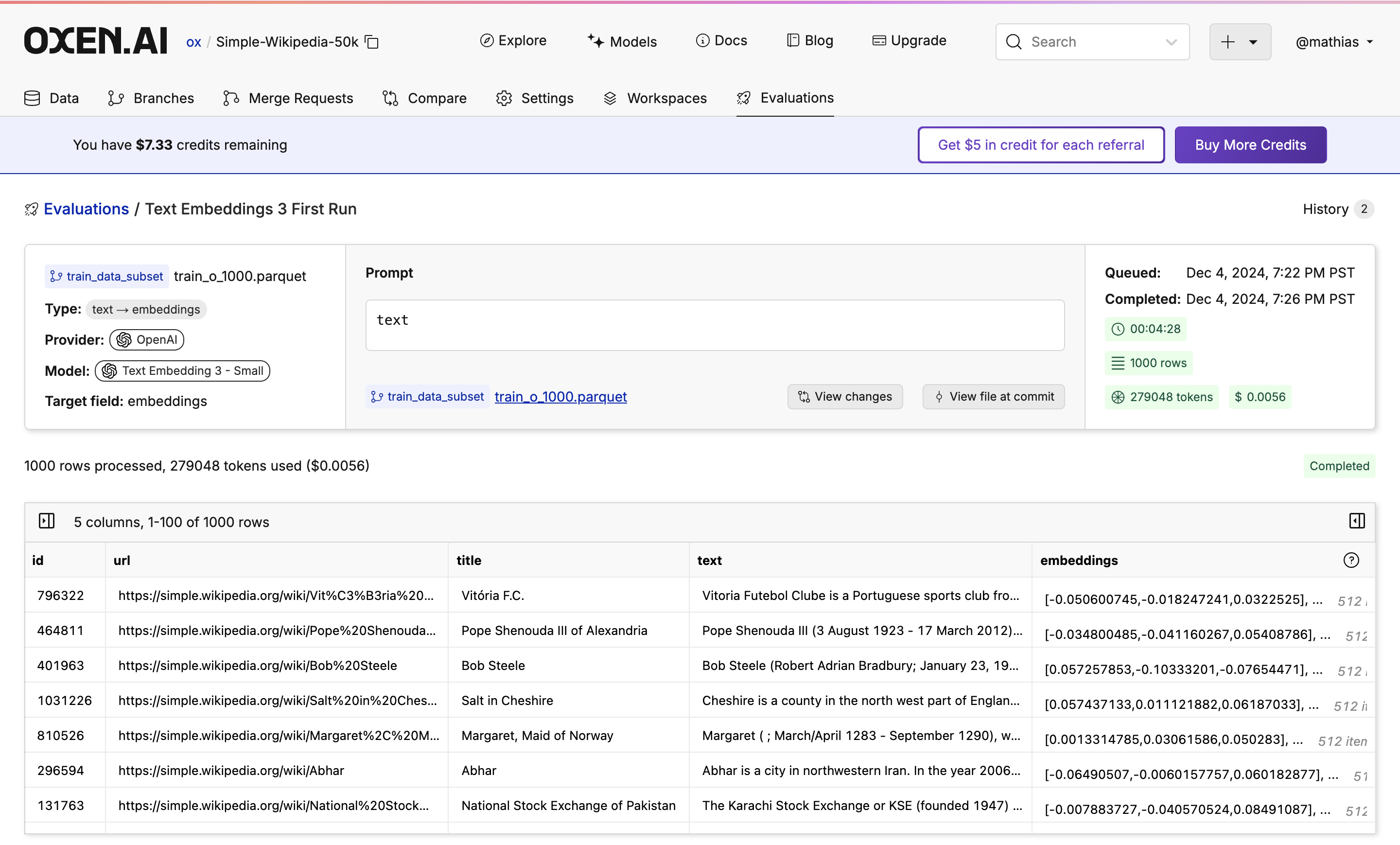
Once done, you will see your new dataset committed to the branch you specified. If you don't like the results, don't worry! Under the hood, all the runs are versioned so you can always revert to or compare to a previous version.
## Next Steps
Once done, you will see your new dataset committed to the branch you specified. If you don't like the results, don't worry! Under the hood, all the runs are versioned so you can always revert to or compare to a previous version.
 Congratulations! You've just seen how easy it is to generate embeddings on your data. Check out [🧠 RAG Extracting Answers](/use-cases/rag-extracting-answers) to learn how to extract answers from your embeddings.