> ## Documentation Index
> Fetch the complete documentation index at: https://docs.oxen.ai/llms.txt
> Use this file to discover all available pages before exploring further.
# 🧐 Sentiment Analysis
> Sentiment Analysis is the process of categorizing the overall feeling and opinion of a piece of text. Usually it is broken down into multiple categories such as positive, negative, and neutral.
For example, "Tesla's stock skyrockets by 20%" would have **positive** sentiment, and "I hate when Airpods disconnect from my device" would have **negative** sentiment. This type of analysis can be useful for analyzing customer feedback at scale, monitoring brands on social media, predicting financial markets, and much more.
In this tutorial, we will show how you can use Oxen to do sentiment analysis with GPT-4o to categorize political spam synthetic data.
## Upload Your Dataset
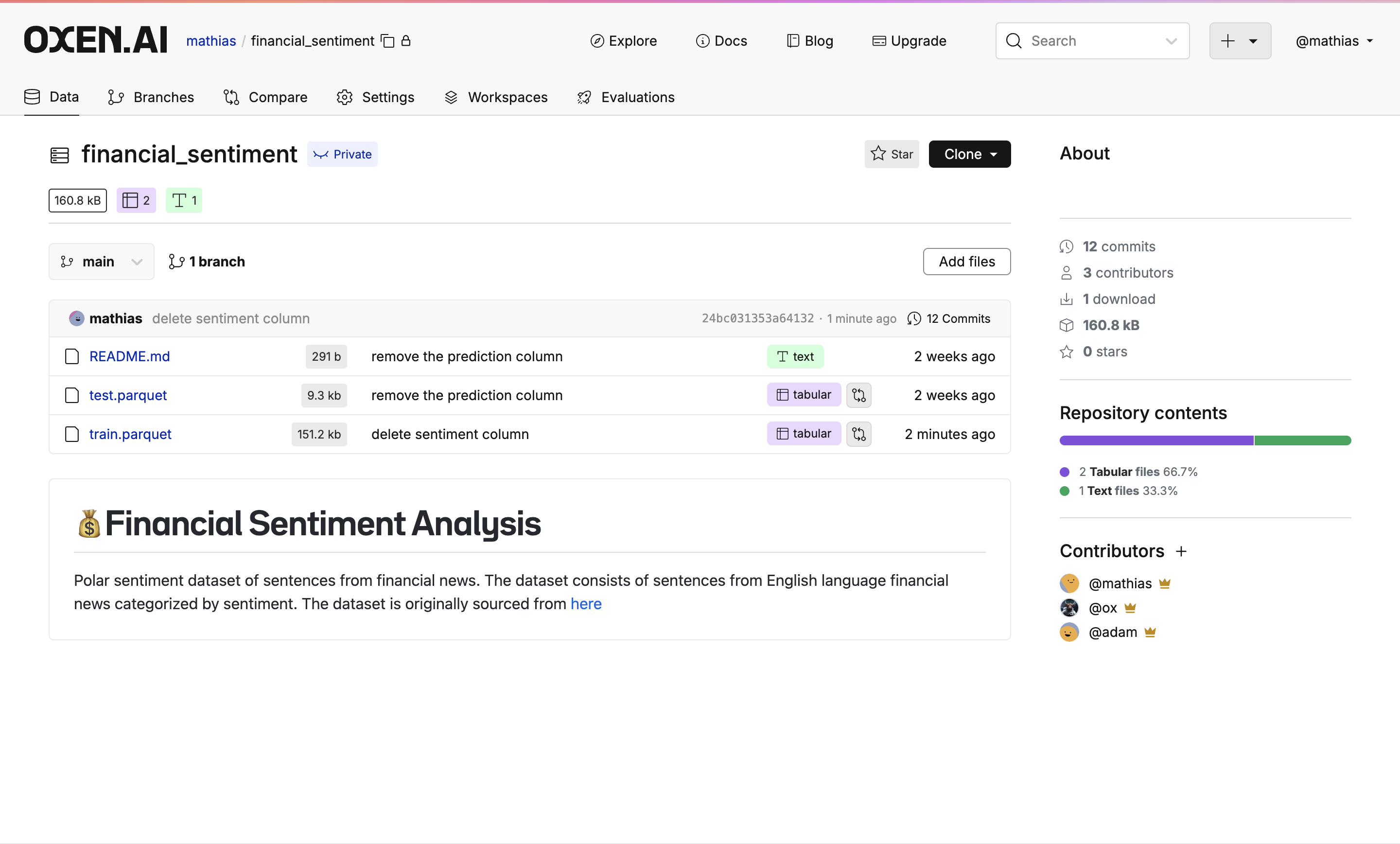
Open the dataset you want to work with. You can find an example dataset on our [explore page](https://www.oxen.ai/explore) or if you want to follow along with the example, you can clone the [financial sentiment dataset](https://www.oxen.ai/ox/financial_sentiment) we are using.
```bash theme={null}
oxen clone https://hub.oxen.ai/ox/financial_sentiment --all
oxen create-remote --name "your-username/financial-sentiment"
oxen config --set-remote origin "your-username/financial-sentiment"
oxen push origin main
```
 ## Create a Model Evaluation
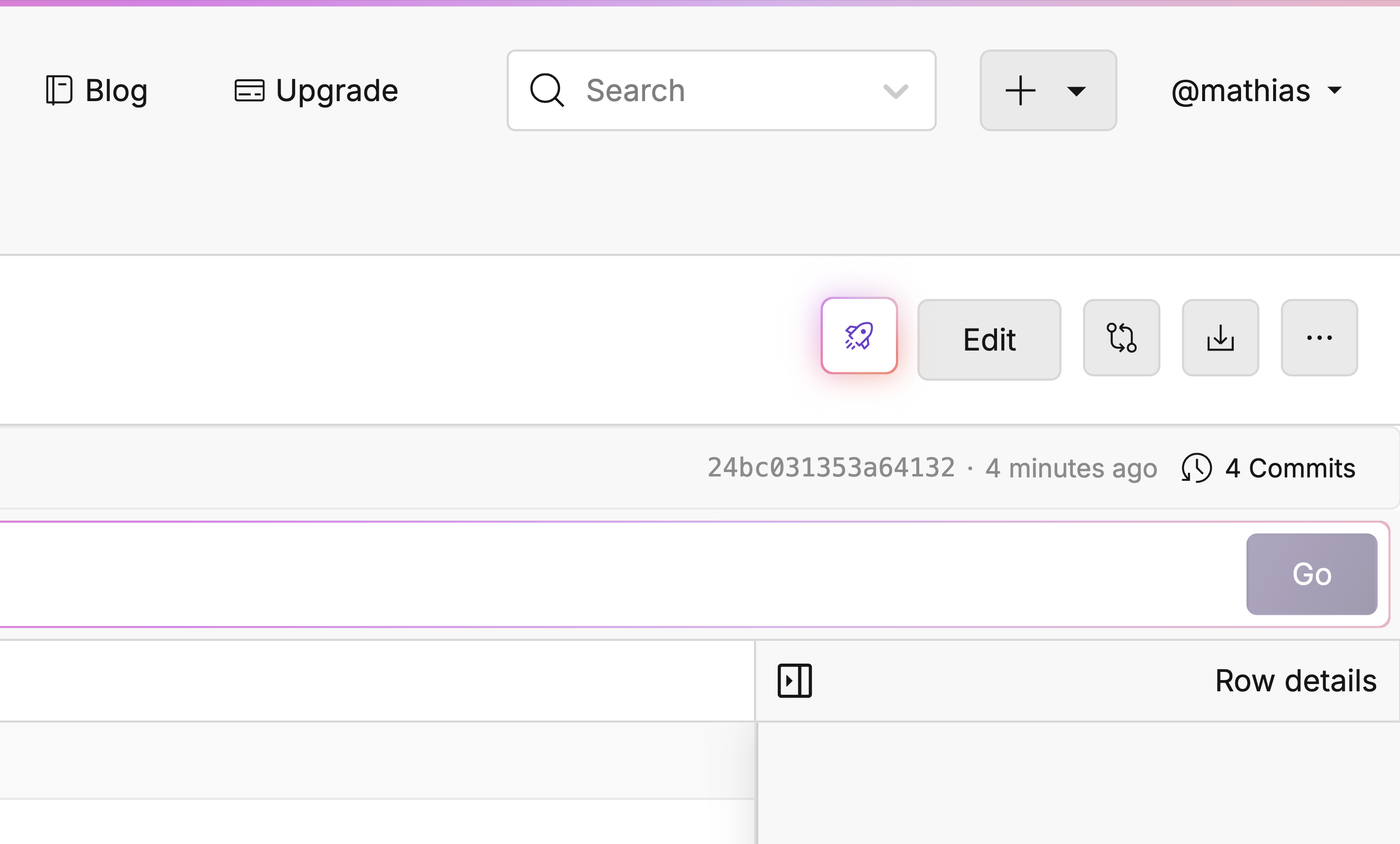
Open the file you want to run sentiment analysis on and press the glowing button with the rocket 🚀 on it at the top right of the screen.
## Create a Model Evaluation
Open the file you want to run sentiment analysis on and press the glowing button with the rocket 🚀 on it at the top right of the screen.
 ## Setting Up The Evaluation
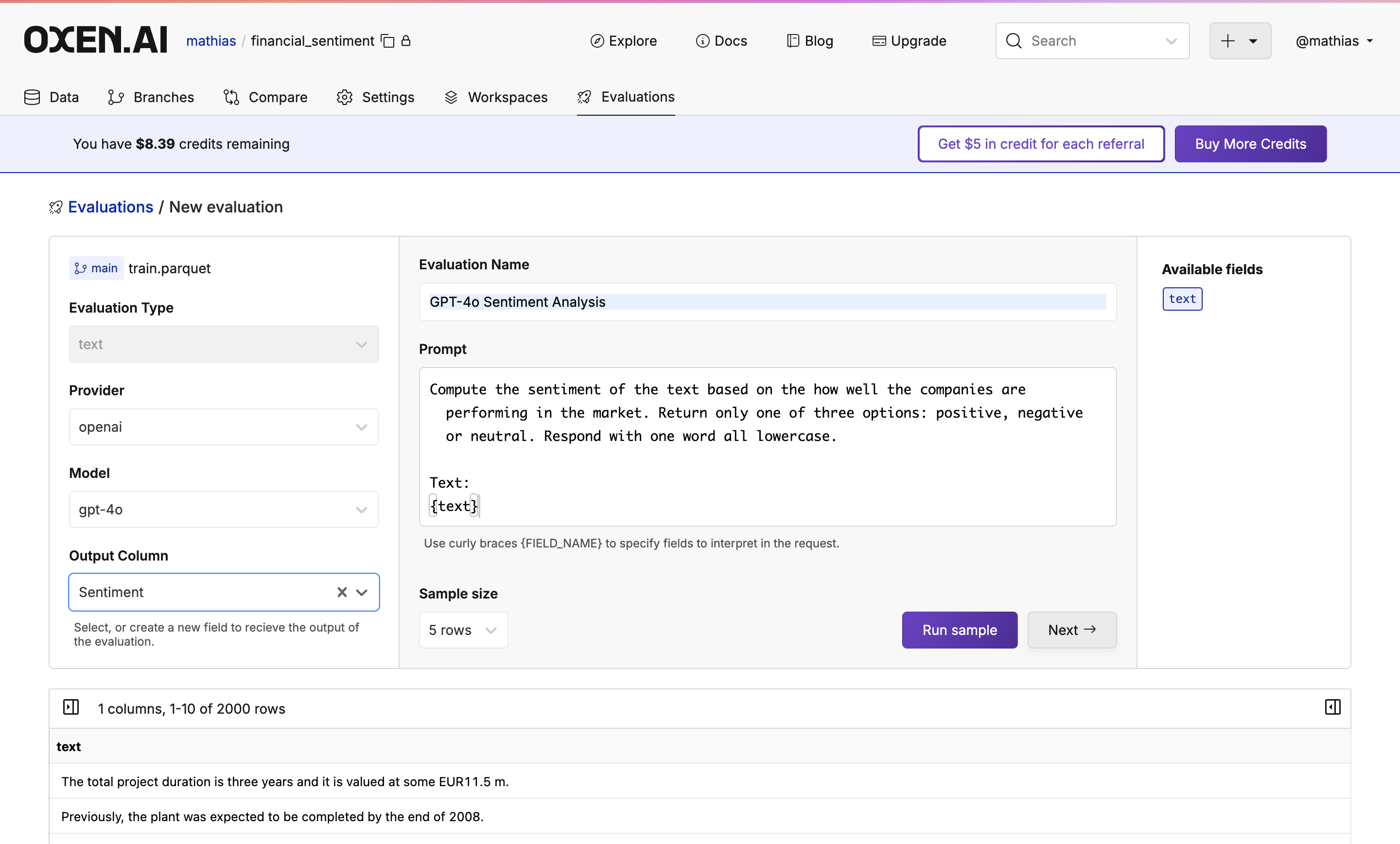
You will now find Oxen's model evaluation feature. This is where you can choose a model, setup a prompt, and choose the output column.
In this case, we will use [GPT-4o](https://platform.openai.com/docs/models/gpt-4o) and the following prompt:
```
Compute the sentiment of the text based on how well the companies are performing in the market.
Return only one of three options: positive, negative, or neutral.
Respond with one word, all lowercase.
Text:
{text}
```
After you have selected your model, give your evaluation a name, fill in your prompt with the values you want to pass to the model, and decide if you want to run a quick sample on a few rows or click "Next" to finalize the sentiment analysis preparations:
## Setting Up The Evaluation
You will now find Oxen's model evaluation feature. This is where you can choose a model, setup a prompt, and choose the output column.
In this case, we will use [GPT-4o](https://platform.openai.com/docs/models/gpt-4o) and the following prompt:
```
Compute the sentiment of the text based on how well the companies are performing in the market.
Return only one of three options: positive, negative, or neutral.
Respond with one word, all lowercase.
Text:
{text}
```
After you have selected your model, give your evaluation a name, fill in your prompt with the values you want to pass to the model, and decide if you want to run a quick sample on a few rows or click "Next" to finalize the sentiment analysis preparations:
 ## Select Your Destination
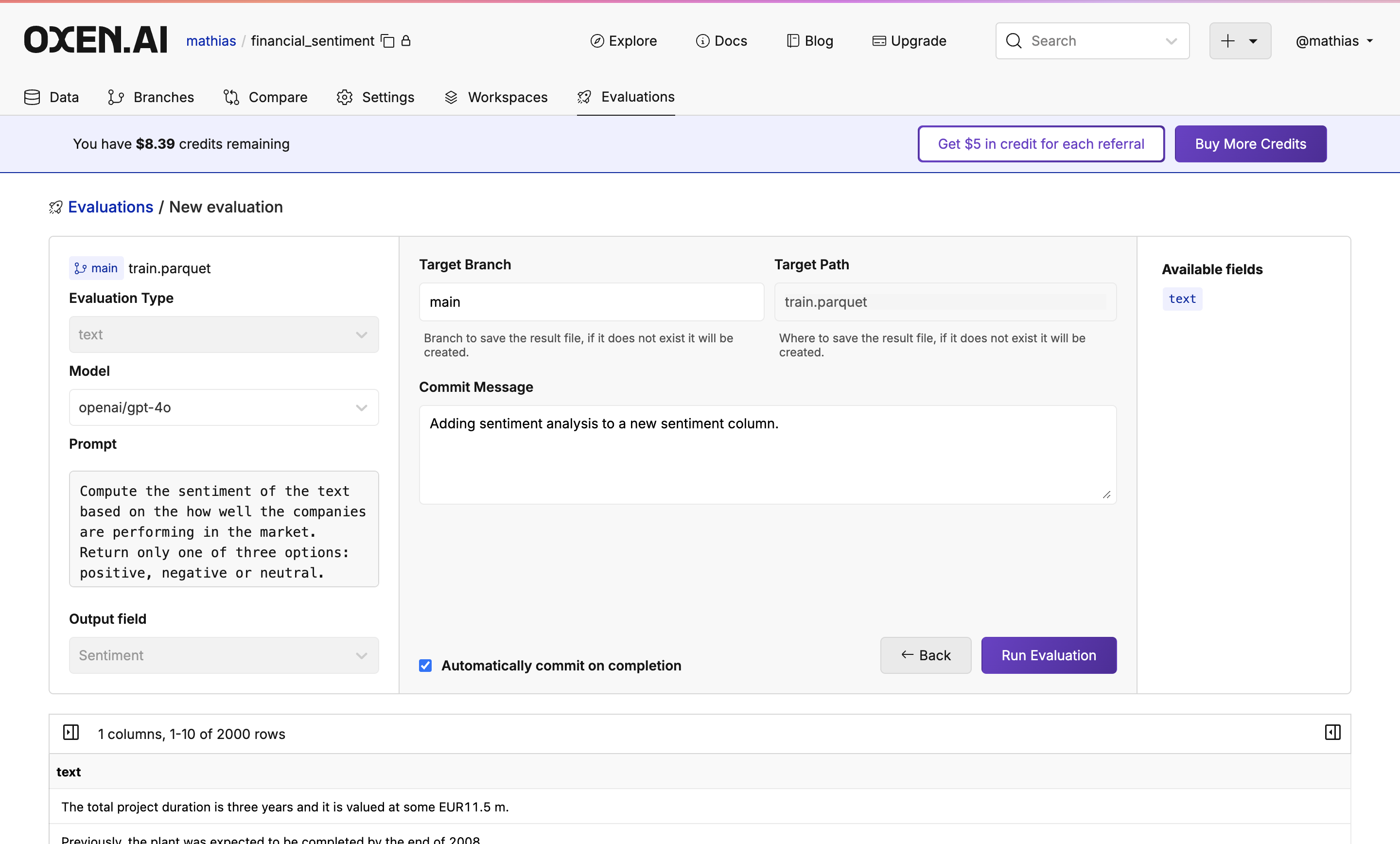
After clicking "Next" once your sample has been completed, you will see a commiting page. Here you will decide the target branch, target path, and if you would like to commit instantly or after reviewing the analysis. Once decided, simply click "Run Evaluation".
## Select Your Destination
After clicking "Next" once your sample has been completed, you will see a commiting page. Here you will decide the target branch, target path, and if you would like to commit instantly or after reviewing the analysis. Once decided, simply click "Run Evaluation".
 ## Monitor Your Evaluation
Feel free to grab a coffee, close the tab, or do something else while the evaluation is running. Your trusty Oxen Herd will be running in the background.
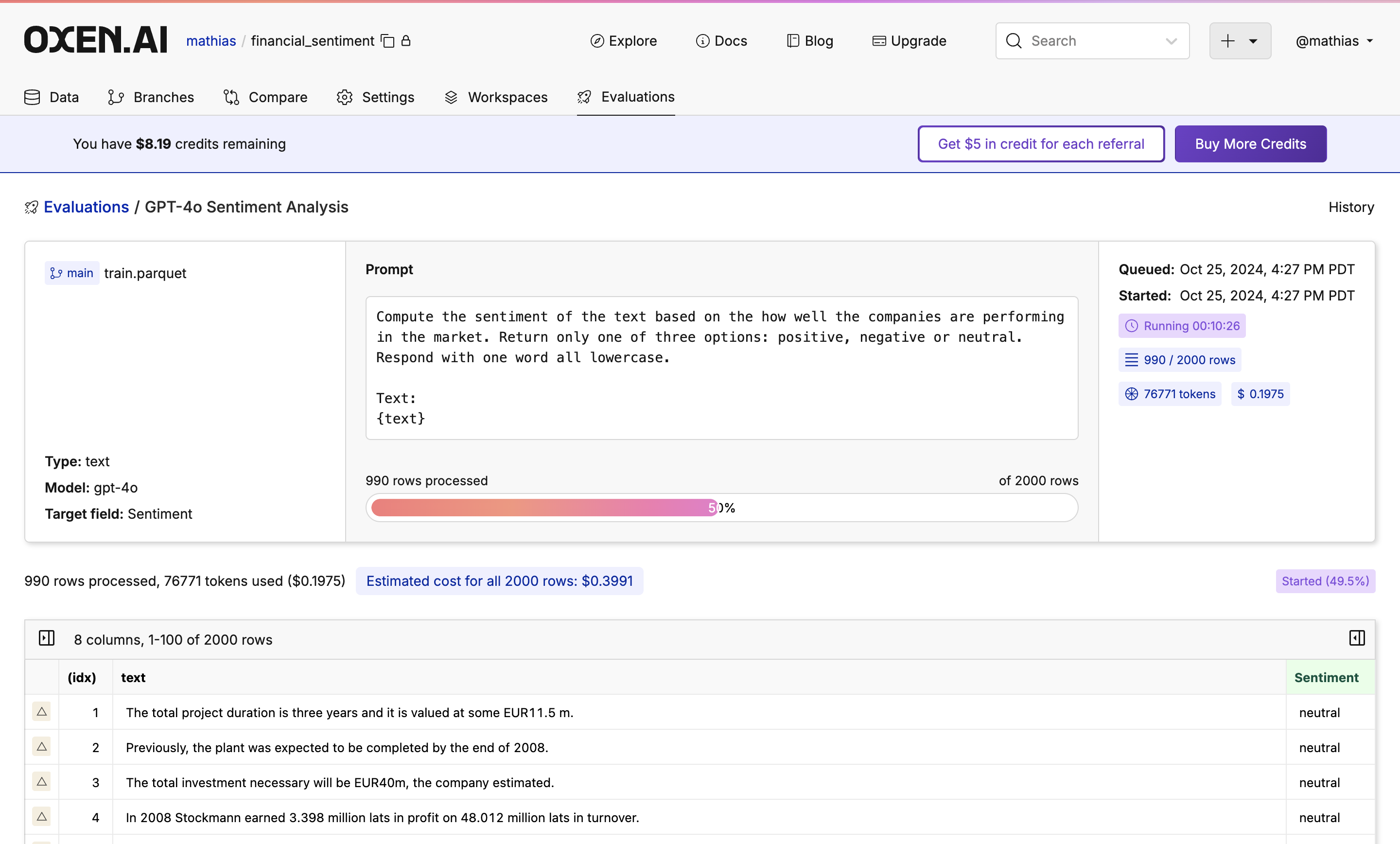
While the evaluation is running you will see a progress bar showing how many rows have been completed, an update of how many tokens are being used, and how expensive the run is so far.
## Monitor Your Evaluation
Feel free to grab a coffee, close the tab, or do something else while the evaluation is running. Your trusty Oxen Herd will be running in the background.
While the evaluation is running you will see a progress bar showing how many rows have been completed, an update of how many tokens are being used, and how expensive the run is so far.
 ## Next Steps
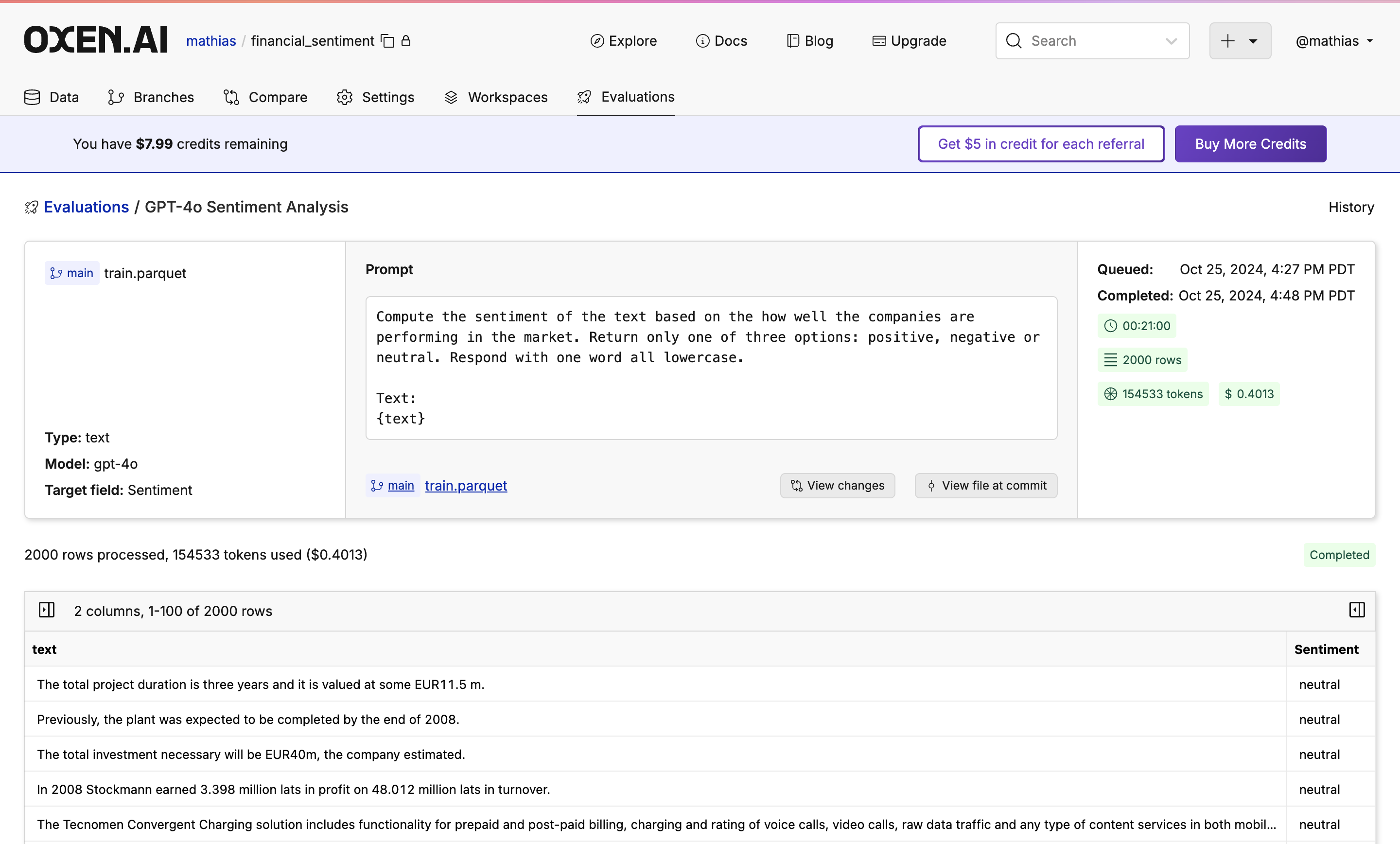
Once done, you will see your new dataset committed to the branch you specified. If you don't like the results, don't worry! Under the hood, all the runs are versioned so you can always revert to or compare to a previous version.
## Next Steps
Once done, you will see your new dataset committed to the branch you specified. If you don't like the results, don't worry! Under the hood, all the runs are versioned so you can always revert to or compare to a previous version.
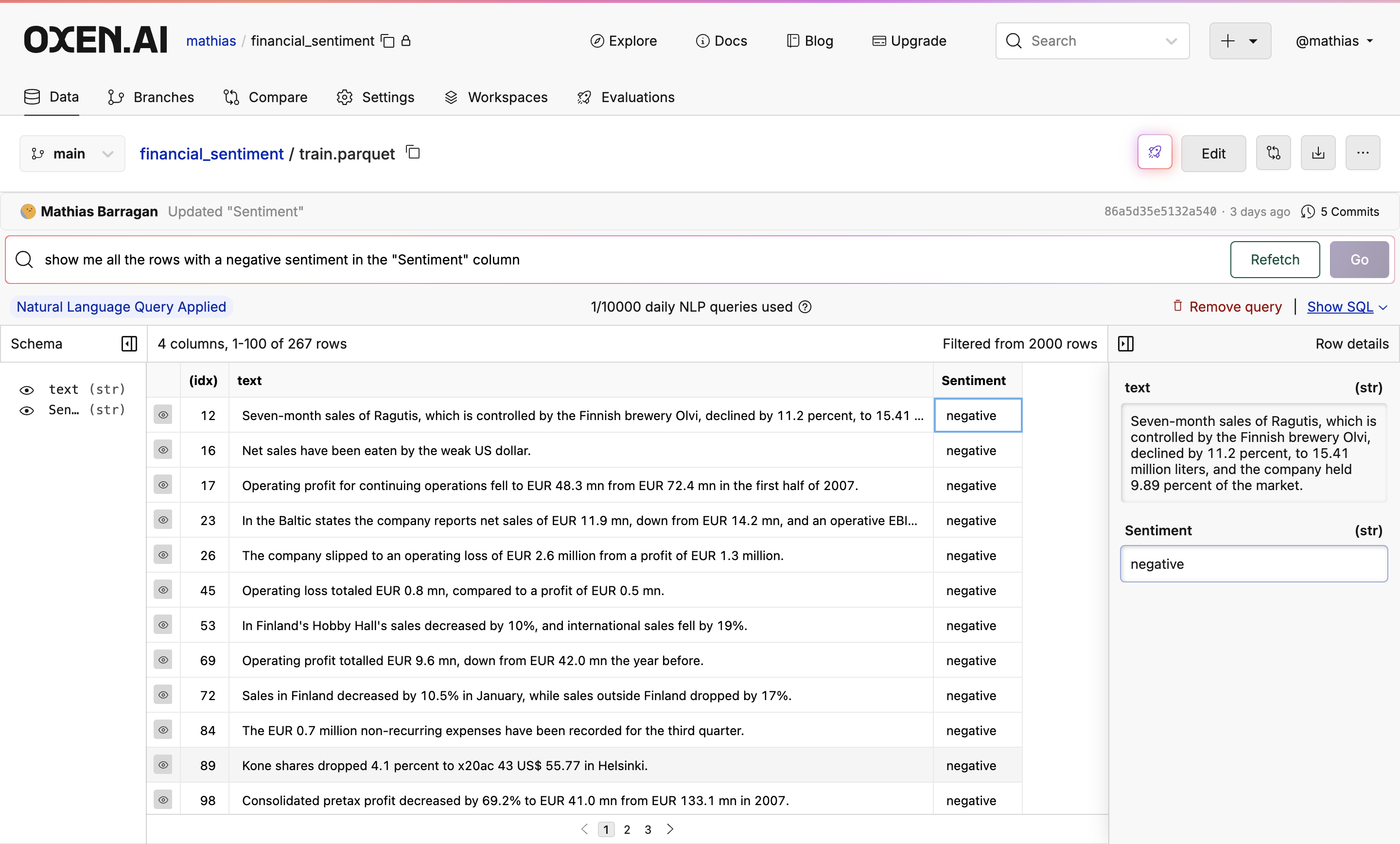
 You can then search through the sentiment evaluation immediately with Oxen's Text2SQL feature. In this case, we are finding all the rows with negative sentiment.
 You can also run queries such as *"What was the most common sentiment?"* or *"How many rows were classified as positive?"*
Congratulations! You've just seen how easy it is to run sentiment analysis on your data with Oxen. Feel free to tweak your prompt, model, or dataset and see how the results change.
You can also run queries such as *"What was the most common sentiment?"* or *"How many rows were classified as positive?"*
Congratulations! You've just seen how easy it is to run sentiment analysis on your data with Oxen. Feel free to tweak your prompt, model, or dataset and see how the results change.