- Remote Workspaces - Interact with your data all server side, no files are downloaded locally.
- Partial Clones - Clone a subtree of the data in your repository to a local working directory.
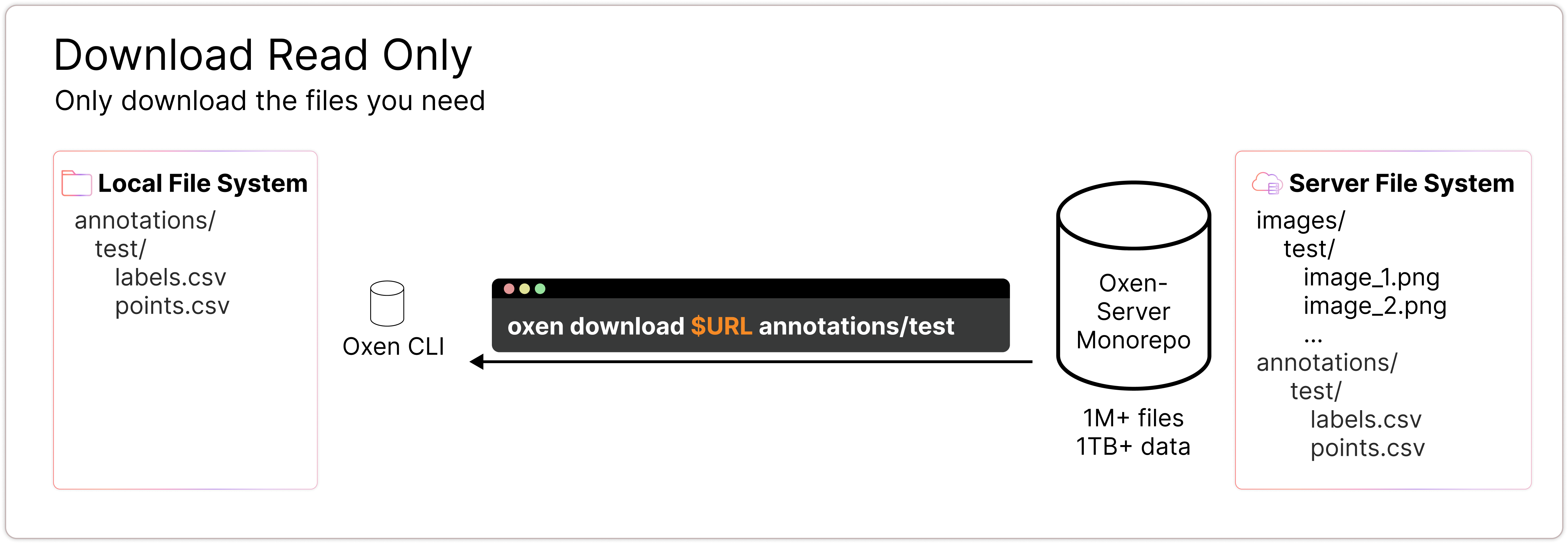
- Download Read Only - Download a read only copy of the subset to your local machine.
Remote Workspaces
The concept of a remote workspace in Oxen is akin to having a working directory on the remote server where you can stage changes before committing. This allows you to perform multiple write operations without requiring a commit message for each one. Data written to workspaces is not ephemeral, as it does survive a server restart, but it is not committed to the history of the repository, so may be deleted without a trace.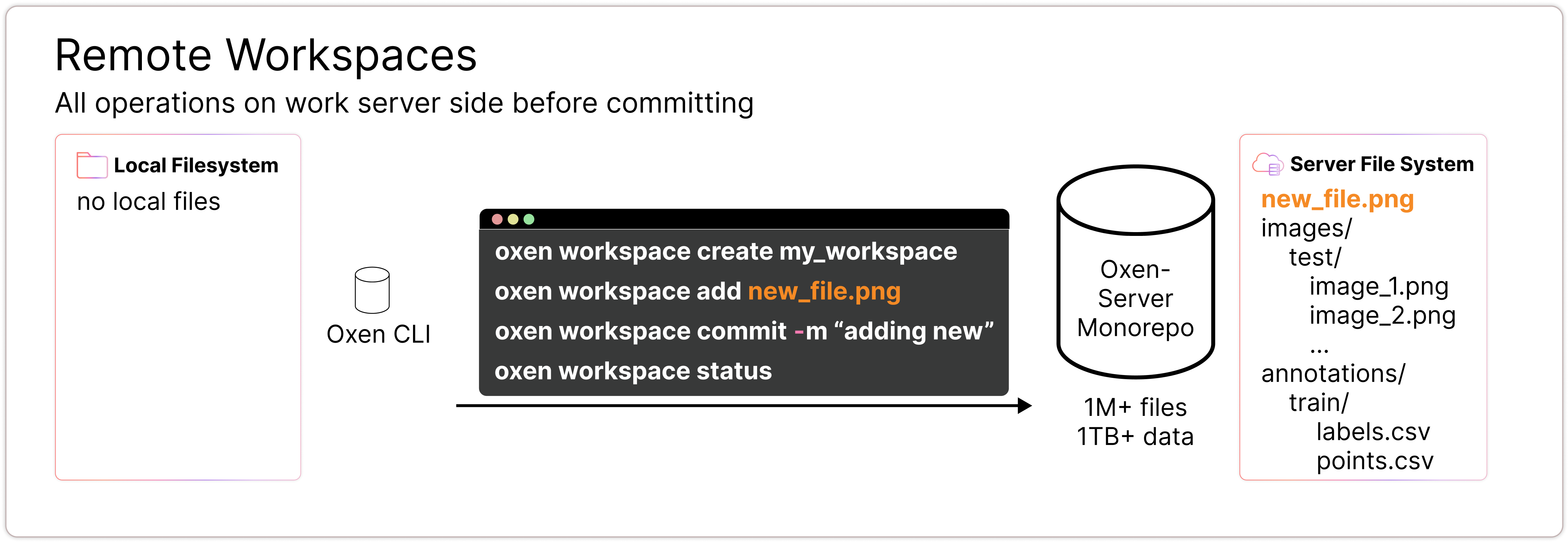
Instantiating a Workspace
A workspace is created off of a remoterepository and a branch name. The branch name is just a convenience for the user to create a workspace on the underlying commit id.
main).
Adding Files
When adding data, it is always a good idea to create a branch for the changes you are about to make. This will allow you to commit changes without affecting the default branch.Creating a Branch
Uploading Files
Workspaces allow you to upload files without immediately committing them. Think of this as a staging area where you can upload the data, and then batch commit when you are ready.Removing Uploaded Files
If you accidentally add file from the remote workspace and want to remove it, no worries, you can unstage it withoxen remote rm --staged.
Commit Changes
When you are confident in the changes you have made, you can commit the changes to the remote workspace. This will create a new commit on the remote branch.Partial Clones
The first command line parameter you should be aware of is the--filter flag. This flag is inclusive for the paths you want to clone.
images/roses directory into a local working directory. Under the hood, it also creates a .oxen directory which contains the merkle tree for the cloned data, and content addressable copies of each file in the subtree.
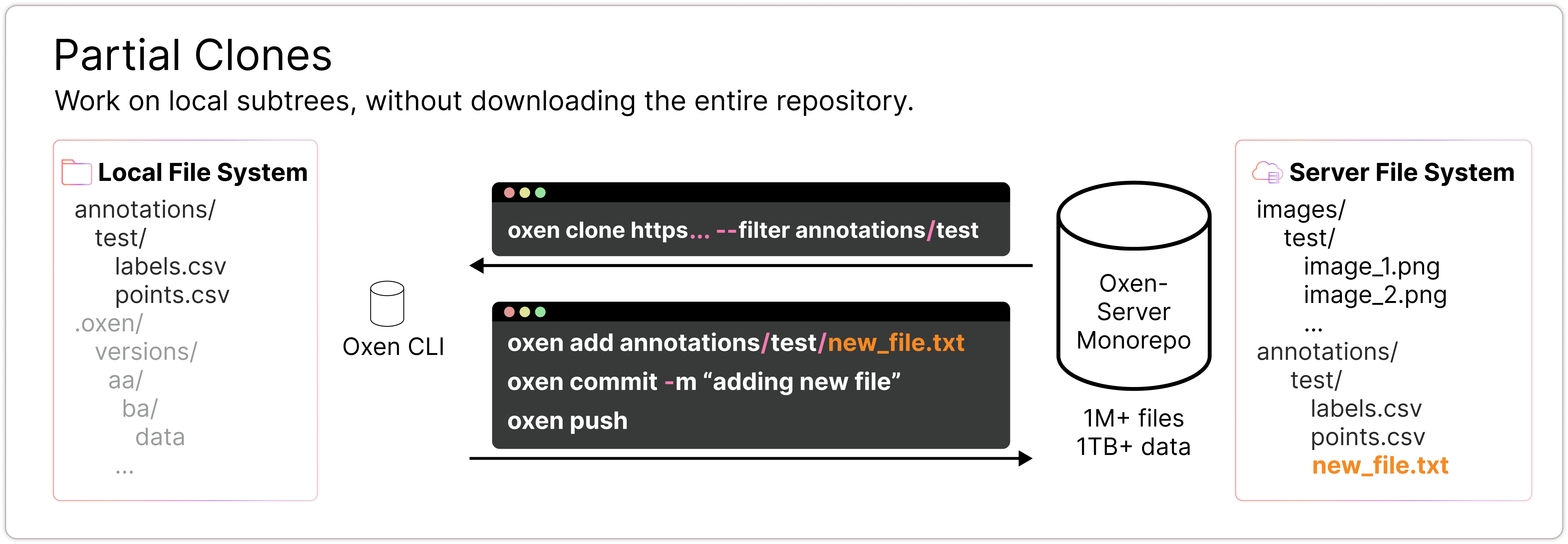
--depth flag to limit how deep the clone goes.
Download Read Only
If you have no intention of making any changes to the data, the easiest way to interact with a subset is to download a read only copy. This can be done with theoxen download command.