

add, rm, and modify files in a workspace, and read them back, before anything enters commit history. When you’re ready, commit the workspace and the whole set of changes lands as one commit. You never need to download the dataset locally.
Because that working tree lives on the server instead of on the client’s machine, it can do things a local working directory can’t:
- Shared: Multiple processes, users, or agents can write to the same named workspace and see each other’s changes before anyone commits.
- Durable: Staged data lives on the server and sticks around until you commit it or delete the workspace. If your laptop, app server, or CI job restarts, the staged work is still there.
- Live: Staged files can be read back through the API right away, and staged tabular files are indexed into DuckDB so you can query and edit them like a database.
Quick start
Add to an existing repo without cloning it
Imagine a repository with 1 million images. Instead of cloning the data, init an empty local repo, point it at the remote, and stage files into a workspace. Don’t confuse the workspace name with a branch:add-images is just a label for uncommitted remote state on top of main. Committing it lands those staged changes on main as one commit.
Bulk-import data into a fresh repo
oxen workspace add streams files straight to the remote. It never copies them into a local .oxen store the way add → commit → push does, so you avoid that extra disk and time cost on imports.
How it works
Every workspace is pinned to a base commit (usually the tip of a branch at create time). When you add, remove, or modify files, Oxen records a diff against that commit and stores it on the server.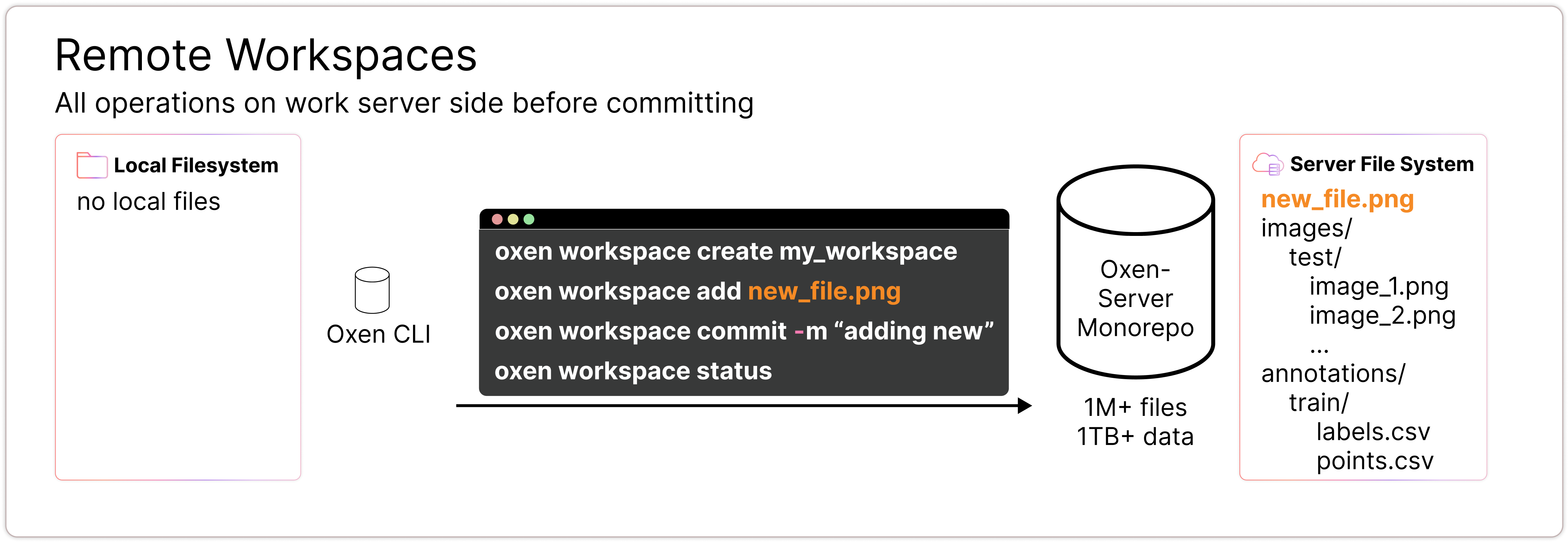
- Oxen applies your staged diff on top of the workspace’s base commit to produce a new commit.
- That new commit is added to a target branch on the remote (see Committing changes for how the target is chosen).
- If the target branch has advanced past the workspace’s base commit, Oxen attempts to merge. Conflicts cause the commit to fail and you’ll need to resolve them before retrying.
Creating a workspace
A workspace is created against a remote repository and a branch. The second argument to the PythonWorkspace constructor is always the branch, not the workspace name.
--branch. Over HTTP, branch_name is always required.
Named vs. unnamed workspaces
Every workspace has an id. You can optionally also give it a human-readable name. The CLI generates a UUID id on create; over HTTP you supply the id yourself.
Use a named workspace when you expect to make multiple commits from the same workspace, when several processes or users will share it, or when an application needs to find its staging area again after a restart (list the workspaces and match on name, or use the get_or_create endpoint). Use an unnamed workspace for one-off imports where you don’t need it to stick around.
Identifying a workspace in CLI commands
Most workspace commands need to know which workspace you’re targeting. You can reference a workspace by either its id or its name:--workspace-id <id>(short-w): the auto-generated id returned fromoxen workspace create.--workspace-name <name>(short-n): the name you set with--nameat create time.
Listing workspaces
List the workspaces on a remote withoxen workspace list.
Adding files
oxen workspace add streams a file’s contents directly to the server and stages it on the workspace.
Unstaging a file
To remove a file you’ve staged on the workspace (without touching the base repo), unstage it withoxen workspace rm --staged.
Deleting a file from the base repo
The Python SDK does not expose staging a deletion yet. Despite the name,
Workspace.rm() unstages a staged file, the same as unstage(). Use the CLI or the HTTP endpoint above to stage a removal from the base repo.Editing tabular files like a database
Staging isn’t limited to whole files. When you open a tabular file (csv, tsv, parquet, jsonl, etc.) through the DataFrame class, Oxen indexes it into DuckDB inside a workspace. This gives you a queryable, editable database in an uncommitted state. You can insert, update, and delete individual rows and query with SQL, and nothing touches the branch until you commit.
DataFrame("namespace/repo", "path") creates a workspace under the hood (or reuses one if you pass a Workspace / workspace_name). You do not need to construct a Workspace yourself for the common case.
Committing changes
Commit a workspace to land its staged changes as a new commit on the remote.- Python commits to the branch the workspace was created from.
- CLI commits to your current local branch (and errors if you have no current branch).
- HTTP has no default, the target branch is always part of the URL.
- An unnamed workspace is deleted.
- A named workspace is fast-forwarded to point at the new commit, so you can keep using it.
Merge conflicts
The target branch advancing past the workspace’s base commit is not a problem by itself. As long as the new commits on the branch touched different files, the workspace merges cleanly. A commit only fails with a “workspace is behind” error when a file you staged also changed on the target branch after the workspace was created. There is no rebase command for a workspace. To recover from a conflict:- Create a fresh workspace, which will be pinned to the current tip of the branch.
- Re-stage your changes there. For conflicted files, fetch the branch’s current version first and re-apply your edits on top of it.
- Commit the new workspace, and delete the stale one.
Driving workspaces over HTTP
Everything above is a thin wrapper over the Repository API, which means a workspace can be the persistence layer of any application without installing the Oxen CLI or Python SDK. This section walks through the full lifecycle the way an app like a draft editor, labeling backend, or ingestion daemon would use it. All requests are authenticated with your API key:1. Get or create a named workspace
get_or_create returns an existing workspace when the id already exists, or when a workspace with the given name already exists; otherwise it creates one. Persist a stable workspace_id in your app (do not mint a fresh UUID on every boot), and pass a name so you can also find the workspace by listing.
Workspace paths accept either the id or the name, so you can use the same stable string for both in simple apps:
2. Stage a file
POST the file as multipart form data to a directory path inside the workspace. Staging on every save is cheap. Each write simply replaces the staged version of the file.
3. Read staged content back
GET the same path to read the staged version back before anything is committed. If the file isn’t staged in the workspace, the request returns a 404 and you can fall back to the committed version on the branch:
4. List what’s staged
Thechanges endpoint returns the workspace’s staged additions, modifications, and removals. An app can rebuild its view of what is in draft from this endpoint after a restart.
DELETE the changes collection with a JSON body:
5. Commit the workspace to a branch
When the user hits “publish” (or the batch is approved), merge the workspace into the target branch. All staged changes land as one commit.6. Clean up
Deleting a workspace permanently discards anything still staged in it:Example use cases
Workspaces are useful whenever committing on every write would be too noisy, too slow, or premature. The classic cases: editing a repository that’s too large to clone, bulk-importing data without paying the disk cost of a local.oxen store, batching dozens of changes into one atomic commit, or letting several processes and users build up a staged batch together. If your repo is small enough to clone and the normal add → commit → push flow works for you, you don’t need a workspace. See the Version Control guide instead.
Here are a few things you could build, to get your wheels turning:
- A document editor. Autosaves stage each edit to a named workspace, and reads fall back from the workspace to the committed branch, so drafts live on the server instead of in a database. Hitting “Publish” commits the workspace to
mainas one commit. - A data ingestion pipeline. Workers append raw training examples into a shared workspace all day, then a reviewer fixes bad rows and commits one clean dataset version. This is how Oxen.ai’s labeling tools work under the hood.
- An AI agent’s scratchpad. An agent writes files and edits data frames in a workspace while a human reviews the staged changes. Good runs become auditable commits, bad runs get deleted without touching history.
- A review queue for community datasets. Contributors upload images or rows to a shared workspace, like a pull request for data. A maintainer reviews the staged batch and commits it, so
mainonly ever contains approved data. - An edge or sensor data buffer. Devices push readings into a workspace all day. Committing hourly or daily gives you clean versioned snapshots instead of thousands of tiny commits.
- A model evaluation harness. Each eval run writes predictions and metrics into a workspace. Commit only the runs worth keeping, then diff commits to compare models over time.
- A moderated media app. User uploads land in a workspace where moderators can view them through the API. Approval is a commit, rejection is an unstage.