Use this file to discover all available pages before exploring further.
Oxen.ai allows you to fine-tune a Vision Language Model (VLM) to understand images and videos. Fine-tuned VLMs are great way to process data at scale with high throughput, low latency, and high accuracy in your domain. When you canβt describe your task in a text prompt, you can fine-tune a VLM to understand it.
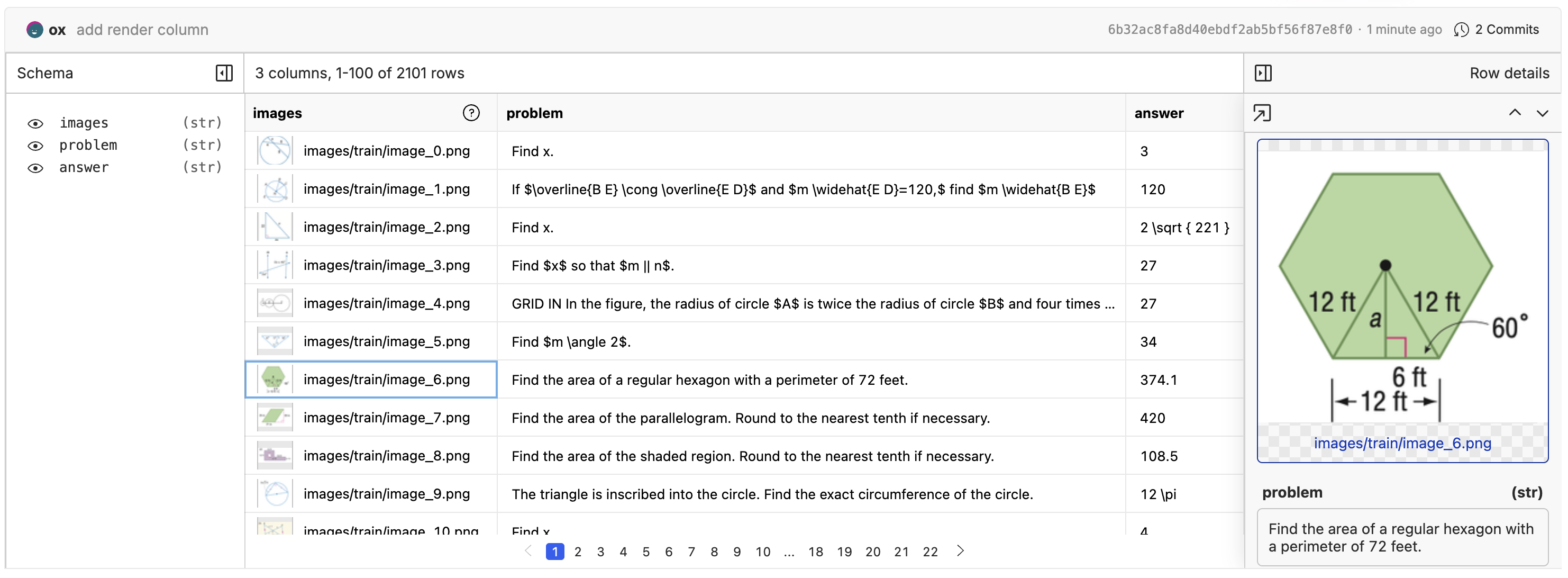
When fine-tuning a VLM, you need a dataset that contains the images, user prompts, and responses that are expected from the VLM. The dataset format can be a csv, jsonl, or parquet file with a column that contains the relative path to the image in the repository. To see an example of the dataset format, check out the Tutorials/Geometry3K dataset.Each row in this dataset should have an associated image in the repository stored at images/train/image_{n}.png.To upload the dataset you can use the oxen command line interface. Hereβs an example of creating a repository from the command line and uploading data:
# Navigate to the directory containing your datasetcd path/to/data# Set your username and repository nameexport USERNAME=YOUR_USERNAMEexport REPO_NAME=YOUR_REPO_NAME# Create a new repository on the remote serveroxen create-remote --name $USERNAME/$REPO_NAME# Set the remote origin to the new repositoryoxen config --set-remote origin https://hub.oxen.ai/$USERNAME/$REPO_NAME# Add the dataset to the repositoryoxen add .# Push the dataset to the remote serveroxen push
In order to view the images, you will need to enable image rendering on your images column. Click the ββοΈβ edit button above the dataset, then edit the column to enable image rendering. The video below shows the whole process.
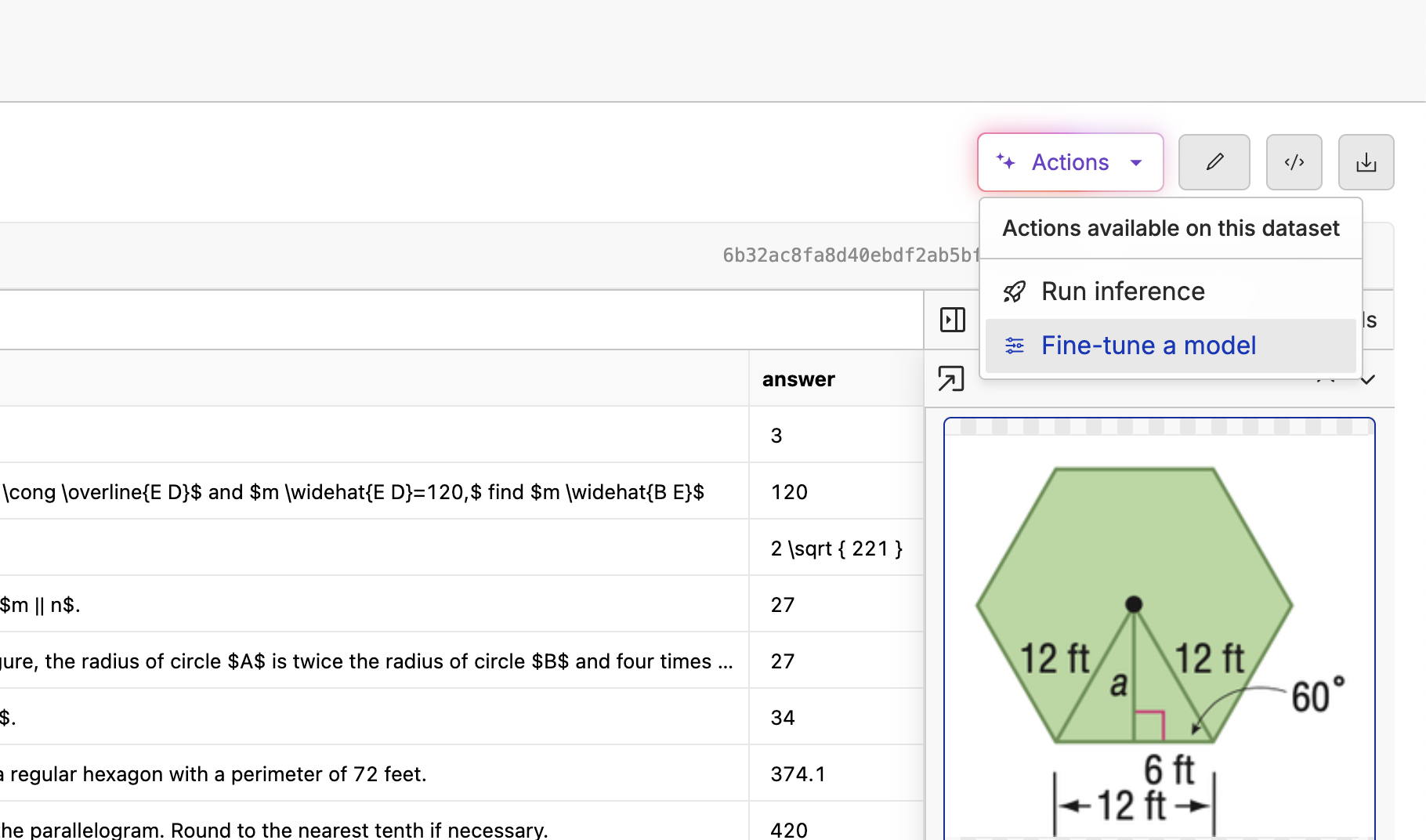
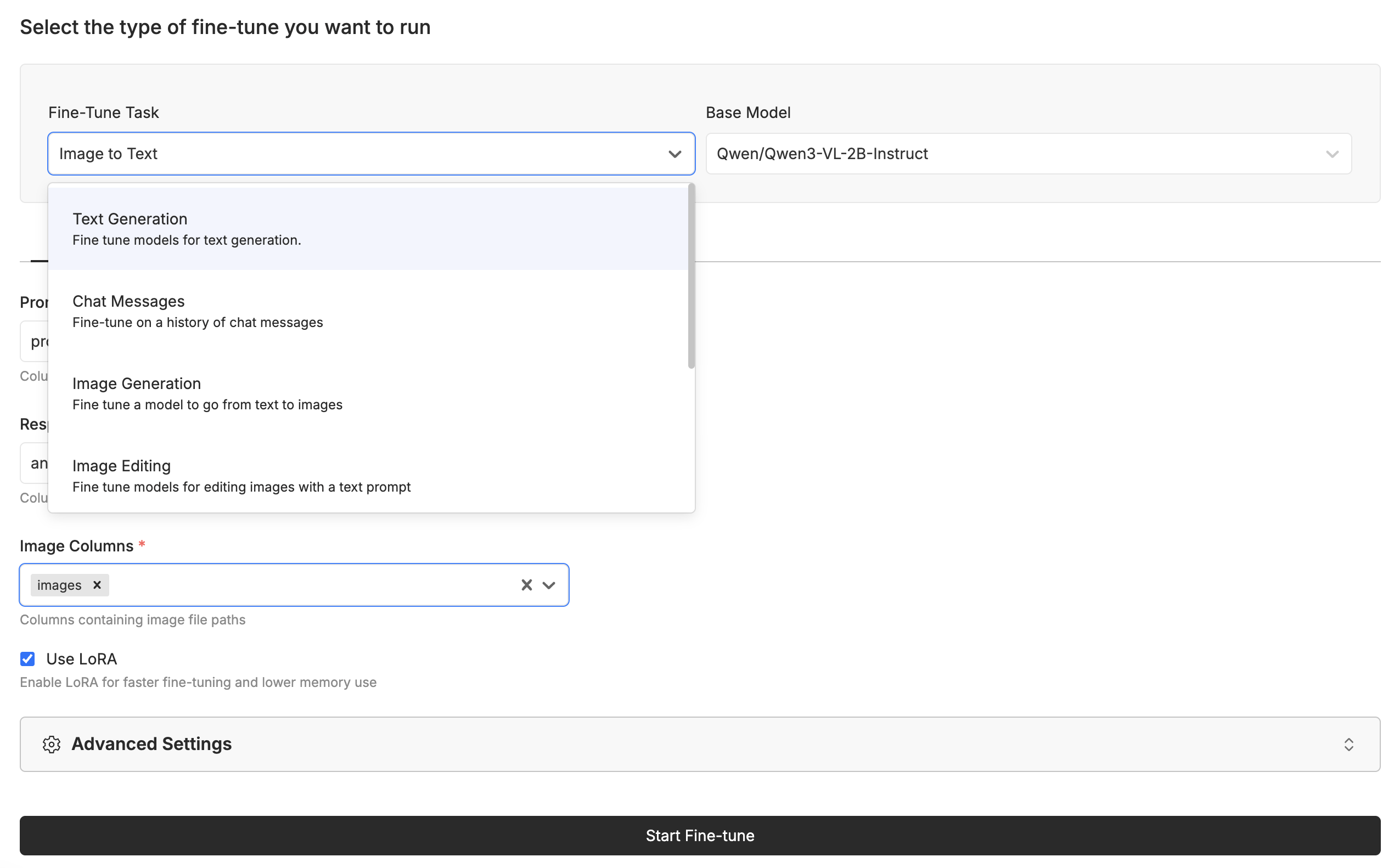
With your images labeled and you are happy with the quality and quantity, it is time to kick off your first fine-tune.Click the βActionsβ button and select βFine-Tune a Modelβ.This will take you to the fine-tune page where you can select the model you want to fine-tune. Select the Image to Text task, and select the Qwen/Qwen3-VL-2B-Instruct model. Make sure the βImageβ column is set to the proper image column, and the βPromptβ and βResponseβ columns are set to the inputs and outputs you expect.All you have to do now is click βStart Fine-Tuneβ, sit back, grab a coffee, and watch the model learn.
Once the model is trained, you can deploy it to the cloud and start using it in your applications. Click the βDeployβ button and we will spin up a dedicated GPU instance for you.Once the model is deployed, you can chat with it in the UI or via the API. Replace the model name with the name of your deployed model.
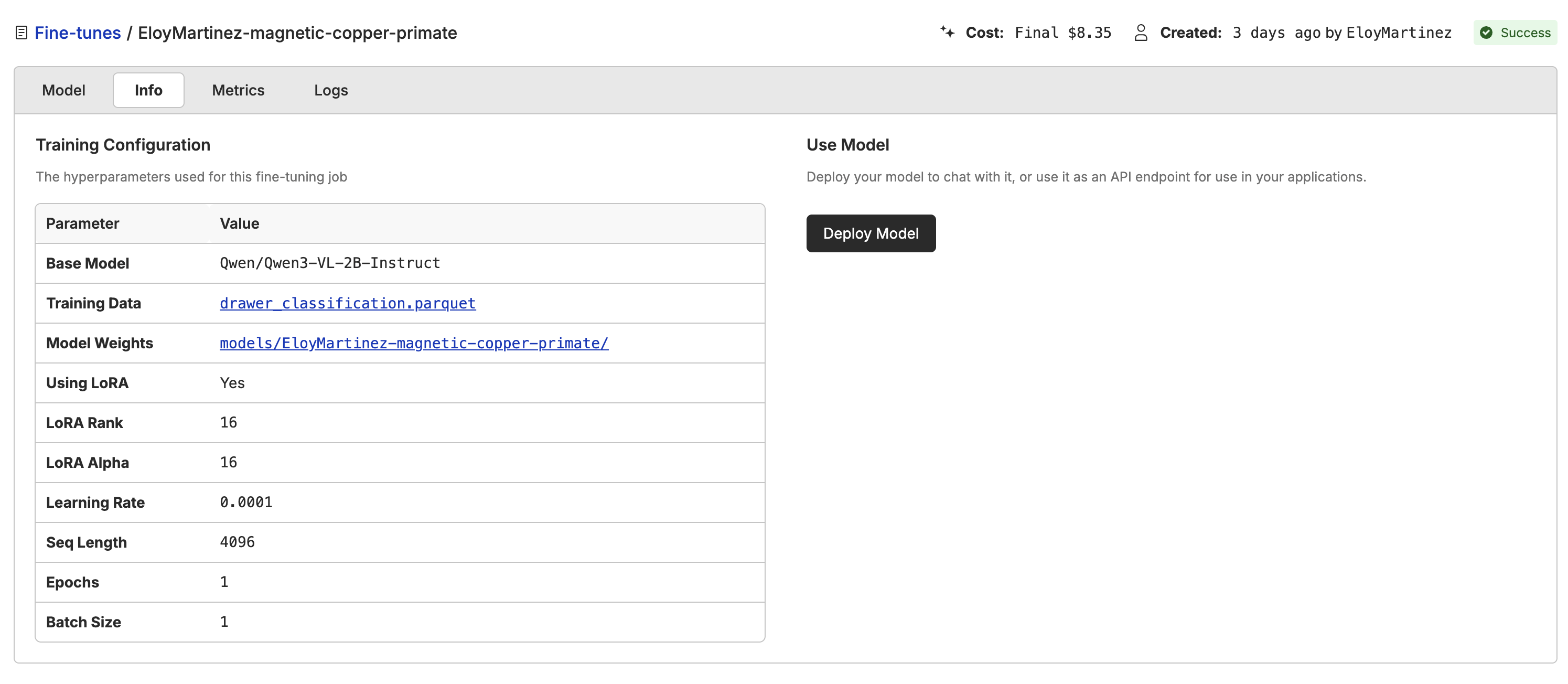
One of the benefits of using Oxen.ai is we give you the flexibility of deploying to our cloud or managing your own infrastructure. If you want to download the model weights, you can click the path to the model weights and download them.